This article shows how to protect a range in a Google Sheet from PHP, and the difference between a hard lock and a warning. It also covers how to protect a whole sheet while leaving one column open — and why none of it stops the script that set it up.
The Excel half of the site covers the same instinct from the other side, in worksheet security settings and document security settings. A Google Sheet, however, has no file to lock and no password to set. So instead, when you protect a range you attach a server-side rule to the spreadsheet about who may edit which cells.
One request creates it. In short, addProtectedRange takes a range, a description shown to whoever bumps into it, and a choice between blocking edits and merely warning about them.
Requirements to protect a range:
- Authenticate With A Service Account
- Create A Google Cloud Project
- Enable Google Sheets API Library
- Install The Google Client Library Specifying Google Sheets
- Composer
- PHP 8.1 or newer
Step 1.
First, set up the dependencies. This is the Sheets-only install used across this series. Tested with google/apiclient 2.19 on PHP 8.5.
{
    "require": {
        "google/apiclient": "^2.12.1"
    },
    "scripts": {
        "pre-autoload-dump": "Google\\Task\\Composer::cleanup"
    },
    "extra": {
        "google/apiclient-services": [
            "Sheets"
        ]
    }
}
Step 2.
Next, install the Google Client Library.
$ composer install
Step 3.
Then build the client and put a small budget table on a fresh tab. In fact two of the three columns are worth protecting: a header nobody should rename, and a figure that an import owns.
<?php

require 'vendor/autoload.php';

use Google\Client;
use Google\Service\Sheets;
use Google\Service\Sheets\BatchUpdateSpreadsheetRequest;
use Google\Service\Sheets\Request;
use Google\Service\Sheets\ValueRange;

$spreadsheetId = 'YOUR_SPREADSHEET_ID';
$keyFile = 'service-account.json';
$tabName = 'Budget';

$client = new Client();
$client->setApplicationName('Range Lock Demo');
$client->setAuthConfig($keyFile);
$client->addScope(Sheets::SPREADSHEETS);

$service = new Sheets($client);

$sheetId = freshSheetId($service, $spreadsheetId, $tabName);

$service->spreadsheets_values->update(
    $spreadsheetId,
    $tabName . '!A1',
    new ValueRange(['values' => [
        ['Department', 'Budget', 'Spent'],
        ['Platform', 48000, 31200],
        ['Data', 36000, 29850],
        ['Design', 22000, 18400],
    ]]),
    ['valueInputOption' => 'USER_ENTERED']
);
Step 4.
First, wrap the request in a helper, because everything that follows differs only in the protected range it describes. The reply is worth keeping too — it carries the generated id you need in order to remove the protection later.
function lockRange(Sheets $service, string $spreadsheetId, array $protectedRange)
{
    $response = $service->spreadsheets->batchUpdate($spreadsheetId, new BatchUpdateSpreadsheetRequest([
        'requests' => [
            new Request(['addProtectedRange' => ['protectedRange' => $protectedRange]]),
        ],
    ]));

    return $response->getReplies()[0]->getAddProtectedRange()->getProtectedRange();
}
Step 5.
Now lock the header row. warningOnly => false is the strict form: in the browser, an editor who is not on the list cannot type in these cells at all. Note that the description is not a comment — it is the text Sheets shows them when they try.
$header = lockRange($service, $spreadsheetId, [
    'range' => [
        'sheetId'          => $sheetId,
        'startRowIndex'    => 0,
        'endRowIndex'      => 1,
        'startColumnIndex' => 0,
        'endColumnIndex'   => 3,
    ],
    'description' => 'Header row - do not edit',
    'warningOnly' => false,
]);

printf("  protectedRangeId     : %d\n", $header->getProtectedRangeId());
printf("  warningOnly          : %s\n", var_export($header->getWarningOnly(), true));
printf("  requestingUserCanEdit: %s\n", var_export($header->getRequestingUserCanEdit(), true));
Step 6.
Now, in the same script, write into the range Step 5 just locked. So far nothing unusual has happened.
$service->spreadsheets_values->update(
    $spreadsheetId,
    $tabName . '!A1',
    new ValueRange(['values' => [['OVERWRITTEN']]]),
    ['valueInputOption' => 'RAW']
);

$value = $service->spreadsheets_values->get($spreadsheetId, $tabName . '!A1')->getValues();

printf("  A1 now reads      : %s\n", $value[0][0]);
Step 7.
Next, the softer form. warningOnly => true lets anyone edit but interrupts them with an “are you sure?” carrying your description. This is the right setting for a column an import owns. Nothing forbids the edit; the next sync simply throws it away, and the person deserves to know that before they spend ten minutes on it.
$spent = lockRange($service, $spreadsheetId, [
    'range' => [
        'sheetId'          => $sheetId,
        'startRowIndex'    => 1,
        'endRowIndex'      => 4,
        'startColumnIndex' => 2,
        'endColumnIndex'   => 3,
    ],
    'description' => 'Spent is imported - edits will be lost',
    'warningOnly' => true,
]);
Step 8.
For a form-shaped sheet, protecting cell by cell is the wrong way round. Instead, give the range nothing but a sheetId and it covers the entire sheet, then punch holes in it with unprotectedRanges. Here the protection covers everything except the Budget figures people actually fill in.
$sheet = lockRange($service, $spreadsheetId, [
    'range'             => ['sheetId' => $sheetId],
    'description'       => 'Whole sheet except Budget',
    'warningOnly'       => true,
    'unprotectedRanges' => [[
        'sheetId'          => $sheetId,
        'startRowIndex'    => 1,
        'endRowIndex'      => 4,
        'startColumnIndex' => 1,
        'endColumnIndex'   => 2,
    ]],
]);
Protections stack rather than replace, which is why the listing later shows all three at once. Finally, removing one takes its id and deleteProtectedRange.
Complete code to protect a range.
<?php

require 'vendor/autoload.php';

use Google\Client;
use Google\Service\Sheets;
use Google\Service\Sheets\BatchUpdateSpreadsheetRequest;
use Google\Service\Sheets\Request;
use Google\Service\Sheets\ValueRange;

$spreadsheetId = 'YOUR_SPREADSHEET_ID';
$keyFile = 'service-account.json';
$tabName = 'Budget';

$client = new Client();
$client->setApplicationName('Range Lock Demo');
$client->setAuthConfig($keyFile);
$client->addScope(Sheets::SPREADSHEETS);

$service = new Sheets($client);

/**
 * Return a brand-new tab with this name, deleting any previous one.
 */
function freshSheetId(Sheets $service, string $spreadsheetId, string $title): int
{
    $requests = [];

    foreach ($service->spreadsheets->get($spreadsheetId)->getSheets() as $sheet) {
        if ($sheet->getProperties()->getTitle() === $title) {
            $requests[] = new Request([
                'deleteSheet' => ['sheetId' => $sheet->getProperties()->getSheetId()],
            ]);
        }
    }

    $requests[] = new Request(['addSheet' => ['properties' => ['title' => $title]]]);

    $response = $service->spreadsheets->batchUpdate($spreadsheetId, new BatchUpdateSpreadsheetRequest([
        'requests' => $requests,
    ]));

    $replies = $response->getReplies();

    return end($replies)->getAddSheet()->getProperties()->getSheetId();
}

/** Add one protected range and return the reply object. */
function lockRange(Sheets $service, string $spreadsheetId, array $protectedRange)
{
    $response = $service->spreadsheets->batchUpdate($spreadsheetId, new BatchUpdateSpreadsheetRequest([
        'requests' => [
            new Request(['addProtectedRange' => ['protectedRange' => $protectedRange]]),
        ],
    ]));

    return $response->getReplies()[0]->getAddProtectedRange()->getProtectedRange();
}

$sheetId = freshSheetId($service, $spreadsheetId, $tabName);

$service->spreadsheets_values->update(
    $spreadsheetId,
    $tabName . '!A1',
    new ValueRange(['values' => [
        ['Department', 'Budget', 'Spent'],
        ['Platform', 48000, 31200],
        ['Data', 36000, 29850],
        ['Design', 22000, 18400],
    ]]),
    ['valueInputOption' => 'USER_ENTERED']
);

// ------------------------------------------------------- a strict protection
$header = lockRange($service, $spreadsheetId, [
    'range' => [
        'sheetId'          => $sheetId,
        'startRowIndex'    => 0,
        'endRowIndex'      => 1,
        'startColumnIndex' => 0,
        'endColumnIndex'   => 3,
    ],
    'description' => 'Header row - do not edit',
    'warningOnly' => false,
]);

printf("Protected the header row.\n");
printf("  protectedRangeId     : %d\n", $header->getProtectedRangeId());
printf("  description          : %s\n", $header->getDescription());
printf("  warningOnly          : %s\n", var_export($header->getWarningOnly(), true));
printf("  requestingUserCanEdit: %s\n", var_export($header->getRequestingUserCanEdit(), true));

// -------------------------------------- and now write straight into it anyway
$service->spreadsheets_values->update(
    $spreadsheetId,
    $tabName . '!A1',
    new ValueRange(['values' => [['OVERWRITTEN']]]),
    ['valueInputOption' => 'RAW']
);

$value = $service->spreadsheets_values->get($spreadsheetId, $tabName . '!A1')->getValues();

printf("\nThe same script then wrote to A1 inside that protected range.\n");
printf("  update() raised   : nothing\n");
printf("  A1 now reads      : %s\n", $value[0][0]);

// --------------------------------------------- naming the editors explicitly
echo "\nTrying to hand the range to one named editor:\n";

try {
    lockRange($service, $spreadsheetId, [
        'range' => [
            'sheetId'          => $sheetId,
            'startRowIndex'    => 0,
            'endRowIndex'      => 1,
            'startColumnIndex' => 0,
            'endColumnIndex'   => 3,
        ],
        'description' => 'nobody but the finance team',
        'warningOnly' => false,
        'editors'     => [
            'users'              => ['someone.else@example.com'],
            'domainUsersCanEdit' => false,
        ],
    ]);

    echo "  accepted\n";
} catch (Google\Service\Exception $e) {
    $error = json_decode($e->getMessage(), true)['error'] ?? [];
    printf("  HTTP %d: %s\n", $e->getCode(), $error['message'] ?? $e->getMessage());
}

// ------------------------------------------------------ a warning protection
$spent = lockRange($service, $spreadsheetId, [
    'range' => [
        'sheetId'          => $sheetId,
        'startRowIndex'    => 1,
        'endRowIndex'      => 4,
        'startColumnIndex' => 2,
        'endColumnIndex'   => 3,
    ],
    'description' => 'Spent is imported - edits will be lost',
    'warningOnly' => true,
]);

printf("\nProtected the Spent column with warningOnly.\n");
printf("  protectedRangeId : %d\n", $spent->getProtectedRangeId());
printf("  warningOnly      : %s\n", var_export($spent->getWarningOnly(), true));

// ------------------------------------- protect the sheet except for one column
$sheet = lockRange($service, $spreadsheetId, [
    'range'             => ['sheetId' => $sheetId],
    'description'       => 'Whole sheet except Budget',
    'warningOnly'       => true,
    'unprotectedRanges' => [[
        'sheetId'          => $sheetId,
        'startRowIndex'    => 1,
        'endRowIndex'      => 4,
        'startColumnIndex' => 1,
        'endColumnIndex'   => 2,
    ]],
]);

printf("\nProtected the whole sheet, leaving Budget editable.\n");
printf("  protectedRangeId : %d\n", $sheet->getProtectedRangeId());

// ----------------------------------------------------------------- list them
$meta = $service->spreadsheets->get($spreadsheetId, [
    'fields' => 'sheets(properties(sheetId),protectedRanges(protectedRangeId,description,warningOnly,requestingUserCanEdit))',
]);

foreach ($meta->getSheets() as $sheetMeta) {
    if ($sheetMeta->getProperties()->getSheetId() !== $sheetId) {
        continue;
    }

    printf("\nProtected ranges on this sheet:\n");

    foreach ($sheetMeta->getProtectedRanges() as $range) {
        printf("  %-11d warningOnly=%-5s canEdit=%-4s %s\n",
            $range->getProtectedRangeId(),
            var_export($range->getWarningOnly(), true),
            var_export($range->getRequestingUserCanEdit(), true),
            $range->getDescription()
        );
    }
}

// --------------------------------------------------------------- remove one
$service->spreadsheets->batchUpdate($spreadsheetId, new BatchUpdateSpreadsheetRequest([
    'requests' => [
        new Request(['deleteProtectedRange' => ['protectedRangeId' => $spent->getProtectedRangeId()]]),
    ],
]));

printf("\nDeleted protectedRangeId %d.\n", $spent->getProtectedRangeId());
Test how to protect a range.
$ php protect.php
Result of the code to protect a range.
Protected the header row.
  protectedRangeId     : 1014352507
  description          : Header row - do not edit
  warningOnly          : NULL
  requestingUserCanEdit: true

The same script then wrote to A1 inside that protected range.
  update() raised   : nothing
  A1 now reads      : OVERWRITTEN

Trying to hand the range to one named editor:
  HTTP 400: Invalid requests[0].addProtectedRange: Invalid user: "someone.else@example.com".

Protected the Spent column with warningOnly.
  protectedRangeId : 788791720
  warningOnly      : true

Protected the whole sheet, leaving Budget editable.
  protectedRangeId : 1992311037

Protected ranges on this sheet:
  1014352507  warningOnly=NULL  canEdit=true Header row - do not edit
  1992311037  warningOnly=true  canEdit=true Whole sheet except Budget
  788791720   warningOnly=true  canEdit=true Spent is imported - edits will be lost

Deleted protectedRangeId 788791720.
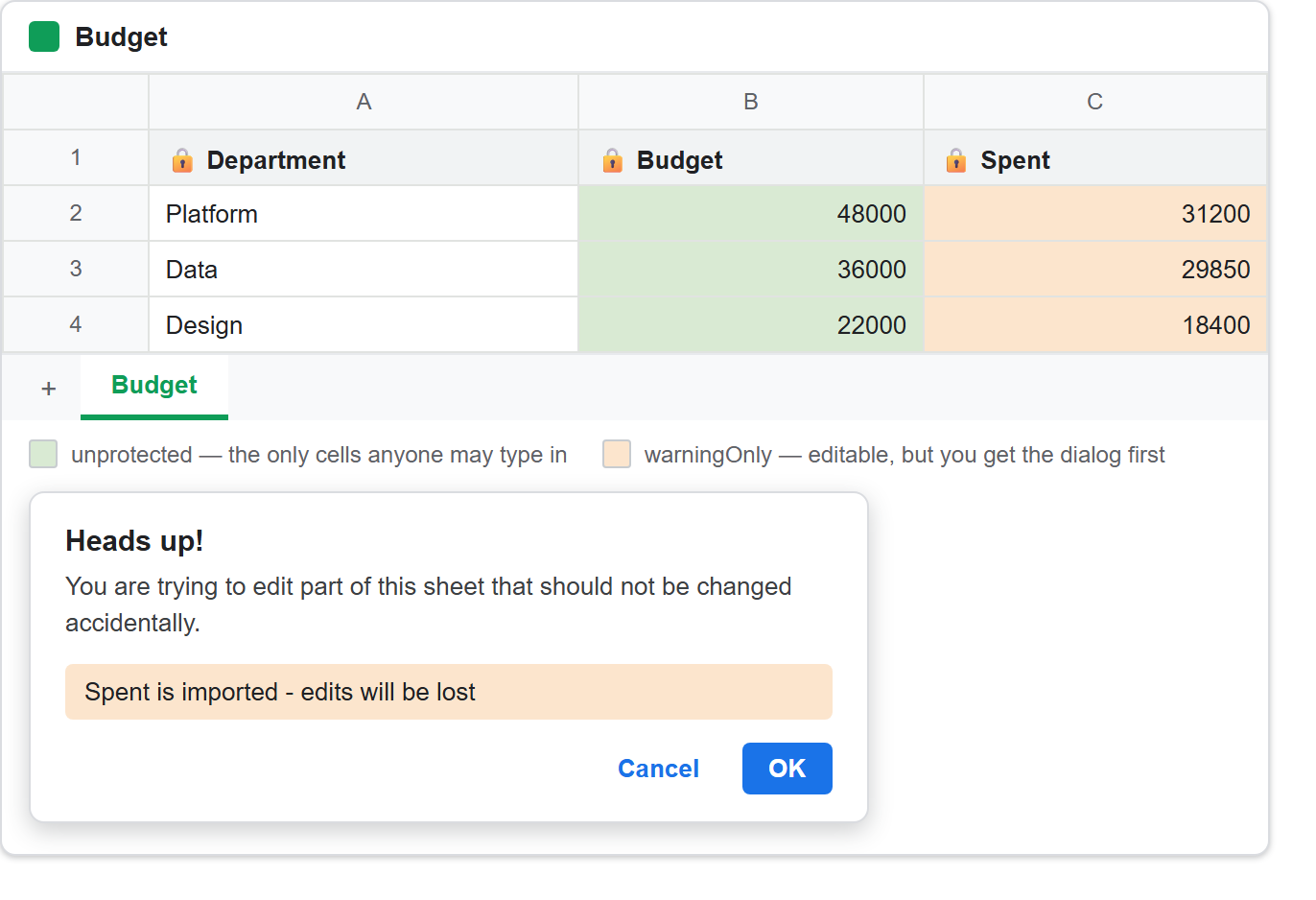
Protect a range and it still will not stop you.
Steps 5 and 6 are the whole point. Step 5 protected the header row with warningOnly => false, the strictest setting there is. Then the very next request wrote OVERWRITTEN into A1, and the API accepted it without so much as a warning.
The reason sits in the line above it: requestingUserCanEdit: true. When an account creates a protected range it automatically becomes one of that range’s editors — and editors are exactly who the protection ignores.
Nor is this a default you can talk the API out of. Supply an editors list that leaves out the calling account, and the API refuses the request outright:
Invalid requests[0].addProtectedRange: You can't remove yourself as an editor.
So the practical rule is blunt. When you protect a range you build a guard rail for people using the browser, not access control for your code. If two of your own scripts must not tread on each other’s cells, protection will not arrange that — nothing about it binds the account that owns it.
Note that the actual run shows a different error. someone.else@example.com is not a real Google account, and Google validates addresses before it ever considers the self-removal rule:
Invalid requests[0].addProtectedRange: Invalid user: "someone.else@example.com".
That is worth knowing on its own. An editors.users list is not free text — every address in it has to resolve to an account Google recognises. As a result, a typo in a config file fails the whole batch instead of quietly skipping one name.
Protect a range with warningOnly false, and read back null.
Here is a small thing that will waste an afternoon if it catches you. Step 5 created the header row with 'warningOnly' => false, yet both the reply and the later listing report it as NULL:
1014352507  warningOnly=NULL  canEdit=true Header row - do not edit
788791720   warningOnly=true  canEdit=true Spent is imported - edits will be lost
The API omits fields that hold their default value, and the default for warningOnly is false. Nothing was lost — the range is strictly protected — but the field you set is not the field you get back.
So code that audits protections has to read it as “null means strict”. A check like if ($range->getWarningOnly() === false) matches nothing at all, and the strict protections are precisely the ones it went looking for.
Protect a range covering everything, then unprotect a little.
Step 8 is the pattern worth stealing. A range consisting only of sheetId, with no row or column bounds, means the whole sheet. Then unprotectedRanges carves out the parts that stay editable.
Written the other way round, a data-entry sheet needs one protected range per block of formulas, labels and headings — and every column somebody adds later stays open until they remember. Inverted, the default is locked and one place lists the exceptions:
protect  the sheet
unprotect  B2:B4   <- the only cells anyone is meant to type in
For example, PhpSpreadsheet reaches the same arrangement from the opposite direction, and it is worth seeing both: excluding certain cells from protection protects the sheet and then unlocks individual cells, because in xlsx the lock is a per-cell style rather than a list of ranges.
In addition, combine it with data validation on those open cells and you have most of a usable form: a sheet where there is exactly one place to type, and only sensible things to type in it.
References to protect a range:
- Add A Dropdown To A Google Sheet Using Google Sheets API PHP Client
- Authenticate With A Service Account Using Google Sheets API PHP Client
- Create Xlsx Files With Worksheet Security Settings
- Create Xlsx Files Excluding Certain Cells From Protection
- AddProtectedRangeRequest reference
- ProtectedRange reference