One condition is rarely enough for long. Sooner or later the question becomes North sales in January, and SUMIF cannot ask it. The SUMIFS function can, with as many conditions as you need.
In fact, it is SUMIF with room for more tests. Yet it does not simply add arguments to the end, because the column it adds moves to the front.
For example, sales by region and month, hours by person and project, and orders by status and date all fit this one formula. All of them fail the same way when you copy the argument order from SUMIF.
The SUMIFS function.
So give it the column to add first, then pairs of range and condition.
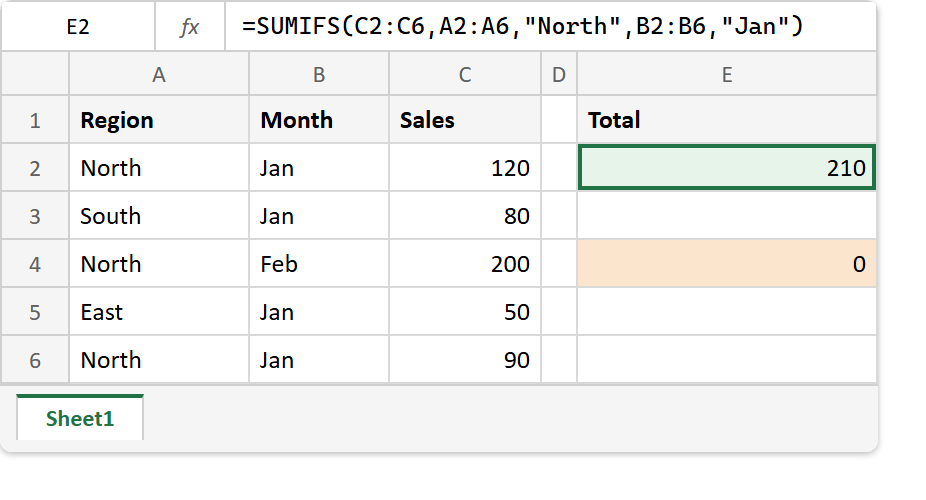
=SUMIFS(C2:C6,A2:A6,"North",B2:B6,"Jan")
The SUMIFS function adds a row only when every pair matches. Here that means the region is North and the month is Jan, so two of the five rows qualify. In short, the conditions combine as AND.
Also, each condition uses the same text rules as SUMIF, so ">100", "N*" and a joined cell reference all work unchanged.
The sum range moves to the front.
Here is the trap. In SUMIF the column to add comes last; in SUMIFS it comes first.
=SUMIF(A2:A6,"North",C2:C6)
=SUMIFS(C2:C6,A2:A6,"North")
Both lines return 410. Now suppose you remember “range first” and write =SUMIFS(A2:A6,B2:B6,"Jan"). Excel happily adds the region names, finds no numbers there and returns 0, without an error.
Furthermore, every range must be the same size. Unlike SUMIF, which silently stretches a short range, SUMIFS returns #VALUE! when one range is shorter than the rest.
Result of the SUMIFS function.
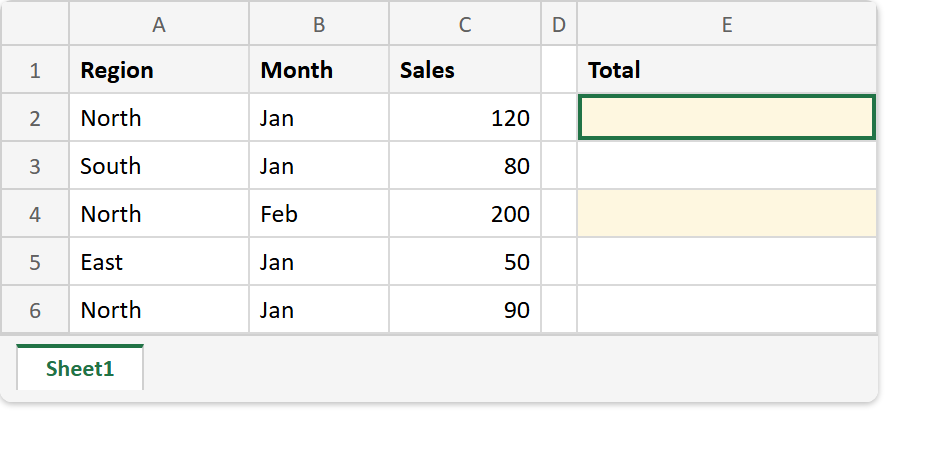
Before. Five sales, each with a region and a month.
After. Two conditions give 210, while the SUMIF argument order gives 0.
A2:A6  ->  North, South, North, East, North
B2:B6  ->  Jan, Jan, Feb, Jan, Jan
C2:C6  ->  120, 80, 200, 50, 90

=SUMIFS(C2:C6,A2:A6,"North",B2:B6,"Jan")   ->  210   (120 + 90)
=SUMIF(A2:A6,"North",C2:C6)                ->  410
=SUMIFS(A2:A6,B2:B6,"Jan")                 ->  0     (adds text)
=COUNTIFS(A2:A6,"North",B2:B6,"Jan")       ->  2
For OR rather than AND, add two formulas together: =SUMIFS(C2:C6,A2:A6,"North")+SUMIFS(C2:C6,A2:A6,"East") returns 460.
Lastly, COUNTIFS is the counting twin, and it has no sum range to misplace, so its arguments are simply pairs. For the one-condition version, see SUMIF, and for counting with one condition, COUNTIF.