A link inserted by hand points at one fixed address. The HYPERLINK function builds the address with a formula, so a whole column of links can come from the data next to it.
In fact, that is what makes a clickable index of sheets, a list of order pages or a column of email links possible without editing a single link.
However, a link to another sheet in the same workbook needs one extra character that is easy to leave out.
The HYPERLINK function.
So give it an address and, optionally, the text to show.
=HYPERLINK("https://spreadsheet-coding.com","Open the site")The cell shows Open the site, styled as a link, and a click opens the address. Leave out the second argument and the cell shows the address itself.
Also, the address can be any text, so it can be built from other cells. For example, =HYPERLINK("mailto:"&C2,"Email") turns a column of addresses into a column of email links.
A link inside the workbook needs a #.
Next, point a link at another sheet. The address starts with a hash sign.
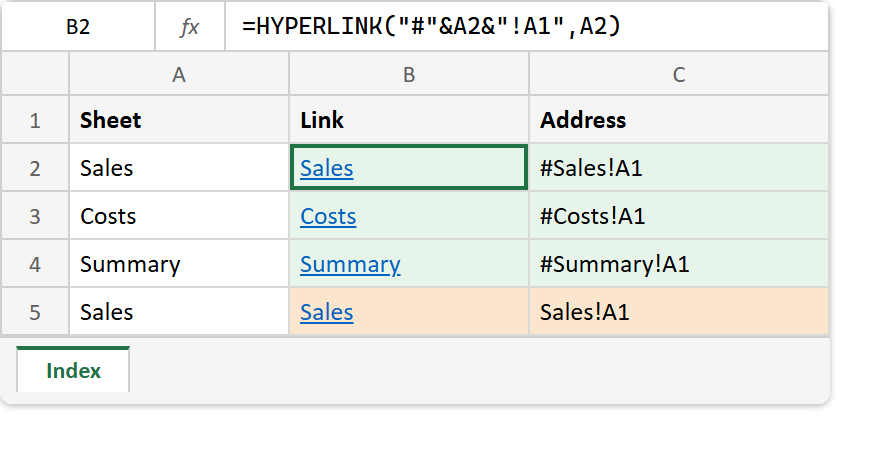
=HYPERLINK("#"&A2&"!A1",A2)With Sales in A2, this builds #Sales!A1 and jumps to cell A1 of the Sales sheet. The HYPERLINK function reads the # as “this workbook”.
Without it, Excel does not read Sales!A1 as a place in this workbook. As a result, the cell looks exactly like a working link, and only the click fails, with an error.
Microsoft’s own examples name the workbook instead, as in [Book1.xlsx]Sales!A1. The # is simply the shorter way to say the same thing.
Result of the HYPERLINK function.
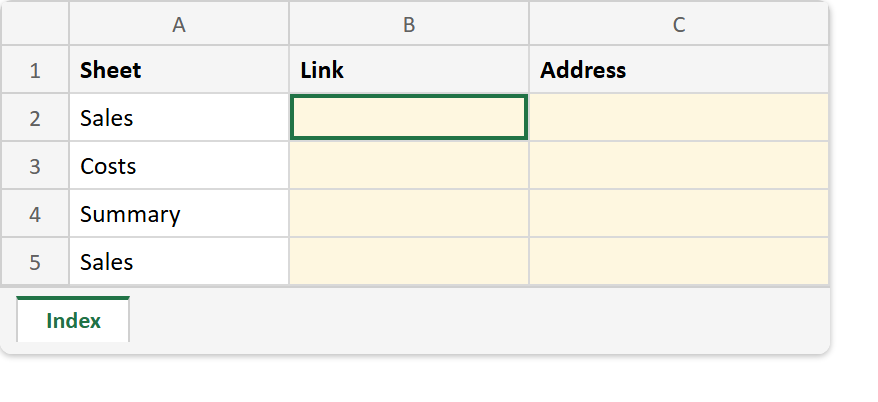
Before. An Index sheet with sheet names down column A, and nothing to click yet.
After. One link per sheet, built from the name beside it, plus one address that is missing its hash sign.
A2 -> Sales
A3 -> Costs
A4 -> Summary

=HYPERLINK("#"&A2&"!A1",A2)   ->  Sales      (jumps to Sales!A1)
=HYPERLINK("#"&A3&"!A1",A3)   ->  Costs
=HYPERLINK("#"&A4&"!A1",A4)   ->  Summary
=HYPERLINK("https://spreadsheet-coding.com","Open the site")
=HYPERLINK(A2&"!A1",A2)       ->  Sales      (no #: the click fails)
The first three rows and the last one look identical on screen, so the hash sign only shows up in the formula bar. Therefore, click each built link once before sharing the workbook.
Since the address is plain text, CONCAT or the ampersand can build it. To set links on cells from code instead, see creating Excel files with text links in PHP. And for why HYPERLINK in exported data is a risk, see preventing formula injection.