One formula turns a first name in one cell and a last name in another into a full name. The CONCAT function does the joining, and there is exactly one place it surprises people.
Two functions do the work. CONCAT glues text together — one argument or twenty, cells or literals, or a whole range in a single reference. CONCATENATE is the older function it replaces, and it takes its cells one at a time.
Joining a first and last name is the smallest useful thing a spreadsheet can do, and it is the same move behind every full address, SKU and file name you will ever build. Learn the one formula below and the rest are variations on it.
The CONCAT function.
Put a first name in A2 and a last name in B2, then join them with a space between.
=CONCAT(A2," ",B2)
Literal text goes in quotes, cells do not. That is the whole syntax.
The ampersand does the same job, so =A2&" "&B2 returns the same full name. However, you retype the operator between every pair. The CONCAT function keeps its arguments in one list instead, which still reads clearly at ten values.
Why not CONCATENATE.
CONCATENATE takes cells one at a time, so joining ten of them means ten arguments. CONCAT takes the range instead.
=CONCAT(A2:B2)
Empty cells in that range are skipped rather than turned into blanks, and numbers come through as text.
Dates are the exception worth knowing. A date joined this way arrives as its serial number rather than as a date. Therefore, wrap it in TEXT first to keep the formatting you see on screen.
Result of the CONCAT function.
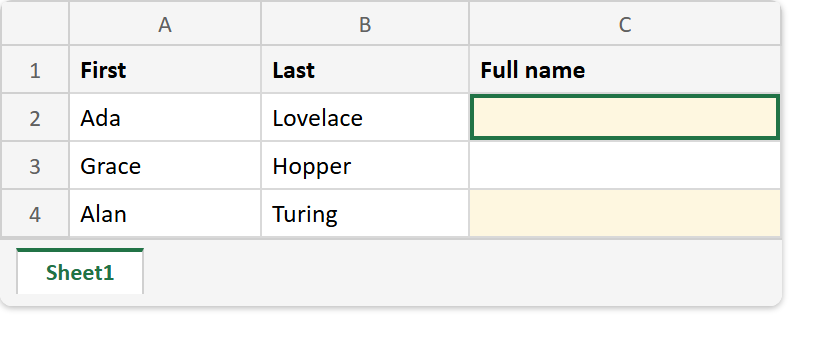
Before. The two names are in place and C2 is empty.
After. One formula in C2, and the range form in C4 for comparison.
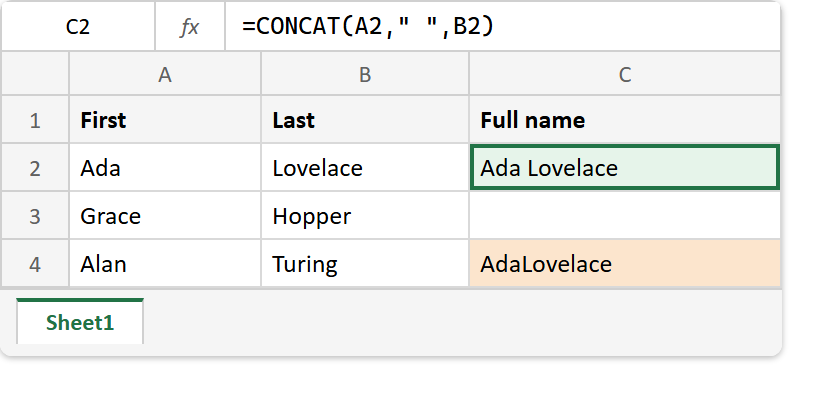
A2    ->  Ada
B2    ->  Lovelace

=CONCAT(A2," ",B2)  ->  Ada Lovelace
=CONCAT(A2:B2)      ->  AdaLovelace
Note the second one. CONCAT puts nothing between the values, so a range join runs the words together — which is the one thing it cannot fix for you.
If you want a separator between every value rather than typing one in yourself, that is TEXTJOIN‘s job.