Sorting a list shows you who came first, but it moves the rows. The RANK function writes each value’s position beside it instead. The sheet keeps its order, and a column of scores gains a column of places.
In fact, RANK has two newer names. RANK.EQ is the same function renamed, and RANK.AVG is its sibling that treats ties differently, so everything here applies to RANK.EQ unchanged.
However, ties are where RANK surprises people. Two equal values share a rank, and Excel skips the rank after them. So a list of five can have no fifth place at all.
The RANK function.
So give it the value to place and the list to place it in. Lock the list so the formula copies down.
=RANK(B2,$B$2:$B$6)
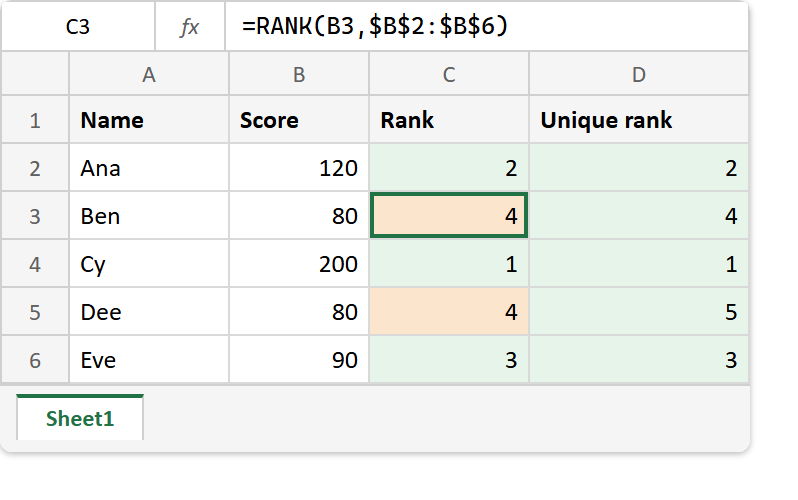
Scores of 120, 80, 200, 80 and 90 rank 2, 4, 1, 4 and 3. The largest value gets rank 1. As Microsoft’s reference puts it, an omitted or zero third argument ranks the list as if sorted in descending order. Also, RANK ignores text in the list, and a value missing from the list returns #N/A.
Next, flip the order when small is good.
=RANK(B2,$B$2:$B$6,1)
Any non-zero third argument ranks the smallest value first, so the two 80s become 1 and the 200 becomes 5. That is the version a race time or a golf score wants.
Ties skip the next rank.
Then look at the two 80s.
=RANK(B3,$B$2:$B$6)
Both return 4, and nobody returns 5. Microsoft’s reference says duplicate numbers get the same rank and that their presence affects the ranks of the numbers that follow. As a result, a leaderboard that looks up fifth place finds nothing. A top-five list built from the ranks comes out one short.
To give every row its own place, break the tie by how many times the value has already appeared above it.
=RANK(B2,$B$2:$B$6)+COUNTIF($B$2:B2,B2)-1
Copied down, the first 80 stays 4 and the second becomes 5. The COUNTIF range grows one row at a time, so it counts the earlier 80. Alternatively, RANK.AVG gives both 80s the average of the places they occupy, which is 4.5 here. Microsoft’s reference describes that as its one difference from RANK.EQ.
Result of the RANK function.
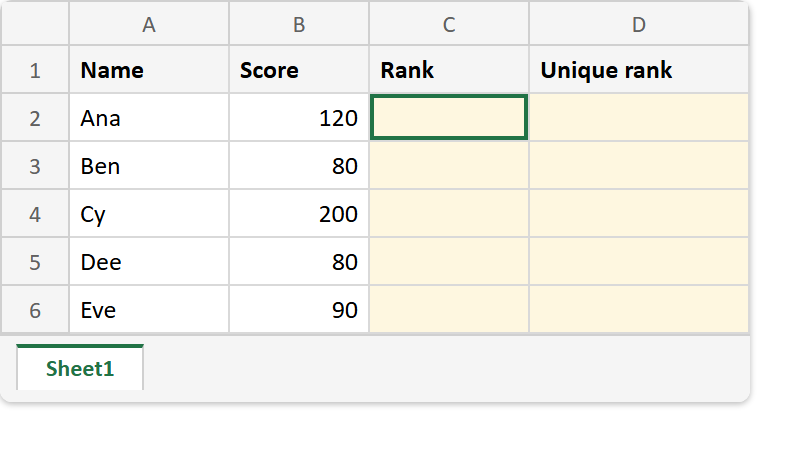
Before. Five scores with two of them equal, and the Rank and Unique rank columns empty.
After. Two fourth places and no fifth, then the tie-break giving the second 80 the fifth place.
B2:B6 -> 120, 80, 200, 80, 90

=RANK(B2,$B$2:$B$6)                        ->  2, 4, 1, 4, 3   (no 5)
=RANK(B2,$B$2:$B$6)+COUNTIF($B$2:B2,B2)-1  ->  2, 4, 1, 5, 3
=RANK(B2,$B$2:$B$6,1)                      ->  4, 1, 5, 1, 3   (smallest first)
=RANK(999,B2:B6)                           ->  #N/A
=RANK.AVG(B3,$B$2:$B$6)                    ->  4.5             (Microsoft's reference)
So rank in place when the rows must stay where they are, and add the tie-break before you build anything on the numbers. For the middle rank by its own name, see the MEDIAN function. When you would rather move the rows than label them, SORTBY reorders them by the score column.