Typing a date into a cell works until the parts arrive separately. The year, the month and the day may sit in three columns, or come out of other formulas, and the DATE function builds a real date from those three numbers, so the result sorts, subtracts and formats like any other date.
In fact, DATE is the inverse of three smaller functions. YEAR, MONTH and DAY each pull one part out of an existing date, and DATE puts the parts back together. That round trip is how a formula shifts a date by a month or jumps to the first of the year.
However, DATE never complains about a month of 13 or a day of 0. It rolls the calendar forward or back instead, and that is either a silent error or the most useful trick in the card, depending on whether you knew.
The DATE function.
So give it the year, the month and the day, in that order.
=DATE(A2,B2,C2)
With 2026, 10 and 25 in A2:C2 it returns 25 October 2026. Also, like every date function, it really returns a serial number, so a fresh cell shows 46320 until you give it a date format. Microsoft’s reference describes dates as sequential serial numbers for exactly this reason.
Next, take a date apart again with its three inverses.
=YEAR(D2)
That returns 2026, while =MONTH(D2) returns 10 and =DAY(D2) returns 25. Consequently, =DATE(YEAR(D2),MONTH(D2),1) is the first day of whatever month D2 is in.
The arguments roll over.
Then try a month that does not exist.
=DATE(2026,13,1)
That returns 1 January 2027, not an error. Microsoft’s reference says a month above 12 adds that many months to the first month of the year. The same rule runs backwards for the day, so =DATE(2026,3,0) is 28 February 2026, the day before the first of March. As a result, =DATE(YEAR(D2),MONTH(D2)+1,0) is the last day of D2’s month, which is the same cell EOMONTH returns.
Meanwhile, the rollover hides mistakes just as quietly. =DATE(2026,2,30) is 2 March, because February ran out. Similarly, a two-digit year is not this century. =DATE(26,1,1) is 1 January 1926, since years from 0 to 1899 have 1900 added to them.
Result of the DATE function.
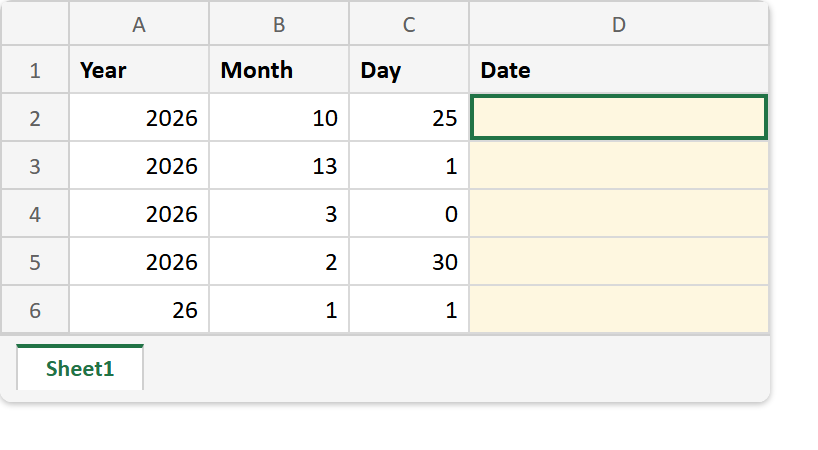
Before. Five rows of year, month and day, three of them deliberately out of range, with the Date column empty.
After. One real date, then the month, day and year rolling over instead of erroring.
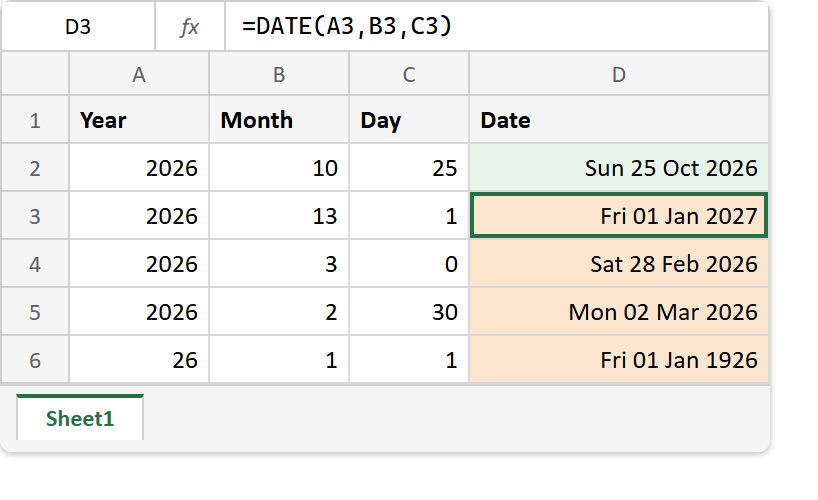
=DATE(2026,10,25)                ->  46320  =  Sun 25 Oct 2026
=DATE(2026,13,1)                 ->  46388  =  Fri 01 Jan 2027   (month 13)
=DATE(2026,3,0)                  ->  46081  =  Sat 28 Feb 2026   (day 0)
=DATE(2026,2,30)                 ->  46083  =  Mon 02 Mar 2026   (30 February)
=DATE(26,1,1)                    ->  9498   =  Fri 01 Jan 1926   (two-digit year)
=DATE(YEAR(D2),MONTH(D2)+1,0)    ->  46326  =  Sat 31 Oct 2026   (same as EOMONTH)
So use DATE whenever the parts of a date arrive separately, and check the parts before you trust the result. For the end-of-month shortcut by its own name, see the EOMONTH function. Once you have two real dates, DATEDIF measures the gap between them.