Subtracting one date from another gives you days, which is rarely the unit anyone asked for. The DATEDIF function counts the whole years, months or days between two dates instead, which is exactly what an age needs.
In fact, it is the standard answer to “how old is this person” and “how long has this contract run”. Yet you will not find it in Excel’s list of functions.
So this is the one function you have to type from memory. Once you know that, it works like any other.
The DATEDIF function.
Give it a start date, an end date and a unit in quotes.
=DATEDIF(A2,B2,"Y")
The unit decides what gets counted. "Y" counts complete years, "M" complete months and "D" days. In short, the DATEDIF function always rounds down, so someone born in May 1990 is 36 on 26 Sep 2026, not 36 and a bit.
For a live age, use TODAY() as the end date: =DATEDIF(A2,TODAY(),"Y"). Then the age moves forward on its own, every birthday.
Excel hides this function.
Here is the strange part. Start typing =DATED and autocomplete offers nothing, and the Insert Function dialog does not list it either.
=DATEDIF(A4,B4,"Y")
It still works, because Excel keeps it only for old Lotus 1-2-3 workbooks. However, that also means no argument hints appear while you type, so the order is on you: start first, then end. Swap them and it returns #NUM! rather than a negative number.
Also, one unit is best avoided. Microsoft’s own page warns that "MD", the days left over after whole months, can return a negative number, a zero or an inaccurate result.
Result of the DATEDIF function.
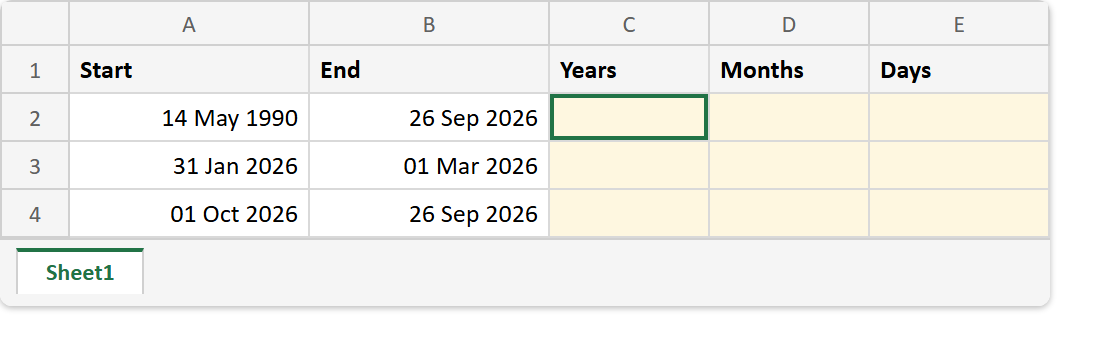
Before. Three pairs of dates, the last one entered the wrong way round.
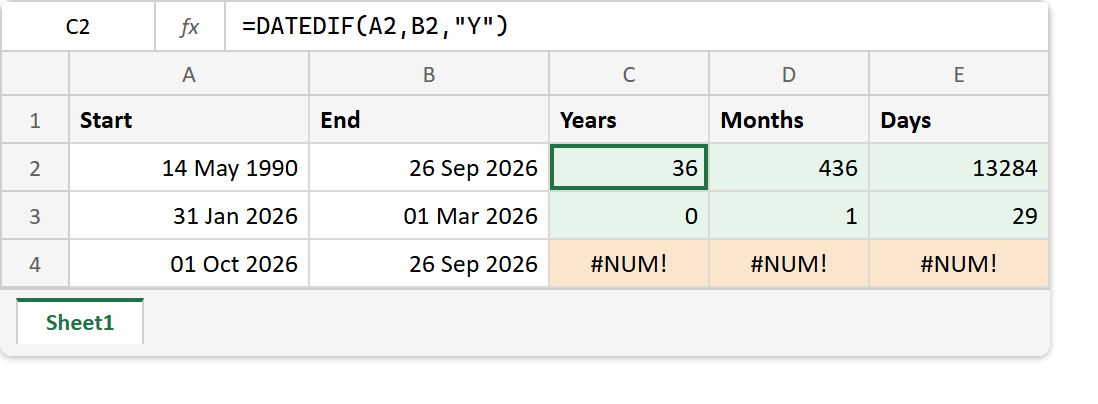
After. Whole years, months and days for the first two rows, and #NUM! for the reversed one.
A2 -> 14 May 1990    B2 -> 26 Sep 2026
A3 -> 31 Jan 2026    B3 -> 01 Mar 2026
A4 -> 01 Oct 2026    B4 -> 26 Sep 2026

=DATEDIF(A2,B2,"Y")   ->  36
=DATEDIF(A2,B2,"M")   ->  436
=DATEDIF(A2,B2,"D")   ->  13284
=DATEDIF(A3,B3,"M")   ->  1       (one complete month)
=DATEDIF(A4,B4,"Y")   ->  #NUM!   (start is after end)
Row 3 shows the rounding down at work. Although 31 Jan to 01 Mar spans parts of three months, only one of them is complete.
For today’s date as the end, see TODAY. And to write real dates into a file from code, see creating Excel files with date and time data in PHP.