MAX gives you the largest number in a range. The MAXIFS function gives you the largest number among the rows that match one or more conditions, such as the biggest North sale or the highest score in one class.
In fact, MINIFS is the same function pointed the other way. Both take exactly the same arguments, so everything below applies to the smallest match as well.
However, there is one case where the MAXIFS function answers with a number when it should really admit that it found nothing. That case is the reason to read on.
The MAXIFS function.
So give it the range to search for the maximum first, then pairs of a range to test and a condition.
=MAXIFS(B2:B6,A2:A6,"North")
Three rows say North, with sales of 120, 200 and 90, so it returns 200. Likewise =MINIFS(B2:B6,A2:A6,"North") returns 90.
Also, the order is the same as SUMIFS: the range that holds the answer comes first, and the conditions follow. Add another pair to narrow it further, so =MAXIFS(B2:B6,A2:A6,"North",B2:B6,"<150") returns 120, the largest North sale under 150.
No match returns zero.
Next, ask for a region that is not in the list.
=MAXIFS(B2:B6,A2:A6,"West")
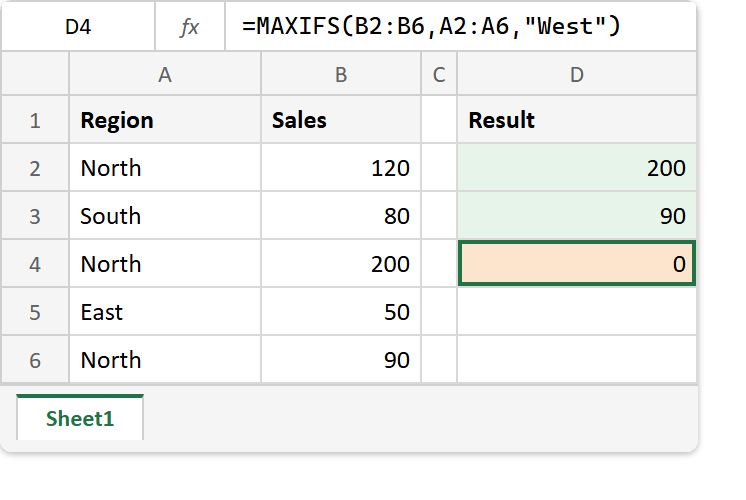
That returns 0, not an error. MINIFS does the same. As a result, a summary can report the best West sale as 0, which reads like a real result rather than a missing one.
This matters most where 0 is a believable value. For example, a lowest price of 0 looks like a free item, and on a column of losses a maximum of 0 looks like a break-even month. So test for a match first when the difference matters.
=IF(COUNTIF(A2:A6,"West"),MAXIFS(B2:B6,A2:A6,"West"),"none")
Result of the MAXIFS function.
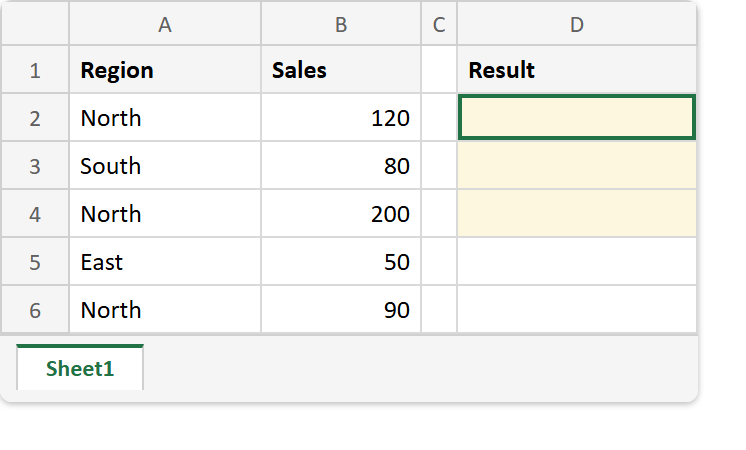
Before. Five sales across three regions, with the result column empty.
After. North’s largest and smallest sales, then a region with no rows that still returns 0.
=MAXIFS(B2:B6,A2:A6,"North")                                  ->  200
=MINIFS(B2:B6,A2:A6,"North")                                  ->  90
=MAXIFS(B2:B6,A2:A6,"West")                                   ->  0
=MINIFS(B2:B6,A2:A6,"West")                                   ->  0
=MAXIFS(B2:B6,A2:A6,"North",B2:B6,"<150")                     ->  120
=IF(COUNTIF(A2:A6,"West"),MAXIFS(B2:B6,A2:A6,"West"),"none")  ->  none
The MAXIFS function needs Excel 2019 or later, and an older version shows #NAME? instead. Its argument order matches SUMIFS, and the match test above uses COUNTIF.