A date in a cell is really a number, so joining it to a sentence hands you 46269 instead of a date. The TEXT function is what prevents that, because it returns the formatted version as genuine text.
One function does the work. TEXT takes a value and a format code, then returns that value written out the way the code describes. The codes are the same vocabulary as the Custom number format box, so anything you can display you can also produce.
Every report heading, file name and joined label runs into this eventually. A number that reads perfectly on screen arrives raw the moment it is glued to other text, and one short formula below is the fix.
The TEXT function.
Point it at a value, then say how that value should be written.
=TEXT(A2,"dd mmm yyyy")
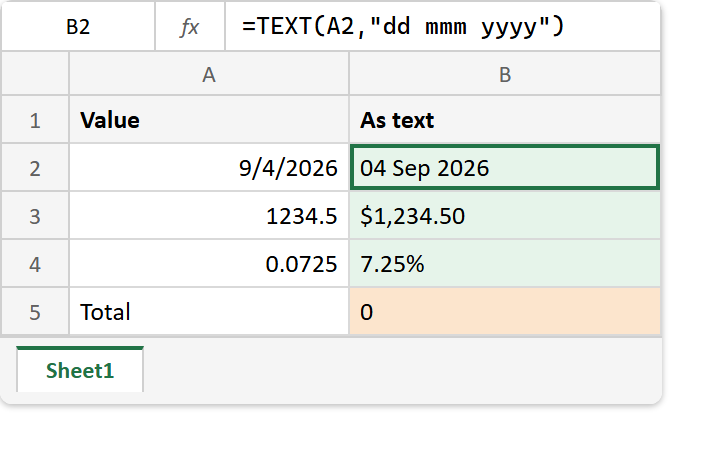
Two arguments, and the second one is a string in quotes. The TEXT function reads that string as a format code, so "dd mmm yyyy" gives back 04 Sep 2026.
Numbers use the same vocabulary. "$#,##0.00" adds the currency symbol and the thousands separator, while "0.00%" multiplies by a hundred and appends the sign. In short, if the Custom number format box accepts a code, so does this function.
The result is text now.
Here is the trade. What comes back is text, and it therefore stops behaving like a number.
=SUM(B2:B4)
That sum returns zero. SUM skips text, so a column of beautifully formatted values adds up to nothing at all.
Sorting goes the same way. Dates turned into text sort alphabetically rather than by date, so April lands before January. Still, the tell is visible if you look: Excel right-aligns numbers and left-aligns text, so the column jumps sides the moment the formula lands.
Therefore use it for display and joining only. Keep the real number in its own cell, and format that one with the number format box instead.
Result of the TEXT function.
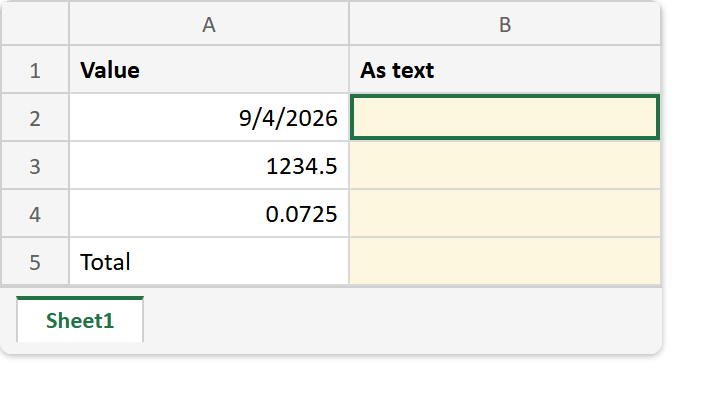
Before. Three raw values sitting on the right of their cells, because Excel stores all three as numbers.
After. The same three values formatted, now sitting on the left of their cells, and a Total of zero underneath them.
A2  ->  9/4/2026     (really the serial 46269)
A3  ->  1234.5
A4  ->  0.0725

=TEXT(A2,"dd mmm yyyy")  ->  04 Sep 2026
=TEXT(A3,"$#,##0.00")    ->  $1,234.50
=TEXT(A4,"0.00%")        ->  7.25%
=SUM(B2:B4)              ->  0
The last line is the one that costs money. Of course the three results above it are exactly right, yet not one of them is a number any more.
To change the stored value rather than only its picture, that is ROUND‘s job instead.