The TEXTSPLIT function takes one piece of text and a delimiter, then returns the pieces as separate cells. That is the job Text to Columns has always done, except Text to Columns is a wizard that overwrites your data once, whereas the TEXTSPLIT function is a formula that keeps splitting as the data changes.
It also splits in two directions. Give it a column delimiter and it spreads sideways; give it a row delimiter as well and one formula turns a single string into a whole grid.
This site does the same split from the other direction too. Convert A CSV File To Excel In PHP Using PHPSpreadSheet splits on a delimiter on the way in, while the file is being built, which is right when a program owns the import. Here the data has already landed and we split it where it sits.
One note before starting. These functions are newer than the dynamic array wave, so the version section below is worth reading rather than skipping.
Requirements for the TEXTSPLIT function:
- Microsoft 365, Excel 2024, or Excel for the web
- A workbook you can edit
- Nothing to install, because the TEXTSPLIT function ships with Excel
Excel 2021 is not enough here. It has the dynamic array engine, so SEQUENCE and FILTER work, but the text-splitting family arrived later and Excel 2021 returns #NAME? for all three functions in this article.
Step 1.
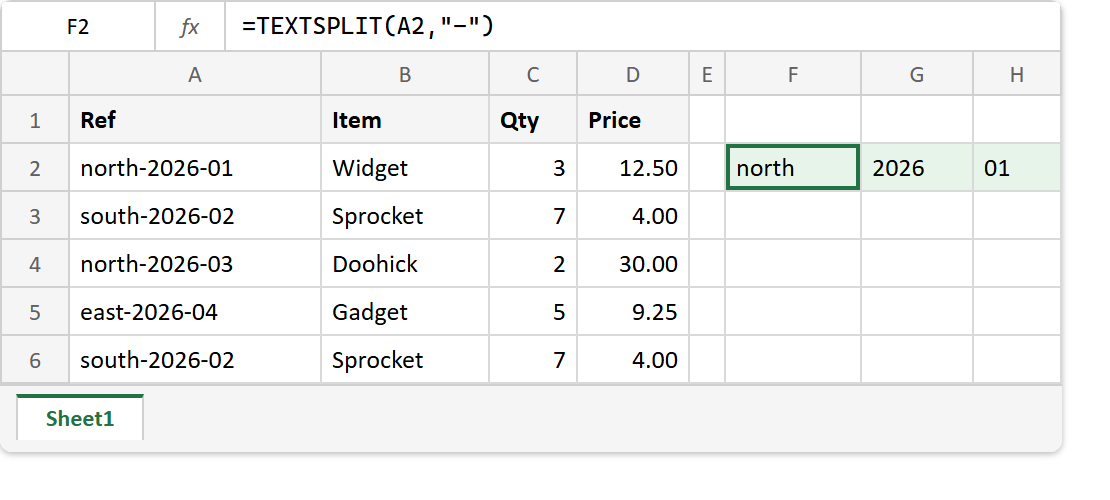
First, lay the table out in A1:D6. Column A holds a compound reference, which is the column we are going to take apart. Two rows are deliberately identical, because a later step depends on that.
Ref             Item      Qty   Price
north-2026-01   Widget    3     12.50
south-2026-02   Sprocket  7     4.00
north-2026-03   Doohick   2     30.00
east-2026-04    Gadget    5     9.25
south-2026-02   Sprocket  7     4.00
Step 2.
Next, split one reference into its parts. Two arguments: the text, and what to split on.
=TEXTSPLIT(A2,"-")
That spills into three cells across — region, year and number. Notice there is no character counting anywhere. The formula does not care that north is five letters and east is four, which is precisely where the old string functions start to hurt.
Step 3.
Then take one piece rather than all of them. TEXTBEFORE and TEXTAFTER are the same idea narrowed to a single answer.
=TEXTBEFORE(A2,"-")
=TEXTAFTER(A2,"-")
The first returns north. However the second returns 2026-01, not 2026 — it gives you everything after the delimiter, including any further delimiters. That surprises people once and then never again.
Step 4.
Now the argument that is most often misread. The third argument is an instance number, not a character position.
=TEXTAFTER(A2,"-",2)
That means “after the second dash”, so it returns 01. It does not mean “after character two”. Consequently a negative value counts delimiters from the right instead, which is the tidy way to grab a last segment of unknown depth.
=TEXTBEFORE(A2,"-",-1)
That returns north-2026: everything before the last dash. Therefore you can peel a value off either end without knowing how many segments sit in the middle.
Step 5.
Finally, split the whole column in one formula rather than filling one down. Join the column with a row delimiter first, then hand both delimiters to the TEXTSPLIT function.
=TEXTSPLIT(TEXTJOIN(";",TRUE,A2:A6),"-",";")One formula, one cell, and a five-row by three-column block comes out. Because it is a single formula, adding a row to the source and widening the range is the only edit — there is nothing to drag down and nothing to forget to drag down.
What the TEXTSPLIT function does that LEFT and FIND cannot.
The old idiom for step 3 looks like this.
=LEFT(A2,FIND("-",A2)-1)It returns north too, so this is not a correctness argument. It is a readability one. The old version has to find the delimiter, subtract one to exclude it, and then count from the left — three ideas to express one. Meanwhile =TEXTBEFORE(A2,"-") says what it does.
Two more things the newer functions handle by themselves. An empty field between delimiters stays as an empty cell rather than collapsing.
=TEXTSPLIT("a,,c",",")
=TEXTSPLIT("a,,c",",",,TRUE)
The first spills three cells with the middle one blank. The fourth argument, ignore_empty, drops it and gives you two. Also, a missing delimiter has its own fallback argument, so no IFERROR wrapper is needed.
=TEXTBEFORE(A2,"/")
=TEXTBEFORE(A2,"/",1,0,0,"no slash")
The bare version returns #N/A, while the second returns your own text. Note the two zeros in between: those are match_mode and match_end, and they have to be present as placeholders before the sixth argument can be reached.
When Text to Columns still wins.
The wizard is not obsolete, and there are three cases where it is still the better tool.
Use it when you want the original column replaced rather than duplicated, since a formula necessarily produces a second copy of the data beside the first. Use it for a genuine one-off on data that will never change, because a formula that never recalculates is just a slower paste. Finally, use it when the workbook has to open in Excel 2021 or older, or in LibreOffice, where these functions do not exist at all.
Complete code for the TEXTSPLIT function.
Every formula from this article, in order.
// Step 2 - split one reference into three cells.
=TEXTSPLIT(A2,"-")

// Step 3 - take one piece instead of all of them.
=TEXTBEFORE(A2,"-")
=TEXTAFTER(A2,"-")

// Step 4 - the third argument is an INSTANCE number.
=TEXTAFTER(A2,"-",2)
=TEXTBEFORE(A2,"-",-1)

// Step 5 - the whole column, from one cell.
=TEXTSPLIT(TEXTJOIN(";",TRUE,A2:A6),"-",";")

// The older idiom, for comparison.
=LEFT(A2,FIND("-",A2)-1)

// An empty field, kept and then dropped.
=TEXTSPLIT("a,,c",",")
=TEXTSPLIT("a,,c",",",,TRUE)

// A delimiter that is not there, bare and with a fallback.
=TEXTBEFORE(A2,"/")
=TEXTBEFORE(A2,"/",1,0,0,"no slash")
Test the TEXTSPLIT function.
Nothing to install. Click an empty cell, paste a formula, and press Enter.
Click F2 -> paste the formula -> press Enter
Result of the TEXTSPLIT function.
The single split spills sideways into three cells, and the two narrowing functions return one value each.
=TEXTSPLIT(A2,"-")      ->  north  |  2026  |  01
=TEXTBEFORE(A2,"-")     ->  north
=TEXTAFTER(A2,"-")      ->  2026-01
Then the instance argument, counted forwards and backwards from the same reference.
=TEXTAFTER(A2,"-",2)    ->  01
=TEXTBEFORE(A2,"-",-1)  ->  north-2026
The whole-column form is the one worth looking at, because a single cell produces fifteen.
north  |  2026  |  01
south  |  2026  |  02
north  |  2026  |  03
east   |  2026  |  04
south  |  2026  |  02
Finally the edge cases. Note that the duplicate row at the bottom of the table splits exactly like the row it duplicates, which is what you want — the TEXTSPLIT function reports the data rather than tidying it.
=TEXTSPLIT("a,,c",",")                       ->  a  |     |  c
=TEXTSPLIT("a,,c",",",,TRUE)                 ->  a  |  c
=TEXTBEFORE(A2,"/")                          ->  #N/A
=TEXTBEFORE(A2,"/",1,0,0,"no slash")         ->  no slash
When to use the TEXTSPLIT function.
Make it the default whenever the split has to survive the data changing. It reads in the order you would say it out loud, it handles the miss in its own argument list, and it costs one cell instead of a column of filled-down formulas.
Keep the parsing on the server when the file is being generated anyway, which is the case the PHPSpreadSheet article covers: if a script is already reading a CSV row by row, splitting it there is free and the workbook arrives clean. Inside a workbook somebody else maintains, the formula is the honest choice, because it shows its working.