This article shows how to read a CSV file with the latest version of PhpSpreadsheet and convert it into a real Excel .xlsx file using plain PHP. A CSV is just text, so anything that opens it — Excel included — has to guess where the columns split and which encoding the file uses. Loading it through PhpSpreadsheet lets you state those rules explicitly, then hand the result to the Xlsx writer.
Only a couple of classes do the work. The Reader\Csv class opens the file, and its setDelimiter(), setEnclosure() and setInputEncoding() methods tell it exactly how the file arranges its fields before it reads a single row. load() then returns an ordinary spreadsheet object — the same kind you would build by hand — which the Writer\Xlsx class saves straight to disk as an .xlsx file.
Being able to turn a CSV into Excel is handy whenever a system exports flat CSV but a colleague, a client, or a report needs a proper workbook. The pattern is short and dependable, and once you set the reader options correctly it converts a file of any size the same way — so grab a CSV and give it a try.
Requirements to convert CSV to Excel:
- Composer
- PHP 8.2 or newer
Step 1.
First, set up the dependencies. Here we pin the latest major release of PhpSpreadsheet (the 5.x line).
{
    "require": {
        "phpoffice/phpspreadsheet": "^5.0"
    }
}
Step 2.
Next, install phpspreadsheet.
$ composer install
Step 3.
Then create a new PHP file. Load Composer’s autoloader and import the Csv reader and the Xlsx writer.
<?php

require 'vendor/autoload.php';

use \PhpOffice\PhpSpreadsheet\Reader\Csv;
use \PhpOffice\PhpSpreadsheet\Writer\Xlsx;
Step 4.
Create the CSV reader and describe the file’s layout to it before loading. setDelimiter() is the character between fields (a comma here, but a semicolon or a tab is common), setEnclosure() is the quote character that wraps any field containing the delimiter, and setInputEncoding() is the file’s character set — set it so accented characters survive the round trip.
// Configure the CSV reader before loading.
$reader = new Csv();
$reader->setDelimiter(',');
$reader->setEnclosure('"');
$reader->setInputEncoding('UTF-8');
Step 5.
Load the CSV. load() reads the file with the options above and returns a spreadsheet object, exactly as if you had built it cell by cell.
// Read the CSV into a spreadsheet object.
$spreadsheet = $reader->load('data.csv');
Step 6.
Finally, write that same object out as an .xlsx file. The Xlsx writer takes the spreadsheet and save() puts it on disk — and it copies no cells, because the reader already loaded everything.
// Write that same object out as an .xlsx file.
$writer = new Xlsx($spreadsheet);
$writer->save('output.xlsx');

$rows = $spreadsheet->getActiveSheet()->getHighestRow();
echo "Done. Converted data.csv ($rows rows) to output.xlsx\n";
Complete code to convert CSV to Excel.
<?php

require 'vendor/autoload.php';

use \PhpOffice\PhpSpreadsheet\Reader\Csv;
use \PhpOffice\PhpSpreadsheet\Writer\Xlsx;

// Configure the CSV reader before loading.
$reader = new Csv();
$reader->setDelimiter(',');
$reader->setEnclosure('"');
$reader->setInputEncoding('UTF-8');

// Read the CSV into a spreadsheet object.
$spreadsheet = $reader->load('data.csv');

// Write that same object out as an .xlsx file.
$writer = new Xlsx($spreadsheet);
$writer->save('output.xlsx');

$rows = $spreadsheet->getActiveSheet()->getHighestRow();
echo "Done. Converted data.csv ($rows rows) to output.xlsx\n";
Test converting CSV to Excel.
Command line testing.
$ php csv-to-excel.php
Result of converting CSV to Excel.
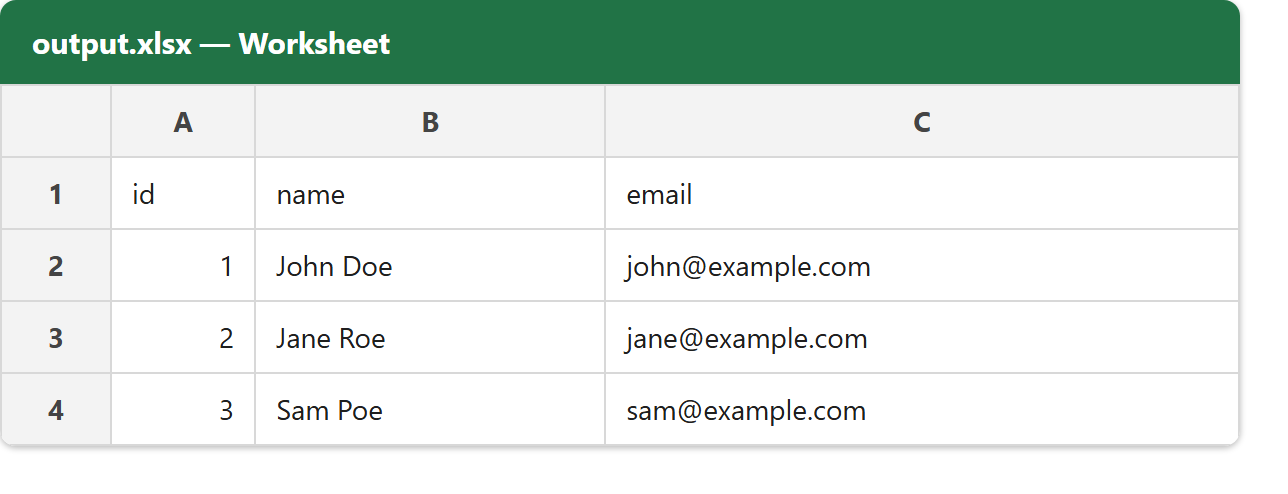
Running the script to convert CSV to Excel is instant. Given a CSV (data.csv) whose first line is id,name,email followed by three data rows, the script prints its confirmation and writes output.xlsx — a real Excel workbook whose cells hold the same values, ready to open, format, or add formulas to.
$ php csv-to-excel.php
Done. Converted data.csv (4 rows) to output.xlsx
Converting is often only half the job. A CSV regularly carries one column that packs several values together, such as a reference like north-2026-01. You could split it in PHP on the way in, but if the people using the workbook need to split it themselves later, the sheet can do it with one formula. Split A Text Column With The TEXTSPLIT Function In Excel spreads the parts across columns, and shows TEXTBEFORE and TEXTAFTER for taking a single piece. Because the split is a formula, a corrected reference re-splits itself.