This article shows how to create an Excel Table in PHP with the latest version of PhpSpreadsheet — the structured object Excel itself calls a ListObject. A Table is more than a styled block of cells. For example, it carries a name, a header row with filter dropdowns, and banded rows that stay banded as the data grows. It also brings structured references, so a formula can say SalesData[Revenue] instead of D2:D5.
The Table class does the work. First you give it a cell range and a unique name. Then you attach a TableStyle for the built-in look, and finally hand it to the worksheet with addTable(). The Table takes its header row from the first row of the range, so lay your data out with headers on top before you wrap it.
This is also distinct from applying a style array to a range. Styled cells are just formatting, while a real Excel Table in PHP is an object Excel understands. As a result, sort and filter controls appear automatically, and the banding follows the rows whenever someone adds more. Below we first turn a small sales grid into a named, striped Table, and then read the Table back out of the workbook to confirm it is really there.
Requirements to create an Excel Table in PHP:
- Composer
- PHP 8.2 or newer
Step 1.
First, set up the dependencies. Here we pin the latest major release of PhpSpreadsheet (the 5.x line, tested with 5.9 on PHP 8.2). The Table API is stable in the 5.x line; on much older releases it does not exist.
{
    "require": {
        "phpoffice/phpspreadsheet": "^5.0"
    }
}
Step 2.
Next, install phpspreadsheet.
$ composer install
Step 3.
Then create a new PHP file. Load Composer’s autoloader and import Spreadsheet, the Table and TableStyle classes, and the Xlsx writer.
<?php

require 'vendor/autoload.php';

use PhpOffice\PhpSpreadsheet\Spreadsheet;
use PhpOffice\PhpSpreadsheet\Worksheet\Table;
use PhpOffice\PhpSpreadsheet\Worksheet\Table\TableStyle;
use PhpOffice\PhpSpreadsheet\Writer\Xlsx;
Step 4.
Create the spreadsheet and lay down the data. The first row (Region, Rep, Units, Revenue) becomes the Table’s header row, so it must sit at the top of the range.
$spreadsheet = new Spreadsheet();
$worksheet = $spreadsheet->getActiveSheet();
$worksheet->setTitle('Sales');

$worksheet->fromArray([
    ['Region', 'Rep', 'Units', 'Revenue'],
    ['North', 'Alice', 120, 4800],
    ['South', 'Bob', 90, 3600],
    ['East', 'Carol', 150, 6000],
    ['West', 'Dan', 70, 2800],
], null, 'A1');
Step 5.
Build the Table over the data range and give it a name. The name must be unique in the workbook and is what the Name Box and structured references use — keep it to letters, digits and underscores, with no spaces.
$table = new Table('A1:D5', 'SalesData');Step 6.
Attach a built-in style. setTheme() takes one of the TableStyle constants — here a medium blue theme — and setShowRowStripes(true) turns on the banded rows that make a Table easy to read.
$tableStyle = new TableStyle();
$tableStyle->setTheme(TableStyle::TABLE_STYLE_MEDIUM2);
$tableStyle->setShowRowStripes(true);
$table->setStyle($tableStyle);
Step 7.
Add the Table to the worksheet and save. Then read the worksheet’s Table collection back to confirm the object exists in the workbook — not just some shaded cells.
$worksheet->addTable($table);

(new Xlsx($spreadsheet))->save('sales-table.xlsx');
echo "Wrote sales-table.xlsx\n\n";

foreach ($worksheet->getTableCollection() as $t) {
    echo "Table name : " . $t->getName() . "\n";
    echo "Range      : " . $t->getRange() . "\n";
    echo "Style      : " . $t->getStyle()->getTheme() . "\n";
    echo "Row stripes: " . ($t->getStyle()->getShowRowStripes() ? 'yes' : 'no') . "\n";
}
Complete code to create an Excel Table in PHP.
<?php

require 'vendor/autoload.php';

use PhpOffice\PhpSpreadsheet\Spreadsheet;
use PhpOffice\PhpSpreadsheet\Worksheet\Table;
use PhpOffice\PhpSpreadsheet\Worksheet\Table\TableStyle;
use PhpOffice\PhpSpreadsheet\Writer\Xlsx;

$spreadsheet = new Spreadsheet();
$worksheet = $spreadsheet->getActiveSheet();
$worksheet->setTitle('Sales');

$worksheet->fromArray([
    ['Region', 'Rep', 'Units', 'Revenue'],
    ['North', 'Alice', 120, 4800],
    ['South', 'Bob', 90, 3600],
    ['East', 'Carol', 150, 6000],
    ['West', 'Dan', 70, 2800],
], null, 'A1');

// The Table object: a range plus a unique workbook name.
$table = new Table('A1:D5', 'SalesData');

// A built-in style: banded rows, shaded header, filter dropdowns.
$tableStyle = new TableStyle();
$tableStyle->setTheme(TableStyle::TABLE_STYLE_MEDIUM2);
$tableStyle->setShowRowStripes(true);
$table->setStyle($tableStyle);

$worksheet->addTable($table);

(new Xlsx($spreadsheet))->save('sales-table.xlsx');
echo "Wrote sales-table.xlsx\n\n";

foreach ($worksheet->getTableCollection() as $t) {
    echo "Table name : " . $t->getName() . "\n";
    echo "Range      : " . $t->getRange() . "\n";
    echo "Style      : " . $t->getStyle()->getTheme() . "\n";
    echo "Row stripes: " . ($t->getStyle()->getShowRowStripes() ? 'yes' : 'no') . "\n";
}
Test creating an Excel Table in PHP.
Command line testing.
$ php table.php
Result of creating an Excel Table in PHP.
PhpSpreadsheet writes the file, and the Table reads back with the name, range and style we set. That is proof it is a real ListObject in the workbook, not just formatted cells:
Wrote sales-table.xlsx

Table name : SalesData
Range      : A1:D5
Style      : TableStyleMedium2
Row stripes: yes
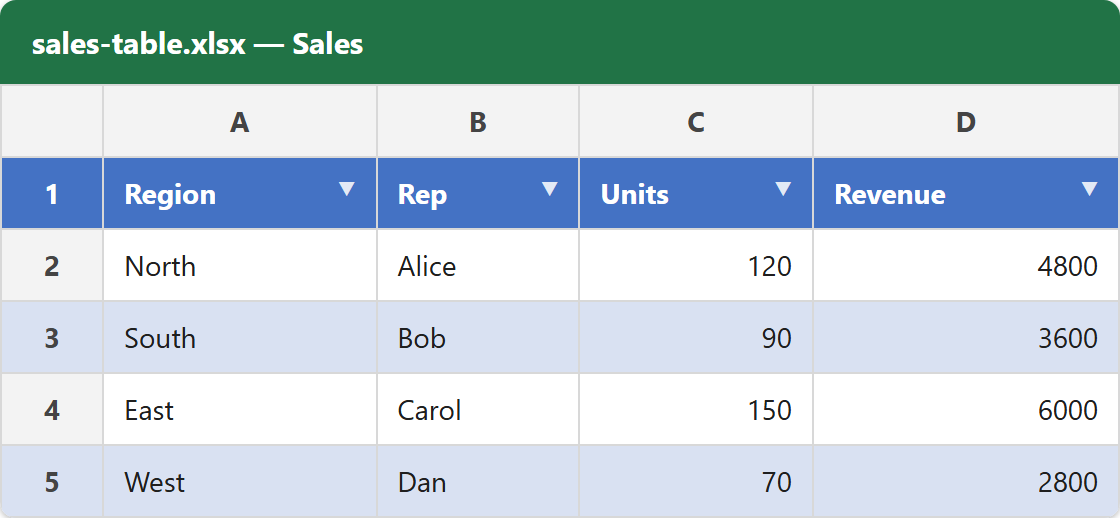
Finally, open sales-table.xlsx in Excel and the range is a proper Table. For instance, the header carries filter dropdowns, the rows show stripes, and the Table Design tab appears once you select a cell inside it. A formula elsewhere can now reference SalesData[Revenue], and it follows the Table as you add rows.