This article shows how to convert Excel to HTML table markup with the latest version of PhpSpreadsheet using plain PHP. The point of doing it in code rather than by hand is that the styling comes with it: bold headers, number formats and column widths all cross over, so the page looks like the workbook instead of like a bare grid of numbers.
One class does the whole job. Writer\Html can convert Excel to HTML table markup on its own, and the choice worth understanding is which slice of HTML you want back. save() writes a complete document — <html>, <head>, styles and all — which is what you want for a standalone file. generateSheetData() returns only the <table> markup, which is what you want when the page already exists. writeAllSheets() decides whether every sheet is rendered or just the active one, and setUseInlineCss() moves the CSS onto the elements themselves.
This is the mirror of converting an HTML table into Excel, which reads markup and produces a workbook. Going this way is what powers a quick web preview of an uploaded file, a report emailed as HTML, or a printable page — anywhere a reader should see the data without downloading anything. In each case the job is the same: convert Excel to HTML table markup the browser can render directly.
Requirements to convert Excel to an HTML table:
- Composer
- PHP 8.2 or newer
Step 1.
First, set up the dependencies. Here we pin the latest major release of PhpSpreadsheet (the 5.x line).
{
    "require": {
        "phpoffice/phpspreadsheet": "^5.0"
    }
}
Step 2.
Next, install phpspreadsheet.
$ composer install
Step 3.
Then create a new PHP file. Load Composer’s autoloader and import IOFactory to open the workbook and the Html writer to render it.
<?php

require 'vendor/autoload.php';

use \PhpOffice\PhpSpreadsheet\IOFactory;
use \PhpOffice\PhpSpreadsheet\Writer\Html;
Step 4.
Load the workbook. Note what is not here: no setReadDataOnly(true). That call is usually the right one when reading, but here the styles are the whole point — switch it on and the bold header and the number formats never reach the page.
// Load the workbook, keeping styles so the HTML can carry them.
$spreadsheet = IOFactory::load('sales.xlsx');

$writer = new Html($spreadsheet);
Step 5.
Choose how much of the workbook to render. By default the writer emits only the active sheet; writeAllSheets() makes it emit every one, each as its own table. Then setUseInlineCss(true) puts the styling in a style attribute on each cell rather than relying on a stylesheet — more verbose, but it survives being pasted into another page or an email, where a <style> block often gets stripped.
// Write every sheet, not just the active one.
$writer->writeAllSheets();

// Put the CSS on each element instead of in a <style> block, so the
// table survives being pasted into a page or an email.
$writer->setUseInlineCss(true);
Step 6.
Save the complete document. This is the full page — doctype, head, styles and the tables — ready to open in a browser on its own.
// A whole HTML document: <html>, <head>, the styles, and the tables.
$writer->save('sales.html');
Step 7.
Often you do not want a whole document, only the table to drop into a page you already have. generateSheetData() returns exactly that markup as a string. It renders one sheet, so set the index first.
// Just the <table> markup, for dropping into a page you already have.
$writer->setSheetIndex(0);
$tableOnly = $writer->generateSheetData();

file_put_contents('table-only.html', $tableOnly);

echo 'Done. Wrote sales.html (' . strlen(file_get_contents('sales.html')) . " bytes, all sheets)\n";
echo 'and table-only.html (' . strlen($tableOnly) . " bytes, the table markup alone).\n";
Complete code to convert Excel to an HTML table.
<?php

require 'vendor/autoload.php';

use \PhpOffice\PhpSpreadsheet\IOFactory;
use \PhpOffice\PhpSpreadsheet\Writer\Html;

// Load the workbook, keeping styles so the HTML can carry them.
$spreadsheet = IOFactory::load('sales.xlsx');

$writer = new Html($spreadsheet);

// Write every sheet, not just the active one.
$writer->writeAllSheets();

// Put the CSS on each element instead of in a <style> block, so the
// table survives being pasted into a page or an email.
$writer->setUseInlineCss(true);

// A whole HTML document: <html>, <head>, the styles, and the tables.
$writer->save('sales.html');

// Just the <table> markup, for dropping into a page you already have.
$writer->setSheetIndex(0);
$tableOnly = $writer->generateSheetData();

file_put_contents('table-only.html', $tableOnly);

echo 'Done. Wrote sales.html (' . strlen(file_get_contents('sales.html')) . " bytes, all sheets)\n";
echo 'and table-only.html (' . strlen($tableOnly) . " bytes, the table markup alone).\n";
Test converting Excel to an HTML table.
Command line testing.
$ php excel-to-html.php
Result of converting Excel to an HTML table.
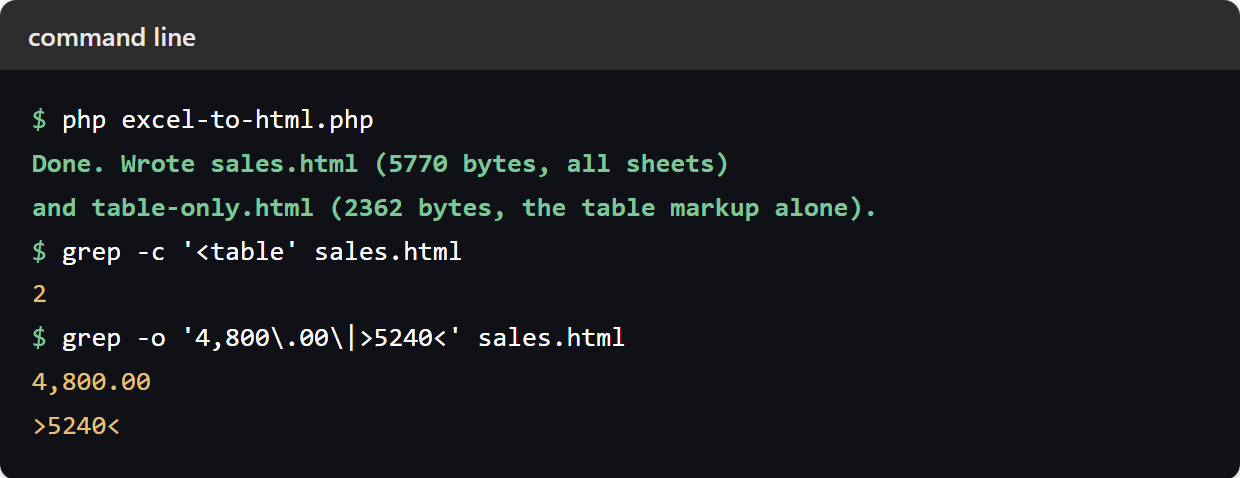
Running the script to convert Excel to HTML table markup writes both files at once. The input sales.xlsx has two sheets, Q1 and Q2, with a bold header row and a #,##0.00 number format on the Q1 revenue column.
$ php excel-to-html.php
Done. Wrote sales.html (5770 bytes, all sheets)
and table-only.html (2362 bytes, the table markup alone).
Opening sales.html in a browser shows what the writer produced: a list linking to each sheet, then one table per sheet, with the bold header rows and the cell borders carried over from the workbook. Note the tab — the page is titled Untitled Spreadsheet, because the writer takes the <title> from the workbook’s document properties and this one has none. Set it with $spreadsheet->getProperties()->setTitle('Q1 and Q2 Sales') before saving.
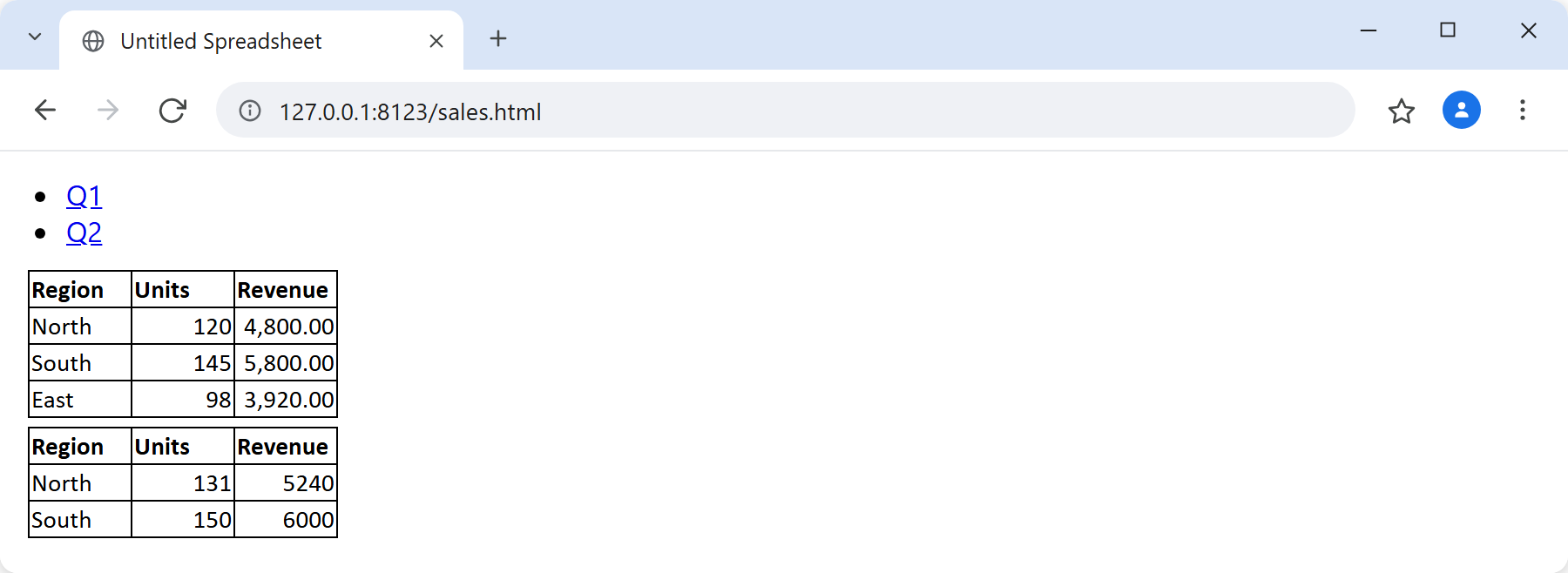
sales.html contains two <table> elements, one per sheet. Each cell carries the styling from the workbook — here the bold header row, inline because of setUseInlineCss(true):
<table id='sheet0' style='border-collapse:collapse' class='gridlines'>
    <tbody>
      <tr>
        <td class="gridlines" style="vertical-align:bottom; font-weight:bold; color:#000000; font-family:'Calibri'; font-size:11pt; text-align:left; width:42pt">Region</td>
        <td class="gridlines" style="vertical-align:bottom; font-weight:bold; color:#000000; font-family:'Calibri'; font-size:11pt; text-align:left; width:42pt">Units</td>
        <td class="gridlines" style="vertical-align:bottom; font-weight:bold; color:#000000; font-family:'Calibri'; font-size:11pt; text-align:left; width:42pt">Revenue</td>
      </tr>
One detail is easy to miss, and the screenshot above shows it plainly. The writer emits the formatted value, not the raw one. The Q1 revenue reads 4,800.00 because that sheet carries a #,##0.00 number format; the Q2 figures, which have no format applied, read as the bare 5240 and 6000. Both sheets hold ordinary numbers — only the formatting differs. So if a column looks wrong on the page, the fix belongs in the workbook’s number format rather than in the HTML.