This article shows how to push an Excel file into Google Sheets from PHP. It is the one job that needs both halves of this site at once. PhpSpreadsheet opens the workbook, and the Google Sheets API PHP Client writes the rows into a live sheet.
The job sounds like plumbing. Read a grid, send a grid. In practice the interesting part is the boundary between them, because the two libraries disagree about what a cell is. Excel stores a date as a number. Google stores it as a different number with a display format. A reference code like 007 is text in one and, unless you stop it, a plain 7 in the other.
So below we read a small orders workbook and push it across twice. The first attempt is the obvious one, and it quietly destroys a column. The second fixes it with a single character.
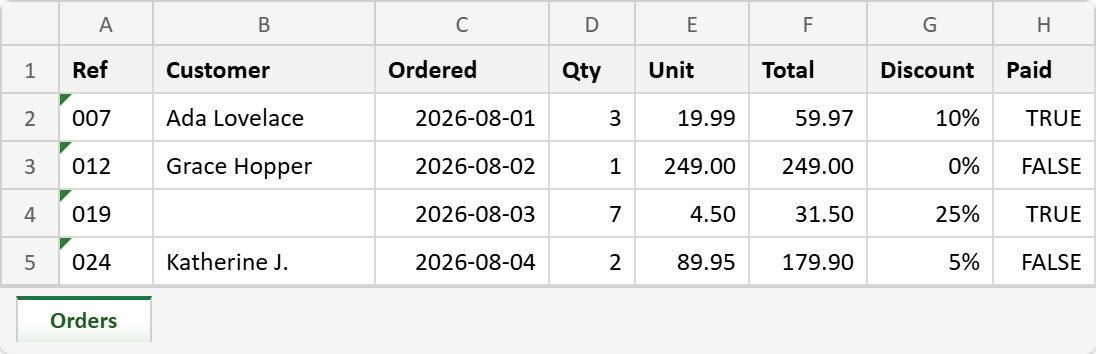
Look at column A. Those green corners are Excel telling you the codes are stored as text, which is the only reason the leading zeros are there at all. Row 4 also has an empty Customer cell, and that turns out to matter more than it should.
Requirements to import an Excel file into Google Sheets:
- Authenticate With A Service Account
- Create A Google Cloud Project
- Enable Google Sheets API Library
- Install The Google Client Library Specifying Google Sheets
- Composer
- PHP 8.2 or newer
Step 1.
First, require both libraries in one project. Moving an Excel file into Google Sheets needs the two of them together, and the honest question is whether they fight. They do not. Composer resolves them in 22 packages, with PhpSpreadsheet 5.9 and google/apiclient 2.19 sharing the same Guzzle and PSR packages quite happily.
{
    "require": {
        "google/apiclient": "^2.12.1",
        "phpoffice/phpspreadsheet": "^5.0"
    },
    "scripts": {
        "pre-autoload-dump": "Google\\Task\\Composer::cleanup"
    },
    "extra": {
        "google/apiclient-services": [
            "Sheets"
        ]
    }
}
The extra block is worth keeping. It strips the 300-odd Google services you are not using, which matters more once PhpSpreadsheet is in the same vendor directory.
Step 2.
Next, install them.
$ composer install
Step 3.
Then build the client and read the workbook. Authentication is the service-account flow from its own article, so we will not repeat it here.
<?php

require 'vendor/autoload.php';

use Google\Client;
use Google\Service\Sheets;
use Google\Service\Sheets\BatchUpdateSpreadsheetRequest;
use Google\Service\Sheets\Request;
use Google\Service\Sheets\ValueRange;
use PhpOffice\PhpSpreadsheet\IOFactory;

/**
 * Set up parameters.
 */
$spreadsheetId = 'Your spreadsheetId here.';
$keyFile = 'service-account.json';
$excelFile = 'orders.xlsx';
$tab = 'Sheet1';

$client = new Client();
$client->setApplicationName('Import Excel Into Google Sheets');
$client->setAuthConfig($keyFile);
$client->addScope(Sheets::SPREADSHEETS);

$service = new Sheets($client);

/**
 * Read the workbook into rows of display strings.
 *
 * The '' is not decoration: a blank cell would otherwise come back as null,
 * and the client drops nulls, which turns the row into a JSON object and
 * fails the whole request.
 */
function readWorkbook(string $file): array
{
    $reader = IOFactory::createReader('Xlsx');
    $sheet = $reader->load($file)->getActiveSheet();

    return $sheet->toArray('', true, true, false);
}
That first argument deserves the comment it gets. toArray() uses null for an empty cell by default, and the Google client removes null properties before it serialises. Removing the middle item of a PHP list leaves gaps in the keys, so json_encode() writes an object rather than an array, and the API answers with a baffling 400:
Invalid JSON payload received. Unknown name "0" at 'data.values[3]': Cannot find field.
One blank cell in one row therefore fails the entire import, and the message never mentions blanks. Passing '' avoids the whole problem.
Step 4.
Now look at what you actually got, because toArray() is more opinionated than it appears. Its signature is toArray($nullValue, $calculateFormulas, $formatData, $returnCellRef), and both of the middle flags default to true.
// Same sheet, same row, three ways of asking:
$sheet->toArray('', true, true,  false)[1];
// ["007","Ada Lovelace","2026-08-01","3","19.99","59.97","10%","TRUE"]

$sheet->toArray('', true, false, false)[1];
// ["007","Ada Lovelace",46235,3,19.99,59.97,0.1,true]

$sheet->toArray('', false, false, false)[1];
// ["007","Ada Lovelace",46235,3,19.99,"=D2*E2",0.1,true]
The default hands you the display strings, so the date arrives already readable as 2026-08-01 and the discount as 10%. Turn formatting off and the same date is 46235, the raw Excel serial, exactly as reading Excel dates describes. Turn calculation off as well and the Total column comes back as the formula text =D2*E2 instead of its result.
The default is the right choice here. Google is good at reading human-shaped strings, and it is no good at all at guessing that 46235 was meant to be a date.
Step 5.
Next, empty the destination properly. This is the step people skip when they move an Excel file into Google Sheets, and it is the one that makes a second run behave like the first.
/**
 * Empty the tab, formatting included.
 *
 * values->clear() only removes values, so number formats from a previous
 * import survive and quietly restyle whatever lands next.
 */
function emptyTab(Sheets $service, string $spreadsheetId, string $tab): void
{
    $sheetId = null;
    foreach ($service->spreadsheets->get($spreadsheetId)->getSheets() as $sheet) {
        if ($sheet->getProperties()->getTitle() === $tab) {
            $sheetId = $sheet->getProperties()->getSheetId();
        }
    }

    $service->spreadsheets->batchUpdate($spreadsheetId, new BatchUpdateSpreadsheetRequest([
        'requests' => [
            new Request(['updateCells' => [
                'range'  => ['sheetId' => $sheetId],
                'fields' => 'userEnteredValue,userEnteredFormat',
            ]]),
        ],
    ]));
}
As clearing and deleting rows shows, values->clear() removes values and leaves every number format behind. Consequently a column that held dates last week will still be styled as dates, and this week’s plain numbers land looking like dates from the 1970s. Wiping userEnteredFormat as well makes each import independent of the last.
Step 6.
Then send the rows. This single option decides what an Excel file into Google Sheets actually becomes, so choose it deliberately. It has two settings and they are not subtle.
/**
 * Send the rows and report what the API says it wrote.
 */
function push(Sheets $service, string $spreadsheetId, string $tab, array $rows): void
{
    $response = $service->spreadsheets_values->update(
        $spreadsheetId,
        $tab . '!A1',
        new ValueRange(['values' => $rows]),
        ['valueInputOption' => 'USER_ENTERED']
    );

    printf("  wrote %d cells over %d row(s) into %s\n",
        $response->getUpdatedCells(), $response->getUpdatedRows(), $response->getUpdatedRange());
}
RAW stores every value exactly as sent, which means the whole sheet becomes text. The dates cannot be sorted, the numbers cannot be summed, and =D2*E2 sits there as a literal string. USER_ENTERED instead parses each value as though somebody had typed it, so dates become dates, numbers become numbers and formulas become live formulas.
Here is the full matrix, measured rather than assumed. The four combinations of the two toArray() shapes and the two options:
formatted   + RAW           A2='007' (text)   C2='2026-08-01' (text)   G2='10%' (text)
formatted   + USER_ENTERED  A2=7     (number) C2=46235 shown 2026-08-01 G2=0.1 shown 10%
unformatted + RAW           A2='007' (text)   C2=46235 shown 46235      G2=0.1 shown 0.1
unformatted + USER_ENTERED  A2=7     (number) C2=46235 shown 46235      G2=0.1 shown 0.1
Notice that no row is entirely correct. The second one gets the dates, numbers and percentages right and is the only sensible starting point, yet it is also the one that turns 007 into 7. That is the trade the next step closes.
Step 7.
Now protect the columns that only look numeric. Google treats a leading apostrophe as “keep this as text”, and it does not appear in the cell.
/**
 * Put an apostrophe in front of values Google would otherwise reinterpret.
 */
function keepAsText(array $rows, array $columns): array
{
    foreach ($rows as $r => $row) {
        if ($r === 0) {
            continue;   // leave the header alone
        }
        foreach ($columns as $c) {
            if (isset($row[$c]) && $row[$c] !== '') {
                $rows[$r][$c] = "'" . $row[$c];
            }
        }
    }

    return $rows;
}

// Column A holds reference codes like 007. Left alone, Google reads them as
// numbers and the leading zeros are gone for good.
$protected = keepAsText($rows, [0]);
Leading zeros are the obvious casualty, but they are not the only one. Three real cases, all measured against the live API:
'007'          -> 7                                (leading zeros lost)
'1e5'          -> 100000, displayed as 1.00E+05    (read as scientific notation)
'+44 20 7123'  -> #ERROR! Formula parse error      (a leading + starts a formula)
The third is the nastiest, because a column of phone numbers does not merely change value. It fills with #ERROR! and the original digits are gone. An apostrophe fixes all three identically, which is why it is worth applying to every column you know is a code rather than a quantity.
Step 8.
Finally, the question of size. The usual advice is to chunk large imports so the request does not blow a limit, so it seemed worth measuring before repeating.
  1000 rows (  0.04 MB): OK  4000 cells in 0.5s
 20000 rows (  0.97 MB): OK  80000 cells in 2.9s
100000 rows (  5.05 MB): OK  400000 cells in 12.7s
200000 rows ( 10.48 MB): OK  800000 cells in 23.5s
Two hundred thousand rows went through as a single update() call without complaint. So chunking is not something a normal Excel file into Google Sheets needs, and splitting a workbook into fifty requests mostly buys you fifty chances to fail halfway.
The real ceiling is on the PHP side instead. Reading a large .xlsx is memory-hungry, and the standard fix is reading cell data only. Be careful with it here, though, because it interacts badly with step 4:
$reader = IOFactory::createReader('Xlsx');
$reader->setReadDataOnly(true);

// Same toArray() call as before, asking for formatted data:
// ["007","Ada Lovelace","46235","3","19.99","59.97","0.1","TRUE"]
//                        ^^^^^                       ^^^
Skipping the styles means there are no number formats left to format with, so the date silently reverts to its serial and the percentage to a decimal, even though you asked for formatted output. The rows still import, and the dates are simply wrong. Use it when you need the memory, and convert the date columns yourself with Date::excelToDateTimeObject() when you do.
Complete code to import an Excel file into Google Sheets.
<?php

require 'vendor/autoload.php';

use Google\Client;
use Google\Service\Sheets;
use Google\Service\Sheets\BatchUpdateSpreadsheetRequest;
use Google\Service\Sheets\Request;
use Google\Service\Sheets\ValueRange;
use PhpOffice\PhpSpreadsheet\IOFactory;

/**
 * Set up parameters.
 */
$spreadsheetId = 'Your spreadsheetId here.';
$keyFile = 'service-account.json';
$excelFile = 'orders.xlsx';
$tab = 'Sheet1';

$client = new Client();
$client->setApplicationName('Import Excel Into Google Sheets');
$client->setAuthConfig($keyFile);
$client->addScope(Sheets::SPREADSHEETS);

$service = new Sheets($client);

/**
 * Read the workbook into rows of display strings.
 *
 * The '' is not decoration: a blank cell would otherwise come back as null,
 * and the client drops nulls, which turns the row into a JSON object and
 * fails the whole request.
 */
function readWorkbook(string $file): array
{
    $reader = IOFactory::createReader('Xlsx');
    $sheet = $reader->load($file)->getActiveSheet();

    return $sheet->toArray('', true, true, false);
}

/**
 * Put an apostrophe in front of values Google would otherwise reinterpret.
 */
function keepAsText(array $rows, array $columns): array
{
    foreach ($rows as $r => $row) {
        if ($r === 0) {
            continue;   // leave the header alone
        }
        foreach ($columns as $c) {
            if (isset($row[$c]) && $row[$c] !== '') {
                $rows[$r][$c] = "'" . $row[$c];
            }
        }
    }

    return $rows;
}

/**
 * Empty the tab, formatting included.
 *
 * values->clear() only removes values, so number formats from a previous
 * import survive and quietly restyle whatever lands next.
 */
function emptyTab(Sheets $service, string $spreadsheetId, string $tab): void
{
    $sheetId = null;
    foreach ($service->spreadsheets->get($spreadsheetId)->getSheets() as $sheet) {
        if ($sheet->getProperties()->getTitle() === $tab) {
            $sheetId = $sheet->getProperties()->getSheetId();
        }
    }

    $service->spreadsheets->batchUpdate($spreadsheetId, new BatchUpdateSpreadsheetRequest([
        'requests' => [
            new Request(['updateCells' => [
                'range'  => ['sheetId' => $sheetId],
                'fields' => 'userEnteredValue,userEnteredFormat',
            ]]),
        ],
    ]));
}

/**
 * Send the rows and report what the API says it wrote.
 */
function push(Sheets $service, string $spreadsheetId, string $tab, array $rows): void
{
    $response = $service->spreadsheets_values->update(
        $spreadsheetId,
        $tab . '!A1',
        new ValueRange(['values' => $rows]),
        ['valueInputOption' => 'USER_ENTERED']
    );

    printf("  wrote %d cells over %d row(s) into %s\n",
        $response->getUpdatedCells(), $response->getUpdatedRows(), $response->getUpdatedRange());
}

/**
 * Show how Google actually stored a few cells, next to how it displays them.
 */
function inspect(Sheets $service, string $spreadsheetId, string $tab, array $cells): void
{
    foreach ($cells as $label => $ref) {
        $stored = $service->spreadsheets_values
            ->get($spreadsheetId, "$tab!$ref", ['valueRenderOption' => 'UNFORMATTED_VALUE'])
            ->getValues();
        $shown = $service->spreadsheets_values
            ->get($spreadsheetId, "$tab!$ref", ['valueRenderOption' => 'FORMATTED_VALUE'])
            ->getValues();

        printf("    %-9s stored %-12s as %-7s shown as %s\n",
            $label,
            var_export($stored[0][0] ?? null, true),
            gettype($stored[0][0] ?? null),
            var_export($shown[0][0] ?? null, true));
    }
}

$watch = ['Ref' => 'A2', 'Ordered' => 'C2', 'Qty' => 'D2', 'Discount' => 'G2'];

$rows = readWorkbook($excelFile);
echo "Read " . count($rows) . " rows from $excelFile.\n";
echo "Row 2 as PhpSpreadsheet hands it over:\n  " . json_encode($rows[1]) . "\n\n";

echo "First attempt, pushing those rows straight in:\n";
emptyTab($service, $spreadsheetId, $tab);
push($service, $spreadsheetId, $tab, $rows);
inspect($service, $spreadsheetId, $tab, $watch);

// Column A holds reference codes like 007. Left alone, Google reads them as
// numbers and the leading zeros are gone for good.
$protected = keepAsText($rows, [0]);

echo "\nSecond attempt, with column A protected:\n";
echo "  Row 2 now starts with " . json_encode($protected[1][0]) . "\n";
emptyTab($service, $spreadsheetId, $tab);
push($service, $spreadsheetId, $tab, $protected);
inspect($service, $spreadsheetId, $tab, $watch);
Test the import of an Excel file into Google Sheets.
Command line testing.
$ php import-excel-into-google-sheets.php
Result of pushing an Excel file into Google Sheets.
Both attempts push the same Excel file into Google Sheets, both write forty cells, and only one column differs between them. Watch Ref, and notice that the date, the quantity and the discount are correct in both runs:
Read 5 rows from orders.xlsx.
Row 2 as PhpSpreadsheet hands it over:
  ["007","Ada Lovelace","2026-08-01","3","19.99","59.97","10%","TRUE"]

First attempt, pushing those rows straight in:
  wrote 40 cells over 5 row(s) into Sheet1!A1:H5
    Ref       stored 7            as integer shown as '7'
    Ordered   stored 46235        as integer shown as '2026-08-01'
    Qty       stored 3            as integer shown as '3'
    Discount  stored 0.1          as double  shown as '10%'

Second attempt, with column A protected:
  Row 2 now starts with "'007"
  wrote 40 cells over 5 row(s) into Sheet1!A1:H5
    Ref       stored '007'        as string  shown as '007'
    Ordered   stored 46235        as integer shown as '2026-08-01'
    Qty       stored 3            as integer shown as '3'
    Discount  stored 0.1          as double  shown as '10%'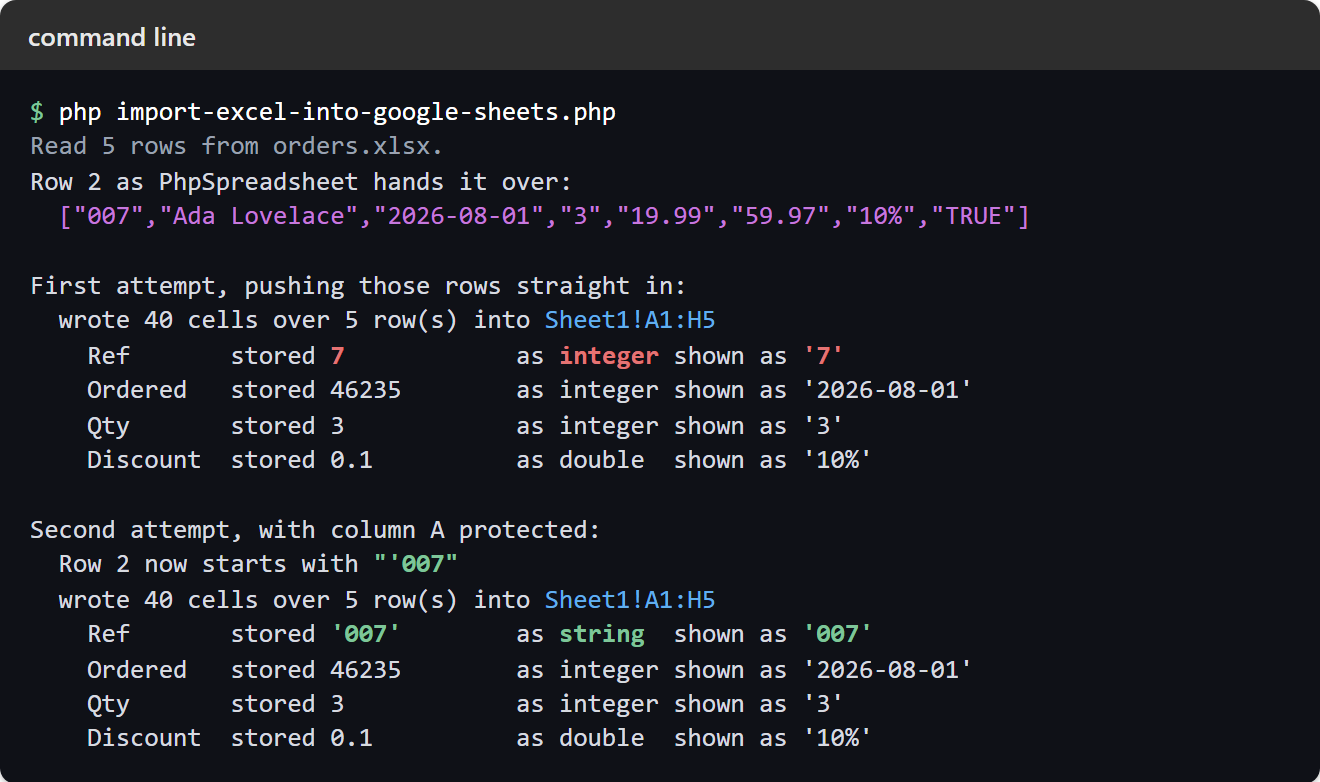
The API reports both runs identically, which is the point. Nothing in the response says a column was damaged, and getUpdatedCells() is 40 either way. So the only way to check an Excel file into Google Sheets went in cleanly is to read the values back, or to look at the sheet:
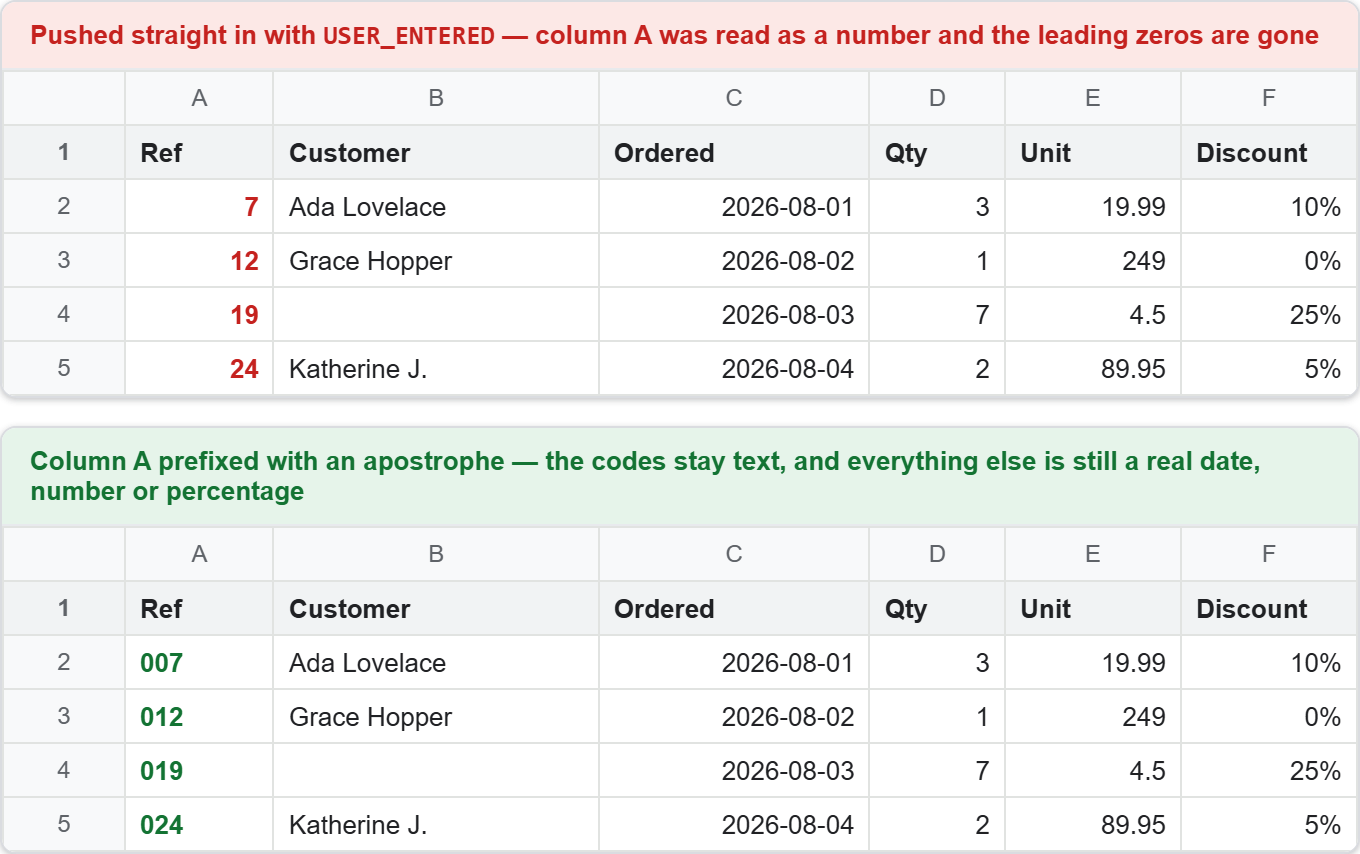
The alignment gives it away before the digits do. In the first grid the codes sit hard against the right edge, the way Google draws a number, and in the second they sit on the left like the text they are meant to be.
Import an Excel file into Google Sheets safely.
So getting an Excel file into Google Sheets reliably comes down to four decisions, and none of them is the API call itself. Read with toArray('') so a blank cell cannot break the request. Keep the default formatting so dates arrive readable. Wipe the destination’s formats, not just its values. And send with USER_ENTERED, with an apostrophe on any column that is a code rather than a quantity.
The failure mode worth remembering is how quiet it is. An import that mangles a reference column returns the same success, the same cell count and the same range as one that works perfectly. Nobody notices until somebody searches the sheet for order 007 and finds nothing, which is usually a week later. Reading a few cells back after the push, as the script above does, costs one request and settles it immediately.
Pushing a file in is one direction. Pulling data in is the other, and it needs no code at all: Pull Live Data Into Google Sheets With The IMPORT Functions covers IMPORTRANGE, IMPORTHTML, IMPORTDATA, IMPORTXML and IMPORTFEED, including the one-time approval a human has to click in a desktop browser before any of the external-fetch ones will return anything but #REF!. It is also clear about where they stop — refresh lag, volatility, no error handling worth the name — which is usually the point at which you come back to an import like this one.