This article shows how to format Google Sheets cells from PHP: bold text, a font size, a text colour, a fill, an alignment and a currency pattern. One request type does all of it, and one field inside that request decides how much of your existing formatting survives.
The series can already create a spreadsheet, read cells, update them, append rows and delete rows. What it cannot do yet is make a cell bold. On the Excel side this site has a whole shelf of formatting posts; the Google Sheets half has had none, so a sheet built by these scripts arrives correct and completely plain.
The request is repeatCell, sent through spreadsheets->batchUpdate(). It takes a range, one cell to stamp across that range, and a fields mask. The mask is the part worth slowing down for, because it is not a list of what to write. It is a list of what to replace, and anything you name in it but leave out of cell is erased.
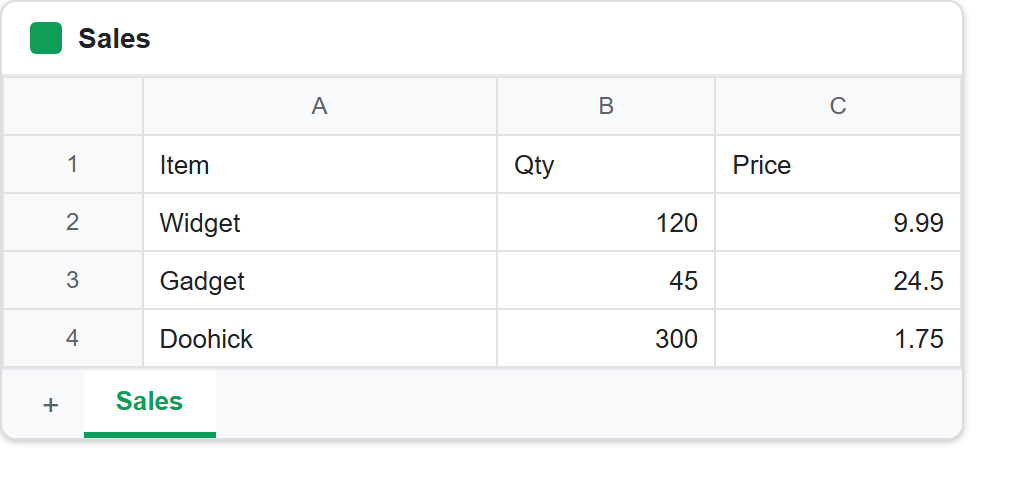
That is the starting point. Note the prices: 24.5, not $24.50. The value is right and the presentation is not, which is the other half of what formatting fixes.
Requirements to format Google Sheets cells:
- Authenticate With A Service Account
- Create A Google Cloud Project
- Enable Google Sheets API Library
- Install The Google Client Library Specifying Google Sheets
- Composer
- PHP 8.1 or newer
Step 1.
First, set up the dependencies. This is the Sheets-only install used across this series. Tested with google/apiclient 2.19 on PHP 8.5.
{
    "require": {
        "google/apiclient": "^2.12.1"
    },
    "scripts": {
        "pre-autoload-dump": "Google\\Task\\Composer::cleanup"
    },
    "extra": {
        "google/apiclient-services": [
            "Sheets"
        ]
    }
}
Step 2.
Next, install the Google Client Library.
$ composer install
Step 3.
Then build the client. Formatting is a write, so the scope is the full SPREADSHEETS one rather than a read-only variant.
<?php

require 'vendor/autoload.php';

use Google\Client;
use Google\Service\Sheets;
use Google\Service\Sheets\BatchUpdateSpreadsheetRequest;
use Google\Service\Sheets\Request;
use Google\Service\Sheets\ValueRange;

$spreadsheetId = 'YOUR_SPREADSHEET_ID';
$keyFile = 'service-account.json';
$tabName = 'Sales';

$client = new Client();
$client->setApplicationName('Format Google Sheets Cells');
$client->setAuthConfig($keyFile);
$client->addScope(Sheets::SPREADSHEETS);

$service = new Sheets($client);
Step 4.
Now look up the tab’s numeric id. Values are addressed by name, as in Sales!A1, but every formatting request wants a sheetId integer instead. The name is only what sits on the tab strip, so fetch the number once and reuse it. This helper also creates the tab when it is missing, which keeps the script runnable on an empty spreadsheet.
function sheetIdFor(Sheets $service, string $spreadsheetId, string $title): int
{
    foreach ($service->spreadsheets->get($spreadsheetId)->getSheets() as $sheet) {
        if ($sheet->getProperties()->getTitle() === $title) {
            return $sheet->getProperties()->getSheetId();
        }
    }

    $service->spreadsheets->batchUpdate($spreadsheetId, new BatchUpdateSpreadsheetRequest([
        'requests' => [
            new Request(['addSheet' => ['properties' => ['title' => $title]]]),
        ],
    ]));

    return sheetIdFor($service, $spreadsheetId, $title);
}

$sheetId = sheetIdFor($service, $spreadsheetId, $tabName);
Step 5.
Write a few rows in, so there is something to look at.
$service->spreadsheets_values->update(
    $spreadsheetId,
    $tabName . '!A1',
    new ValueRange(['values' => [
        ['Item', 'Qty', 'Price'],
        ['Widget', 120, 9.99],
        ['Gadget', 45, 24.50],
        ['Doohick', 300, 1.75],
    ]]),
    ['valueInputOption' => 'USER_ENTERED']
);
Step 6.
Here is the request that does the work. The range covers row 1 across three columns; cell describes what every cell in that range should become. Ranges are half-open and zero-based, so startRowIndex 0 with endRowIndex 1 is the single first row.
$headerFormat = new Request(['repeatCell' => [
    'range' => [
        'sheetId'          => $sheetId,
        'startRowIndex'    => 0,
        'endRowIndex'      => 1,
        'startColumnIndex' => 0,
        'endColumnIndex'   => 3,
    ],
    'cell' => ['userEnteredFormat' => [
        'backgroundColor'     => ['red' => 0.20, 'green' => 0.36, 'blue' => 0.00],
        'horizontalAlignment' => 'CENTER',
        'textFormat'          => [
            'bold'            => true,
            'fontSize'        => 12,
            'foregroundColor' => ['red' => 1.0, 'green' => 1.0, 'blue' => 1.0],
        ],
    ]],
    'fields' => 'userEnteredFormat(backgroundColor,horizontalAlignment,textFormat)',
]]);
Colours are floats from 0 to 1, not the 0–255 bytes you may expect, and not hex. So mid-grey is 0.5 and pure white is 1.0. Divide your usual values by 255 and you will be right.
Step 7.
The price column gets a number format instead. This is a second request in the same batch, with its own narrow mask, because it has nothing to say about the header.
$priceFormat = new Request(['repeatCell' => [
    'range' => [
        'sheetId'          => $sheetId,
        'startRowIndex'    => 1,
        'endRowIndex'      => 4,
        'startColumnIndex' => 2,
        'endColumnIndex'   => 3,
    ],
    'cell' => ['userEnteredFormat' => [
        'numberFormat' => ['type' => 'CURRENCY', 'pattern' => '"$"#,##0.00'],
    ]],
    'fields' => 'userEnteredFormat.numberFormat',
]]);

$service->spreadsheets->batchUpdate($spreadsheetId, new BatchUpdateSpreadsheetRequest([
    'requests' => [$headerFormat, $priceFormat],
]));
A number format changes the display and never the stored value. The cell still holds 24.5, so it still adds up correctly; it simply shows as $24.50.
Step 8.
Finally, read the formatting back. A 200 means the request was accepted, not that the cell looks the way you intended, and those are different claims. Ask for includeGridData and the API returns the format it actually stored.
$meta = $service->spreadsheets->get($spreadsheetId, [
    'ranges'          => [$tabName . '!A1'],
    'includeGridData' => true,
    'fields'          => 'sheets(data(rowData(values(userEnteredFormat))))',
]);

$format = $meta->getSheets()[0]->getData()[0]->getRowData()[0]->getValues()[0]->getUserEnteredFormat();
$text = $format->getTextFormat();
$fill = $format->getBackgroundColor();

printf("  bold       : %s\n", $text->getBold() ? 'yes' : 'no');
printf("  font size  : %s\n", $text->getFontSize());
printf("  alignment  : %s\n", $format->getHorizontalAlignment());
Complete code to format Google Sheets cells.
<?php

require 'vendor/autoload.php';

use Google\Client;
use Google\Service\Sheets;
use Google\Service\Sheets\BatchUpdateSpreadsheetRequest;
use Google\Service\Sheets\Request;
use Google\Service\Sheets\ValueRange;

$spreadsheetId = 'YOUR_SPREADSHEET_ID';
$keyFile = 'service-account.json';
$tabName = 'Sales';

$client = new Client();
$client->setApplicationName('Format Google Sheets Cells');
$client->setAuthConfig($keyFile);
$client->addScope(Sheets::SPREADSHEETS);

$service = new Sheets($client);

/**
 * Return the numeric sheetId for a tab name, creating the tab if needed.
 */
function sheetIdFor(Sheets $service, string $spreadsheetId, string $title): int
{
    foreach ($service->spreadsheets->get($spreadsheetId)->getSheets() as $sheet) {
        if ($sheet->getProperties()->getTitle() === $title) {
            return $sheet->getProperties()->getSheetId();
        }
    }

    $service->spreadsheets->batchUpdate($spreadsheetId, new BatchUpdateSpreadsheetRequest([
        'requests' => [
            new Request(['addSheet' => ['properties' => ['title' => $title]]]),
        ],
    ]));

    return sheetIdFor($service, $spreadsheetId, $title);
}

$sheetId = sheetIdFor($service, $spreadsheetId, $tabName);

$service->spreadsheets_values->update(
    $spreadsheetId,
    $tabName . '!A1',
    new ValueRange(['values' => [
        ['Item', 'Qty', 'Price'],
        ['Widget', 120, 9.99],
        ['Gadget', 45, 24.50],
        ['Doohick', 300, 1.75],
    ]]),
    ['valueInputOption' => 'USER_ENTERED']
);

$headerFormat = new Request(['repeatCell' => [
    'range' => [
        'sheetId'          => $sheetId,
        'startRowIndex'    => 0,
        'endRowIndex'      => 1,
        'startColumnIndex' => 0,
        'endColumnIndex'   => 3,
    ],
    'cell' => ['userEnteredFormat' => [
        'backgroundColor'     => ['red' => 0.20, 'green' => 0.36, 'blue' => 0.00],
        'horizontalAlignment' => 'CENTER',
        'textFormat'          => [
            'bold'            => true,
            'fontSize'        => 12,
            'foregroundColor' => ['red' => 1.0, 'green' => 1.0, 'blue' => 1.0],
        ],
    ]],
    'fields' => 'userEnteredFormat(backgroundColor,horizontalAlignment,textFormat)',
]]);

$priceFormat = new Request(['repeatCell' => [
    'range' => [
        'sheetId'          => $sheetId,
        'startRowIndex'    => 1,
        'endRowIndex'      => 4,
        'startColumnIndex' => 2,
        'endColumnIndex'   => 3,
    ],
    'cell' => ['userEnteredFormat' => [
        'numberFormat' => ['type' => 'CURRENCY', 'pattern' => '"$"#,##0.00'],
    ]],
    'fields' => 'userEnteredFormat.numberFormat',
]]);

$service->spreadsheets->batchUpdate($spreadsheetId, new BatchUpdateSpreadsheetRequest([
    'requests' => [$headerFormat, $priceFormat],
]));

echo "Formatting applied.\n\n";

$meta = $service->spreadsheets->get($spreadsheetId, [
    'ranges'          => [$tabName . '!A1'],
    'includeGridData' => true,
    'fields'          => 'sheets(data(rowData(values(userEnteredFormat))))',
]);

$format = $meta->getSheets()[0]->getData()[0]->getRowData()[0]->getValues()[0]->getUserEnteredFormat();
$text = $format->getTextFormat();
$fill = $format->getBackgroundColor();

echo "A1 as the spreadsheet now stores it:\n";
printf("  bold       : %s\n", $text->getBold() ? 'yes' : 'no');
printf("  font size  : %s\n", $text->getFontSize());
printf("  text colour: %.2f / %.2f / %.2f\n",
    $text->getForegroundColor()->getRed() ?? 0,
    $text->getForegroundColor()->getGreen() ?? 0,
    $text->getForegroundColor()->getBlue() ?? 0);
printf("  fill colour: %.2f / %.2f / %.2f\n",
    $fill->getRed() ?? 0, $fill->getGreen() ?? 0, $fill->getBlue() ?? 0);
printf("  alignment  : %s\n", $format->getHorizontalAlignment());

$prices = $service->spreadsheets_values->get($spreadsheetId, $tabName . '!C2:C4', [
    'valueRenderOption' => 'FORMATTED_VALUE',
])->getValues();

echo "\nPrice column as displayed:\n";
foreach ($prices as $row) {
    printf("  %s\n", $row[0]);
}
Test how to format Google Sheets cells.
$ php format-cells.php
Result of the code to format Google Sheets cells.
Formatting applied.

A1 as the spreadsheet now stores it:
  bold       : yes
  font size  : 12
  text colour: 1.00 / 1.00 / 1.00
  fill colour: 0.20 / 0.36 / 0.00
  alignment  : CENTER

Price column as displayed:
  $9.99
  $24.50
  $1.75
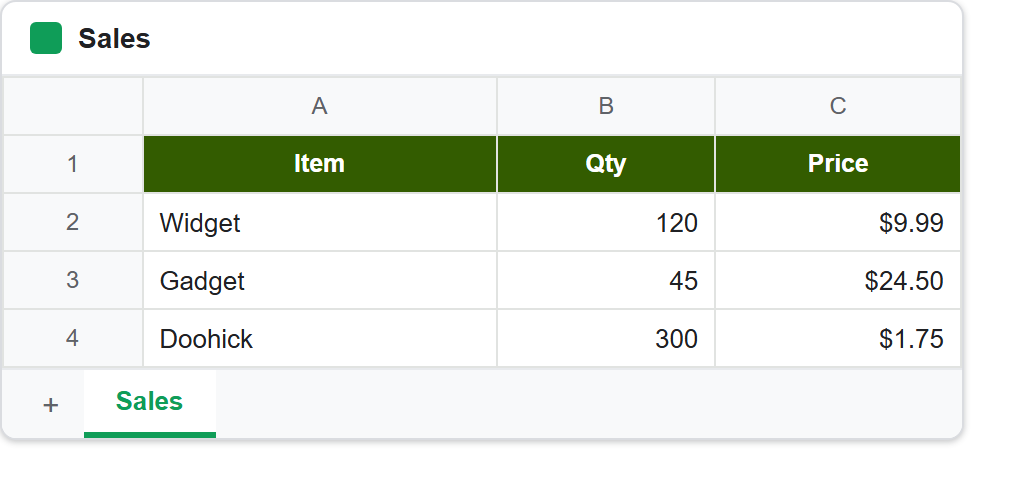
Read the price column twice. The stored values never changed — only the pattern that renders them — which is why the numbers still behave as numbers in a SUM.
The fields mask is a delete list.
Now the part that catches people. The fields mask reads like a list of things you are about to write. It is closer to the opposite: it names the region of the cell’s format that this request now owns, and the API overwrites that whole region with whatever cell contains. Leave a property out of cell while naming its parent in the mask, and the property is cleared.
Here is that measured on the header row above, which starts out bold, 12pt, white, centred, on dark green. Suppose you only want to turn bold off.
// The wide mask. It says "this request owns the entire format".
new Request(['repeatCell' => [
    'range'  => $headerRange,
    'cell'   => ['userEnteredFormat' => ['textFormat' => ['bold' => false]]],
    'fields' => 'userEnteredFormat',
]]);
Reading A1 back after that request returns nothing at all: no fill, no text colour, no font size, no alignment. The request mentioned only bold, and the fill was still wiped, because the mask claimed the whole of userEnteredFormat and the payload had nothing to put in the rest of it.
// The narrow mask. It owns exactly one boolean.
new Request(['repeatCell' => [
    'range'  => $headerRange,
    'cell'   => ['userEnteredFormat' => ['textFormat' => ['bold' => false]]],
    'fields' => 'userEnteredFormat.textFormat.bold',
]]);
Same payload, same range, same intent. This time the fill and the text colour survive and only the boolean flips. So make the mask as specific as the change, and the rest of your formatting is safe.
One thing you cannot do is dodge the decision. Omit fields altogether and the request is rejected before it touches anything:
Invalid requests[0].repeatCell: At least one field must be listed in
'fields'. (Use '*' to indicate all fields.)
That error is doing you a favour. The dangerous mask is not the missing one, which fails loudly — it is the too-wide one, which succeeds and quietly takes your formatting with it.
Format Google Sheets cells without surprises.
Three habits cover the rest of it. Address tabs by sheetId and never by name, since every formatting request requires the integer. Keep colours as floats between 0 and 1. Above all, write the narrowest fields mask that expresses the change, because a mask one level too broad is the difference between editing a format and replacing it.
Then read the cell back, the way the last step does. Formatting is the one area where the API’s success response is least informative: it confirms the request parsed, and the only way to know what the sheet now looks like is to ask the sheet. For a cell background, the row deletion article shades a fixture row the same way.