An address pasted out of an email arrives as one cell holding three lines. The CLEAN function strips those breaks out so the cell becomes a single line of text again.
The breaks are real characters, not formatting. They sit in the stored value, they count toward the length, and they travel with the cell into every export you make afterwards.
For instance, a mail-merge column with hidden breaks produces labels that wrap in the wrong places. Meanwhile the sheet itself looks perfectly ordinary, which is why nobody catches it before printing.
The CLEAN function.
So point it at the cell and the breaks come out.
=CLEAN(A2)
What it removes is the first thirty-one characters of the character set, the ones no font ever draws. In short, the CLEAN function deletes control characters and leaves everything printable exactly where it was.
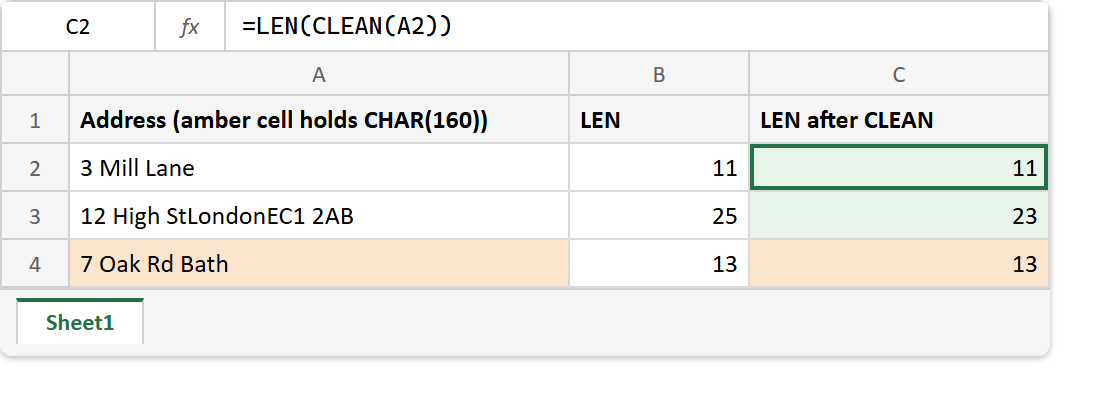
The result is invisible, which makes this a difficult function to demonstrate. Therefore LEN is the witness worth pairing it with, since the length is the only thing on screen that actually changes.
It cannot see the non-breaking space.
Text copied from a web page brings a different passenger. Browsers emit the non-breaking space, and it is character one hundred and sixty, comfortably outside the range CLEAN works on.
=SUBSTITUTE(A4,CHAR(160)," ")
So a cell can go through CLEAN, come out unchanged, and still refuse to match the value you are comparing it against. The length stays the same because nothing was removed.
SUBSTITUTE is what handles that one, by turning the awkward space into an ordinary one. That repair belongs to a different card, and TRIM covers it in detail, so treat this as the pointer rather than the explanation.
Result of the CLEAN function.
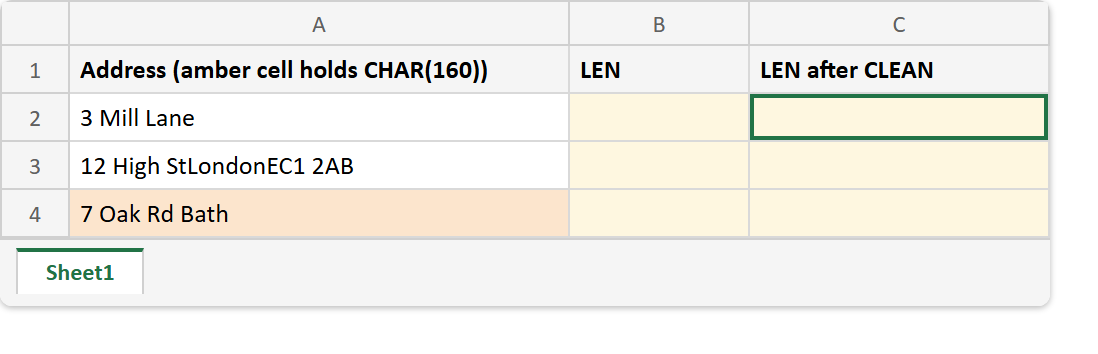
Before. Three addresses, one carrying line breaks and one carrying something else.
After. The lengths tell you what happened, because nothing else can.
A2  ->  3 Mill Lane
A3  ->  12 High St + two line breaks + London + EC1 2AB
A4  ->  7 Oak Rd + CHAR(160) + Bath

=LEN(A3)            ->  25
=LEN(CLEAN(A3))     ->  23     (two breaks removed)
=LEN(A4)            ->  13
=LEN(CLEAN(A4))     ->  13     (nothing removed)
=CODE(MID(A4,9,1))  ->  160
That last line is the diagnostic worth remembering. CODE reports which character is sitting in a given position, so you can name the passenger rather than guess at it.
The space that survives here belongs to TRIM, which explains why character one hundred and sixty defeats it too. Then SUBSTITUTE is the one that finally removes it.