A name pasted from a web page arrives with spaces you never typed. The TRIM function strips them in a single formula, and there is exactly one kind of space it leaves behind on purpose.
Two functions do the work. TRIM first drops leading and trailing spaces entirely, then collapses each run between words down to one. SUBSTITUTE handles the character TRIM ignores, swapping it for an ordinary space first so TRIM can then see it.
Every list you import, paste or inherit carries spacing nobody typed, and it is why a lookup misses and why a sort files the same name twice. The formula below clears it, and you will reach for it on almost every sheet you clean up.
The TRIM function.
Put a messy value in A2 and clean it into B2.
=TRIM(A2)
One argument, one result. The TRIM function takes the cell and hands back the same text with its spacing normalised.
It does two jobs at once, which is worth separating. Leading and trailing spaces go completely, while a run of spaces between two words collapses to exactly one. Therefore three spaces in the middle of a name come back as one, and the words stay apart.
Numbers are also safe to pass through. TRIM returns text, so wrap it in VALUE if the result has to stay a number for a later sum.
The space TRIM cannot see.
TRIM only removes the ordinary space, CHAR(32). A web page delivers the non-breaking space, CHAR(160), and that one survives untouched.
=TRIM(SUBSTITUTE(A5,CHAR(160)," "))
SUBSTITUTE turns each non-breaking space into a normal one, and TRIM then clears it like any other. However, you only need the longer form on text that came out of a browser.
This is the “TRIM did not work” case, and a paste from a web page causes nearly all of it. Consequently, when a trimmed value still refuses to match a lookup, suspect CHAR(160) before you suspect the formula.
Result of the TRIM function.
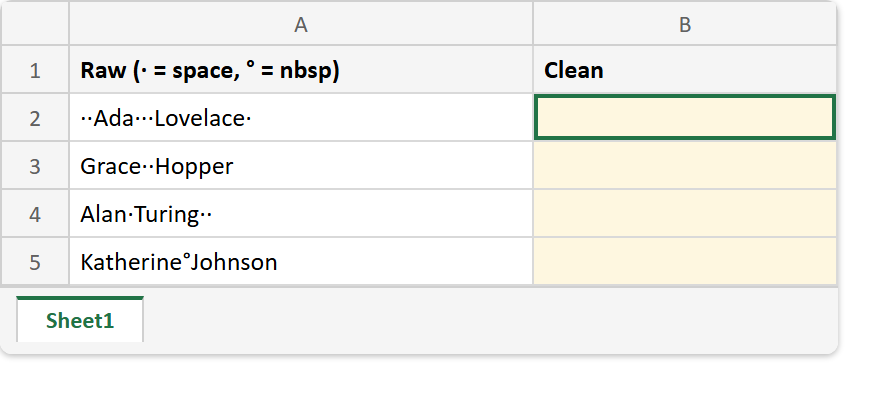
Before. Four raw values with their spaces marked, and the Clean column still empty.
After. One formula down column B, where the last row is the one that does not change.
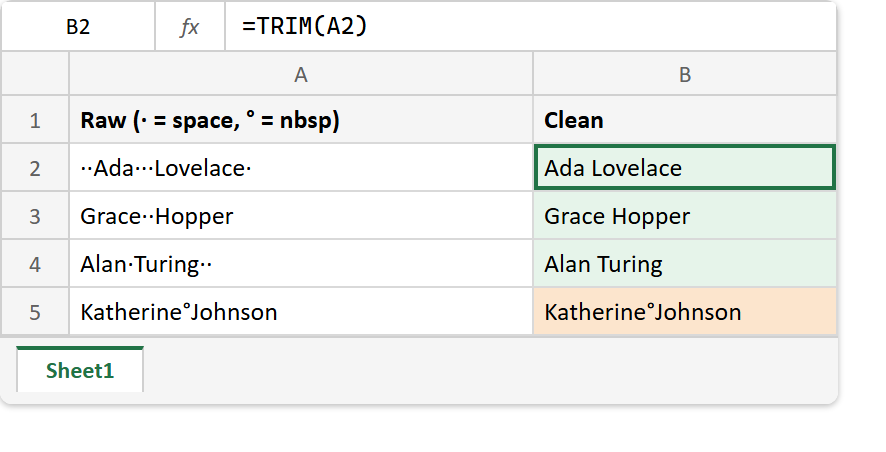
A2  ->  ··Ada···Lovelace·     (· = space)
A5  ->  Katherine°Johnson     (° = CHAR(160), pasted from a web page)

=TRIM(A2)                            ->  Ada·Lovelace
=TRIM(A5)                            ->  Katherine°Johnson
=TRIM(SUBSTITUTE(A5,CHAR(160)," "))  ->  Katherine·Johnson
The middle line is the one to remember. It looks trimmed, yet it is not trimmed, and nothing on screen tells you which.
Swapping one piece of text for another has far more to it than CHAR(160), and that is SUBSTITUTE‘s own job.