This article shows how to read Excel dates back out of a file with the latest version of PhpSpreadsheet, using plain PHP. There is a surprise waiting the first time you do it: a cell that shows 2026-03-14 in Excel reads back as 46095. Excel does not store dates as dates — it stores a serial number counting days from an epoch, and the date you see is just a number format painted over it. So to get a real PHP DateTime back, you convert that serial yourself.
The Date helper does the conversion. Date::excelToDateTimeObject() turns a serial into a DateTime, Date::excelToTimestamp() turns it into a Unix timestamp, and Date::isDateTime() checks a cell’s number format to tell you whether it is a date at all — important, because the raw value alone cannot say whether 46095 means a date or the number forty-six thousand.
This is the read-direction companion to writing dates, which stores a DateTime as a serial with Date::PHPToExcel(). Of course, getting it right matters whenever you import a spreadsheet and need the dates as dates — to compare them, sort them, or store them in a database — rather than as mystery integers.
Requirements to read Excel dates:
- Composer
- PHP 8.2 or newer
Step 1.
First, set up the dependencies. Here we pin the latest major release of PhpSpreadsheet (the 5.x line).
{
    "require": {
        "phpoffice/phpspreadsheet": "^5.0"
    }
}
Step 2.
Next, install phpspreadsheet.
$ composer install
Step 3.
Then create a new PHP file. Next, load Composer’s autoloader and import Spreadsheet, the Date helper, the Xlsx writer, and IOFactory for reading.
<?php

require 'vendor/autoload.php';

use PhpOffice\PhpSpreadsheet\Spreadsheet;
use PhpOffice\PhpSpreadsheet\Shared\Date;
use PhpOffice\PhpSpreadsheet\Writer\Xlsx;
use PhpOffice\PhpSpreadsheet\IOFactory;
Step 4.
So the example is self-contained, first write a small file that actually contains a date cell. This is the write direction: Date::PHPToExcel() turns a DateTime into a serial, and a number format tells Excel to show it as a date.
$spreadsheet = new Spreadsheet();
$worksheet = $spreadsheet->getActiveSheet();
$worksheet->setCellValue('A1', 'Event');
$worksheet->setCellValue('B1', 'Starts');
$worksheet->setCellValue('A2', 'Kickoff');
$worksheet->setCellValue('B2', Date::PHPToExcel(new DateTime('2026-03-14 09:30')));
$worksheet->getStyle('B2')->getNumberFormat()->setFormatCode('yyyy-mm-dd hh:mm');
(new Xlsx($spreadsheet))->save('events.xlsx');
Step 5.
Now read the file back and grab the date cell. In fact, the raw value is the serial number, not a date — this is the part that catches people out.
$cell = IOFactory::load('events.xlsx')->getActiveSheet()->getCell('B2');

// The stored value is a serial number.
echo "getValue()            : " . $cell->getValue() . "\n";
Step 6.
Check that the cell is a date with Date::isDateTime() — it inspects the number format — then convert the serial into real PHP values with excelToDateTimeObject() and excelToTimestamp().
echo "isDateTime()          : " . (Date::isDateTime($cell) ? 'true' : 'false') . "\n";

$dateTime = Date::excelToDateTimeObject($cell->getValue());
echo "excelToDateTimeObject : " . $dateTime->format('Y-m-d H:i') . "\n";
echo "excelToTimestamp()    : " . Date::excelToTimestamp($cell->getValue()) . "\n";
Step 7.
There is a shortcut worth knowing. For example, getFormattedValue() applies the cell’s number format and gives you the date as it looks in Excel — but it is a string, fine for display and useless for date arithmetic. Use it to show a value; use the conversions above when you need to compute with it.
echo "getFormattedValue() : " . $cell->getFormattedValue() . "\n";
Complete code to read Excel dates.
<?php

require 'vendor/autoload.php';

use PhpOffice\PhpSpreadsheet\Spreadsheet;
use PhpOffice\PhpSpreadsheet\Shared\Date;
use PhpOffice\PhpSpreadsheet\Writer\Xlsx;
use PhpOffice\PhpSpreadsheet\IOFactory;

// Set up: write a file that contains a real date cell.
$spreadsheet = new Spreadsheet();
$worksheet = $spreadsheet->getActiveSheet();
$worksheet->setCellValue('A1', 'Event');
$worksheet->setCellValue('B1', 'Starts');
$worksheet->setCellValue('A2', 'Kickoff');
$worksheet->setCellValue('B2', Date::PHPToExcel(new DateTime('2026-03-14 09:30')));
$worksheet->getStyle('B2')->getNumberFormat()->setFormatCode('yyyy-mm-dd hh:mm');
(new Xlsx($spreadsheet))->save('events.xlsx');

// Read it back.
$cell = IOFactory::load('events.xlsx')->getActiveSheet()->getCell('B2');

echo "getValue()            : " . $cell->getValue() . "\n";
echo "isDateTime()          : " . (Date::isDateTime($cell) ? 'true' : 'false') . "\n";

$dateTime = Date::excelToDateTimeObject($cell->getValue());
echo "excelToDateTimeObject : " . $dateTime->format('Y-m-d H:i') . "\n";
echo "excelToTimestamp()    : " . Date::excelToTimestamp($cell->getValue()) . "\n";

echo "getFormattedValue()   : " . $cell->getFormattedValue() . "\n";
Test reading Excel dates.
Command line testing.
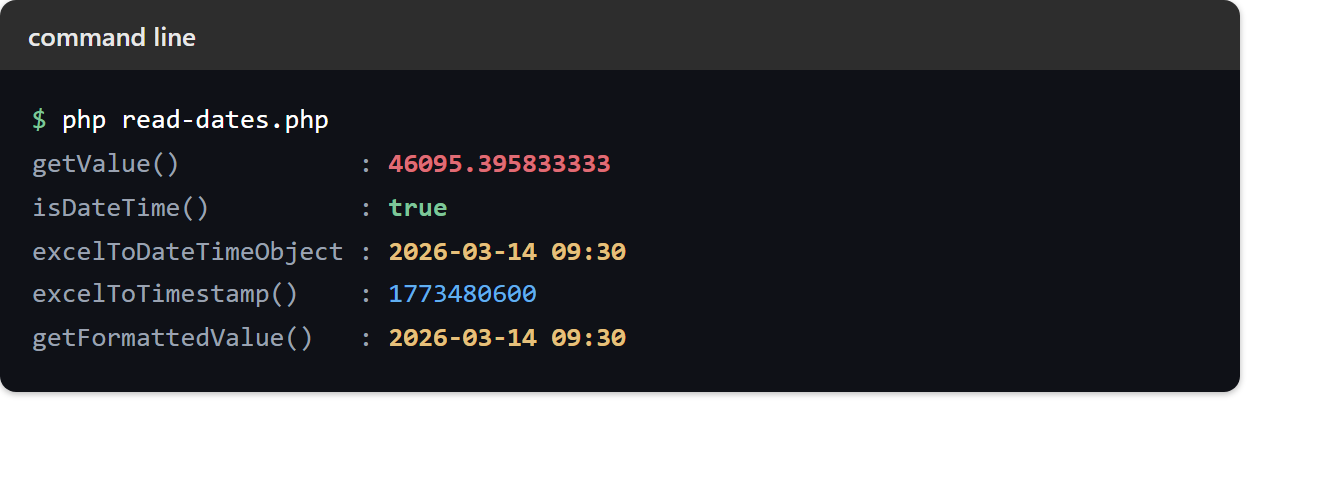
$ php read-dates.php
Result of reading Excel dates.
The raw value is 46095.395833333 — the integer part is the day and the fraction is the time (09:30 is 0.3958… of a day). isDateTime() confirms it is a date, and the two conversions give back a real date and a Unix timestamp. Finally, getFormattedValue() shows the same instant as a display string:
getValue()            : 46095.395833333
isDateTime()          : true
excelToDateTimeObject : 2026-03-14 09:30
excelToTimestamp()    : 1773480600
getFormattedValue()   : 2026-03-14 09:30
Lastly, one thing to know for older files: Excel has two epochs. Most files count from 1899-12-30 (the 1900 system), but some Mac-authored files count from 1904. Date::excelToDateTimeObject() uses the workbook’s own setting, so as long as you convert the serial rather than eyeballing the integer, the right epoch is applied for you.