This article shows how to create named ranges in an Excel file with the latest version of PhpSpreadsheet and refer to them from formulas, using plain PHP. A named range gives a block of cells — or a single cell — a human-readable name, so a formula can say =SUM(Amounts) instead of =SUM($B$2:$B$5). The formula reads like a sentence, and if the data moves you update the name in one place rather than hunting through every formula.
Two calls do the work. addNamedRange() registers a name against a worksheet and an absolute cell reference, and any formula you write may then use that name. To prove the names resolve, we read the results back with getCalculatedValue(), which evaluates the formula — names and all — on the PHP side without opening Excel.
Named ranges are worth the small amount of setup whenever the same block feeds several formulas, or when a constant such as a tax rate is referenced from many places: name the cell TaxRate once and every formula that uses it stays readable. Below we define one range name over a column of amounts and one scalar name for the rate, then use both in three formulas.
Requirements to use named ranges:
- Composer
- PHP 8.2 or newer
Step 1.
First, set up the dependencies. Here we pin the latest major release of PhpSpreadsheet (the 5.x line).
{
    "require": {
        "phpoffice/phpspreadsheet": "^5.0"
    }
}
Step 2.
Next, install phpspreadsheet.
$ composer install
Step 3.
Then create a new PHP file. Load Composer’s autoloader and import Spreadsheet, the NamedRange class, and the Xlsx writer.
<?php

require 'vendor/autoload.php';

use PhpOffice\PhpSpreadsheet\Spreadsheet;
use PhpOffice\PhpSpreadsheet\NamedRange;
use PhpOffice\PhpSpreadsheet\Writer\Xlsx;
Step 4.
Create the spreadsheet, name the sheet, and lay down some data to point a name at. A single cell (D1) holds the tax rate we will name separately.
$spreadsheet = new Spreadsheet();
$worksheet = $spreadsheet->getActiveSheet();
$worksheet->setTitle('Sales');

$worksheet->fromArray([
    ['Item', 'Amount'],
    ['Keyboard', 40],
    ['Monitor', 190],
    ['Mouse', 25],
    ['Webcam', 55],
], null, 'A1');

// A single cell holding a constant we will name.
$worksheet->setCellValue('D1', 0.20);
Step 5.
Define the names with addNamedRange(). Each NamedRange takes a name, the worksheet it belongs to, and an absolute reference ($B$2:$B$5). Use absolute references here — a relative one shifts when the formula is copied, which is rarely what a name is for.
// A range name over the Amount column, and a scalar name for one cell.
$spreadsheet->addNamedRange(new NamedRange('Amounts', $worksheet, '$B$2:$B$5'));
$spreadsheet->addNamedRange(new NamedRange('TaxRate', $worksheet, '$D$1'));
Step 6.
Write formulas that use the names instead of raw coordinates. They are ordinary formula strings; PhpSpreadsheet resolves Amounts and TaxRate when the formula is evaluated.
$worksheet->setCellValue('D3', '=SUM(Amounts)');
$worksheet->setCellValue('D4', '=SUM(Amounts)*TaxRate');
$worksheet->setCellValue('D5', '=SUM(Amounts)*(1+TaxRate)');
Step 7.
Save the workbook, then read the three formulas back with getCalculatedValue() to confirm the names resolve. getCalculatedValue() evaluates the formula in PHP, so you see the numbers without opening the file.
(new Xlsx($spreadsheet))->save('named-ranges.xlsx');
echo "Wrote named-ranges.xlsx\n";

echo "Subtotal  =SUM(Amounts)            : " . $worksheet->getCell('D3')->getCalculatedValue() . "\n";
echo "Tax       =SUM(Amounts)*TaxRate    : " . $worksheet->getCell('D4')->getCalculatedValue() . "\n";
echo "Total     =SUM(Amounts)*(1+TaxRate): " . $worksheet->getCell('D5')->getCalculatedValue() . "\n";
Complete code to use named ranges.
<?php

require 'vendor/autoload.php';

use PhpOffice\PhpSpreadsheet\Spreadsheet;
use PhpOffice\PhpSpreadsheet\NamedRange;
use PhpOffice\PhpSpreadsheet\Writer\Xlsx;

$spreadsheet = new Spreadsheet();
$worksheet = $spreadsheet->getActiveSheet();
$worksheet->setTitle('Sales');

$worksheet->fromArray([
    ['Item', 'Amount'],
    ['Keyboard', 40],
    ['Monitor', 190],
    ['Mouse', 25],
    ['Webcam', 55],
], null, 'A1');

$worksheet->setCellValue('D1', 0.20);

// Define the names: one range, one single cell. Absolute references.
$spreadsheet->addNamedRange(new NamedRange('Amounts', $worksheet, '$B$2:$B$5'));
$spreadsheet->addNamedRange(new NamedRange('TaxRate', $worksheet, '$D$1'));

// Formulas refer to the names.
$worksheet->setCellValue('D3', '=SUM(Amounts)');
$worksheet->setCellValue('D4', '=SUM(Amounts)*TaxRate');
$worksheet->setCellValue('D5', '=SUM(Amounts)*(1+TaxRate)');

(new Xlsx($spreadsheet))->save('named-ranges.xlsx');
echo "Wrote named-ranges.xlsx\n";

echo "Subtotal  =SUM(Amounts)            : " . $worksheet->getCell('D3')->getCalculatedValue() . "\n";
echo "Tax       =SUM(Amounts)*TaxRate    : " . $worksheet->getCell('D4')->getCalculatedValue() . "\n";
echo "Total     =SUM(Amounts)*(1+TaxRate): " . $worksheet->getCell('D5')->getCalculatedValue() . "\n";
Test using named ranges.
Command line testing.
$ php named-ranges.php
Result of using named ranges.
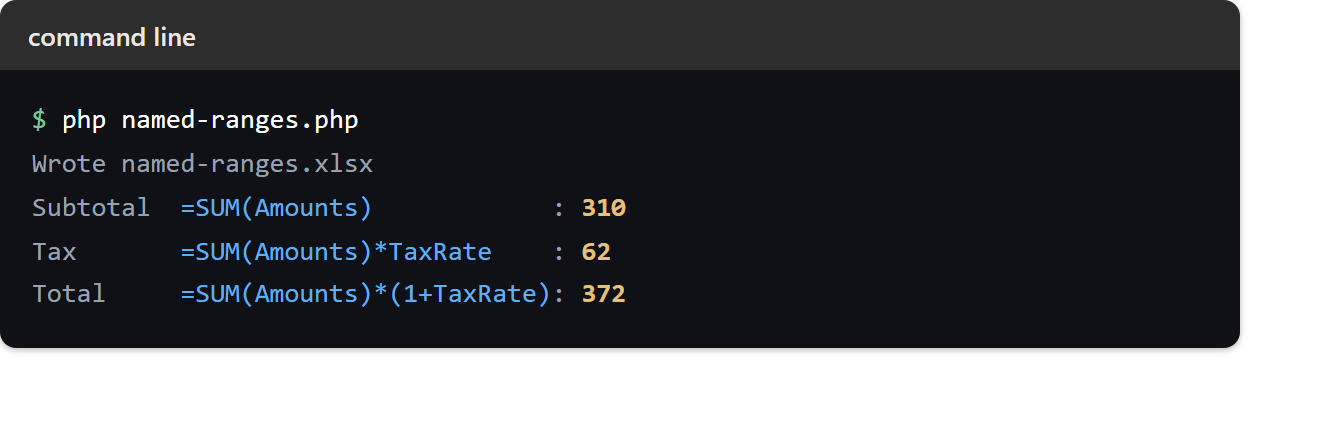
The amounts add up to 310. =SUM(Amounts)*TaxRate gives 62 and =SUM(Amounts)*(1+TaxRate) gives 372 — the names resolved to their cells and the formulas evaluated correctly:
Wrote named-ranges.xlsx
Subtotal  =SUM(Amounts)            : 310
Tax       =SUM(Amounts)*TaxRate    : 62
Total     =SUM(Amounts)*(1+TaxRate): 372
Open named-ranges.xlsx in Excel and the names appear in the Name Box; clicking one selects its cells, and the formulas show =SUM(Amounts) rather than raw coordinates.