Drawing a raffle, picking a sample of rows to check, or filling a test sheet with plausible numbers all need a random value. The RANDBETWEEN function returns a random whole number between two limits you choose, both of them included.
In fact, it is the friendly form of an older function. RAND returns a random decimal from 0 up to, but not including, 1. Before RANDBETWEEN existed, people scaled and rounded that decimal by hand to get a whole number.
However, both functions are volatile. Excel does not store the number you drew anywhere, and the moment you edit any other cell it draws again. So this card is as much about freezing the result as about producing it.
The RANDBETWEEN function.
So give it the lowest and the highest value you will accept.
=RANDBETWEEN(1,10)
It returns a whole number from 1 to 10 inclusive, and a different one in each cell you copy it to. The run below drew 7, 1, 10, 9 and 5 for five names, and both limits can come up, as the 1 and the 10 show. Two names drawing the same number is normal too, and a fair draw does not avoid it. Negative limits are fine too, so =RANDBETWEEN(-5,5) picks from eleven values centred on zero.
Next, compare the decimal version.
=RAND()
That takes no arguments and returns something like 0.240746. Also, =ROUND(RAND()*100,0) is the old way to a whole number from 0 to 100. Microsoft’s reference gives =RAND()*(b-a)+a as the general way to scale it into any range.
The number changes behind your back.
Then type anything into an unrelated cell and watch the Draw column.
=RANDBETWEEN(1,10)
Every value changes. Microsoft’s reference says the function returns a new random number every time the worksheet calculates, and Excel recalculates after every edit. Consequently, the winner you announced a minute ago may no longer be the winner on screen.
To keep a draw, freeze it. Select the column, copy it, and use Paste Special with Values, so the cells hold the numbers instead of the formula. Alternatively, in a single cell, type the formula and press F9 before Enter, and Excel stores the value rather than the formula. Meanwhile, reversed limits are the one real error: =RANDBETWEEN(10,1) returns #NUM!.
Result of the RANDBETWEEN function.
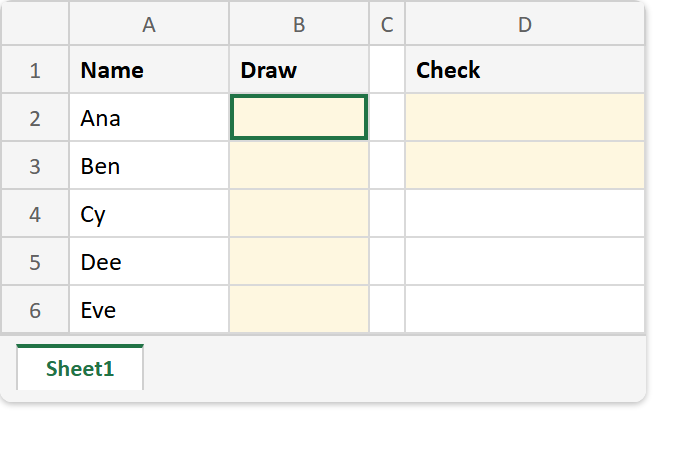
Before. Five names waiting for a draw, with the Draw and Check columns empty.
After. One draw of 1 to 10 for each name, the reversed limits erroring, and RAND’s decimal.
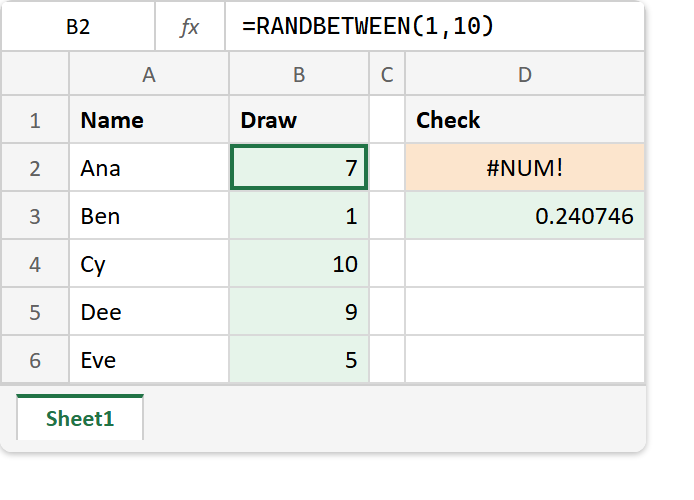
=RANDBETWEEN(1,10)     ->  7, 1, 10, 9, 5   (this run; yours will differ)
=RANDBETWEEN(1,10)     ->  3                (the first cell again, after one edit elsewhere)
=RANDBETWEEN(-5,5)     ->  0
=RANDBETWEEN(1,1)      ->  1
=RANDBETWEEN(10,1)     ->  #NUM!
=RAND()                ->  0.240746
=ROUND(RAND()*100,0)   ->  23
So draw with RANDBETWEEN, then paste the values before you rely on them. The same volatility catches the TODAY function, which freezes the same way. If you still prefer RAND, ROUND turns its decimal into a whole number.