Most spreadsheet decisions come down to one question asked of every row. The IF function asks it, then writes one answer when the test holds and another when it does not.
In fact, it is the closest thing a cell has to an if statement in code. It takes a test, a value for true and a value for false, in exactly that order.
For example, pass or fail, paid or overdue and in stock or reorder are all the same formula. Only the test changes, and so do the two words it can return.
The IF function.
So give it a comparison and the two possible answers.
=IF(A2>=50,"Pass","Fail")
First comes the test, which must end up TRUE or FALSE. Then the value to show when it is TRUE, and finally the value to show when it is FALSE. In short, the IF function reads left to right like a sentence.
Also, the answers do not have to be text. They can be numbers, cell references or whole formulas, which is how one IF ends up nested inside another.
Leave out the else, and you get FALSE.
However, the third argument is optional, and that is where the first surprise lives.
=IF(A2>=50,"Pass")
When the test fails, the cell does not stay empty. Instead it prints the word FALSE, because that is what the test returned and nothing told Excel to show anything else. For a blank, write "" as the third argument.
The second surprise is quieter. A score typed as text, such as '40, is not a number to Excel. When text is compared with a number, text always counts as the larger one, so the text 40 passes a test of 50.
Result of the IF function.
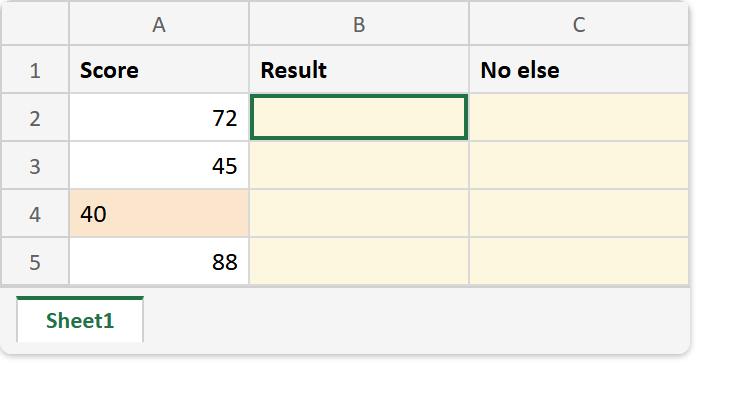
Before. Four scores, one of them stored as text, and nothing tested yet.
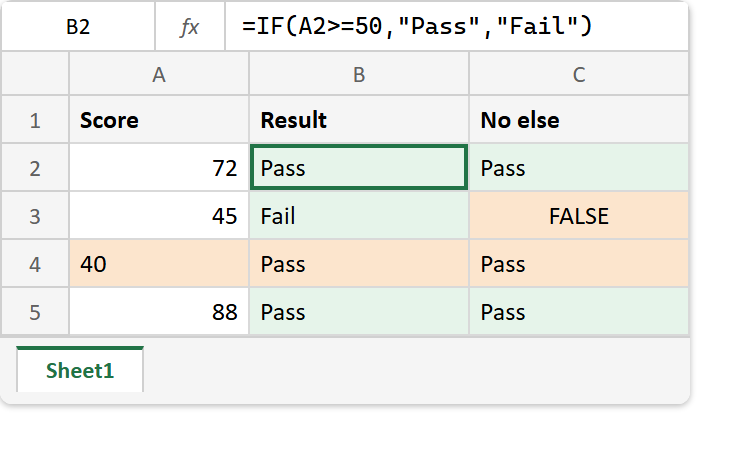
After. The full formula in column B, the version without an else in column C.
A2  ->  72
A3  ->  45
A4  ->  '40     (typed as text)
A5  ->  88

=IF(A2>=50,"Pass","Fail")  ->  Pass    =IF(A2>=50,"Pass")  ->  Pass
=IF(A3>=50,"Pass","Fail")  ->  Fail    =IF(A3>=50,"Pass")  ->  FALSE
=IF(A4>=50,"Pass","Fail")  ->  Pass    (text beats any number)
=IF(A5>=50,"Pass","Fail")  ->  Pass    =IF(A5>=50,"Pass")  ->  Pass
Row 4 is the one to worry about, because it looks like a sensible answer. Therefore, before trusting a test on imported numbers, check them with ISNUMBER, and convert any that fail with VALUE.
Finally, when the test itself can error, IFERROR is the shorter tool. And to write the same formula into a file from code, see creating Excel files with formulas in PHP.