A column of figures that refuses to add up is usually not figures at all. The VALUE function turns text that merely looks numeric into a number Excel will actually work with.
In fact, you can spot the problem before writing anything. Numbers sit on the right of their cells and text sits on the left, so a left-aligned column of prices has already told you what it is.
For instance, exports from accounting systems, bank statements and copied web tables all arrive in this state. One formula fixes the column, provided the text is the kind Excel can read.
The VALUE function.
So hand it a cell and read a real number back.
=VALUE(A2)
What comes back is a number rather than a picture of one. Therefore it sums, sorts and compares like anything typed by hand, and it jumps to the right of its cell as proof.
Often you do not need it at all. Excel coerces text inside arithmetic, so =A2*1 does the same job in fewer characters. In short, the VALUE function is the version that says out loud what it is doing, which matters when somebody else reads the sheet.
What makes it return an error.
The function reads your machine’s regional settings rather than the file’s. Consequently a European export holding 1.234,56 fails on an English-locale copy of Excel, because the separators are the wrong way round.
=VALUE(TRIM(A2))
The second failure is quieter. Text pasted out of a browser usually carries a non-breaking space, and the function refuses that too, so the longer form above is what most pasted data actually needs.
Neither case degrades gracefully. You get #VALUE! instead, which is at least honest, since the alternative would be a plausible wrong number sitting in a column of right ones.
Result of the VALUE function.
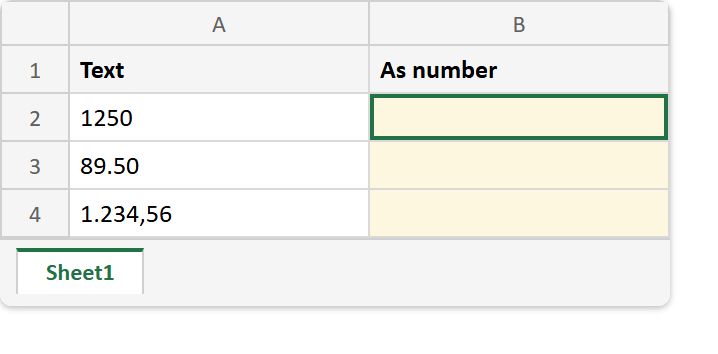
Before. Three figures, every one of them left-aligned, and not one of them a number.
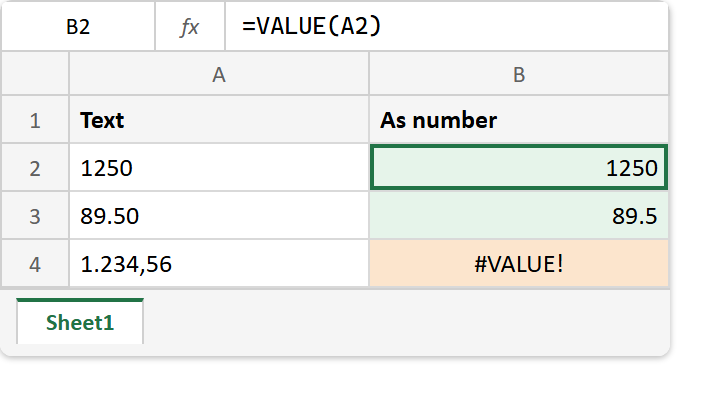
After. Two of the three convert and move right, while the European one refuses.
A2  ->  1250       (text)
A3  ->  89.50      (text)
A4  ->  1.234,56   (text, European separators)

=VALUE(A2)   ->  1250
=VALUE(A3)   ->  89.5
=VALUE(A4)   ->  #VALUE!
=SUM(B2:B3)  ->  1339.5
Notice where the two converted figures ended up. They moved to the right of their cells, which is the same signal that told you the originals were text in the first place.
This is the TEXT function run backwards. TEXT turns a number into something that no longer sums, and the VALUE function is how you undo it. Meanwhile the stray space that breaks it belongs to TRIM.