Find and Replace changes the sheet itself, so the original is gone the moment you confirm it. The SUBSTITUTE function leaves the original alone. It writes the corrected version into a new cell instead, which matters the moment somebody asks what the value used to be.
Two functions do the work. SUBSTITUTE swaps one piece of text for another wherever it appears, matching by content instead of by position. TRIM also pairs with it for the one job that needs both, clearing the odd space a web page leaves behind.
Renaming a term down a column, turning dashes into spaces, stripping a currency symbol before a sum. These are the small repairs that stand between an export and a usable sheet. One formula covers all of them, so it runs again by itself the moment the source data refreshes.
The SUBSTITUTE function.
Take an address in A2 and rename part of it into B2.
=SUBSTITUTE(A2,"street","road")
The arguments read in order: first the cell, then the text to find, and finally the text to put in its place. Every occurrence changes, not only the first one.
A fourth argument narrows that down when you need it. Passing 4 as the instance number rewrites the fourth occurrence and leaves the others alone. That is how you split a value on its last delimiter.
Case matters.
Here is where the SUBSTITUTE function parts company with Find and Replace. The match is case-sensitive, so "street" never touches Street.
=SUBSTITUTE(LOWER(A3),"street","road")
Lowering the text first makes the match reliable, although it also flattens the capitals you wanted to keep. Alternatively, nest a second call so both spellings are covered and the rest of the value survives.
Still, the same strictness is what makes it precise. REPLACE works on a character position and has no idea what it is overwriting, whereas SUBSTITUTE only ever changes text it genuinely matched.
Result of the SUBSTITUTE function.
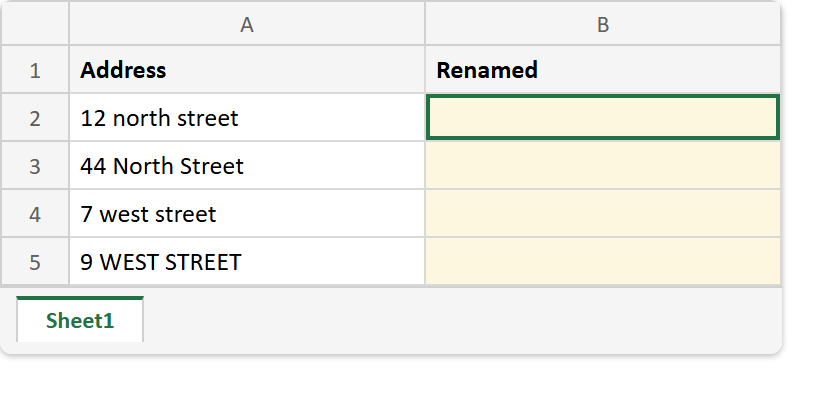
Before. Four addresses in mixed case, with the Renamed column still empty.
After. One formula down column B, where only the lowercase rows changed.
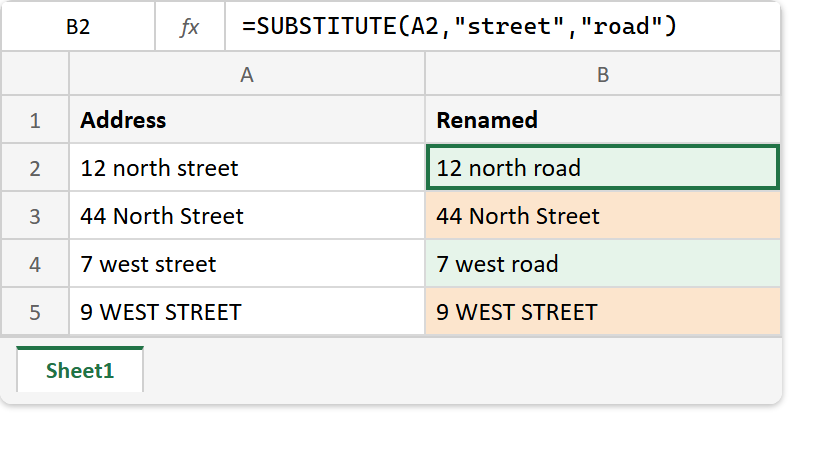
A2  ->  12 north street
A3  ->  44 North Street
A4  ->  7 west street
A5  ->  9 WEST STREET

=SUBSTITUTE(A2,"street","road")  ->  12 north road
=SUBSTITUTE(A3,"street","road")  ->  44 North Street
=SUBSTITUTE(A4,"street","road")  ->  7 west road
=SUBSTITUTE(A5,"street","road")  ->  9 WEST STREET
Two rows came back untouched, and no error said so. That silence is the whole reason to settle the case question before trusting the column.
This function is also the fix for the space that survives a clean-up, since =TRIM(SUBSTITUTE(A2,CHAR(160)," ")) is TRIM with its missing half.