A cell shows 3.14 and LEN says seven. Nothing is broken — the LEN function counts what the cell holds, not what the cell shows, and that gap explains most of its surprises.
Two functions do the work. LEN returns the number of characters in a value, so the spaces and the punctuation both count. TRIM removes the spacing you cannot see, and pairing the two turns LEN into a way of proving the clean-up actually happened.
Character counts run quietly under a lot of everyday work: a field limit on an import, a code that must be six digits, a description that has to fit its column. One short formula answers all of it, and the second one below turns it into a checking tool.
The LEN function.
Point it at a cell and read the count back.
=LEN(A2)
One argument, one number. The LEN function counts every character, so the spaces between words and the punctuation both add to the total.
Blank cells return zero rather than an error, which makes the result safe to sum or compare straight away. An error in the source cell does carry through, however, so wrap the call in IFERROR when the column is untidy.
What LEN actually counts.
Of course, formatting changes the display and nothing else. A cell holding 3.14159 shown to two decimals still counts seven characters, because the underlying value never shrank.
=LEN(A2)-LEN(TRIM(A2))
Dates behave the same way. Excel stores a date as a serial number, so a cell reading 9/4/2026 counts five characters rather than nine.
The formula above is the useful consequence. It subtracts the trimmed length from the raw length, so the answer is the number of spaces TRIM removed. Therefore a zero means the value was already clean, and anything higher tells you exactly how much padding was hiding in it.
Result of the LEN function.
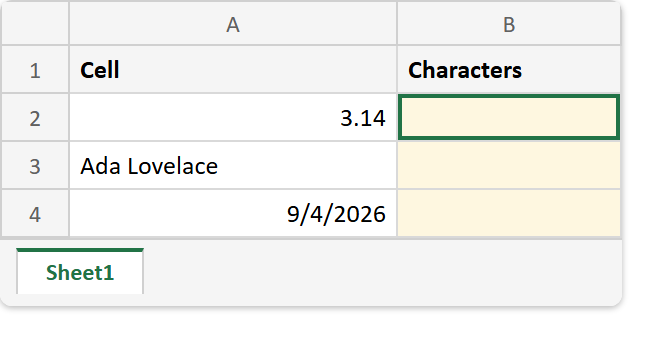
Before. Three values that each display one thing, with the count column still empty.
After. One formula down column B, where two of the three counts are not the number the screen suggests.
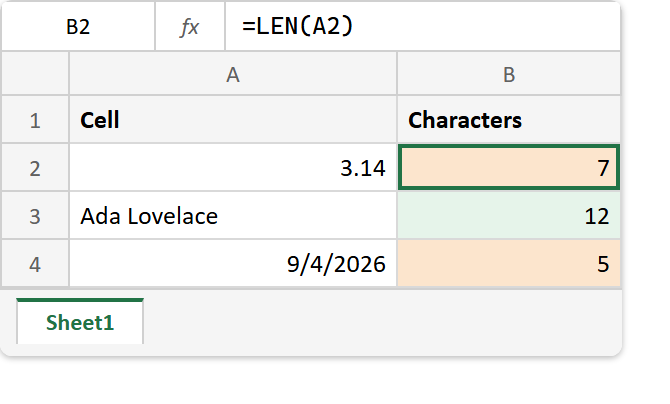
A2  ->  3.14         (really 3.14159)
A3  ->  Ada Lovelace
A4  ->  9/4/2026     (really the serial 46269)

=LEN(A2)  ->  7
=LEN(A3)  ->  12
=LEN(A4)  ->  5
The first and last lines are the ones that catch people. In fact, both cells count the stored value, and the display had no say in it.
The subtraction above only makes sense once you know what it is measuring, and that is TRIM at work.