The SEQUENCE function produces a block of numbers from four arguments: how many rows, how many columns, where to start, and how much to step. Nothing has to exist first. One cell holds the formula and the numbers appear beside it.
That replaces the oldest habit in Excel — type a value, type the next one, select both, and drag the corner. Dragging produces numbers that sit there; the SEQUENCE function produces numbers that recalculate, which is the difference between data and a definition.
This site fills cells from the other direction too. Loop Through Cells With Iterators In PHP Using PHPSpreadSheet walks a worksheet cell by cell and writes each one, which is what you do when a program owns the file. Here there is no loop at all, because the shape of the result is an argument rather than a control structure.
This is also the one article in this group that works in Excel 2021, and the version section explains where the line falls.
Requirements for the SEQUENCE function:
- Excel 2021, Excel 2024, Microsoft 365, or Excel for the web
- A workbook you can edit
- Nothing to install, because the SEQUENCE function ships with Excel
SEQUENCE came with the dynamic array engine, so Excel 2021 runs it. However EXPAND and HSTACK, which appear in the later steps, arrived in the following wave — those two need Microsoft 365 or Excel 2024, and Excel 2021 answers #NAME? for them.
Step 1.
First, lay the table out in A1:D6. We will mostly generate numbers from nothing, but the last steps attach them to this data.
Ref             Item      Qty   Price
north-2026-01   Widget    3     12.50
south-2026-02   Sprocket  7     4.00
north-2026-03   Doohick   2     30.00
east-2026-04    Gadget    5     9.25
south-2026-02   Sprocket  7     4.00
Step 2.
Next, the simplest form. One argument is a count of rows.
=SEQUENCE(3)
That returns 1, 2, 3 down a column. The second argument turns it sideways.
=SEQUENCE(1,4)
One row, four columns. Consequently the shape of the output is decided by the arguments rather than by where you drag.
Step 3.
Then set the start and the step. All four arguments together.
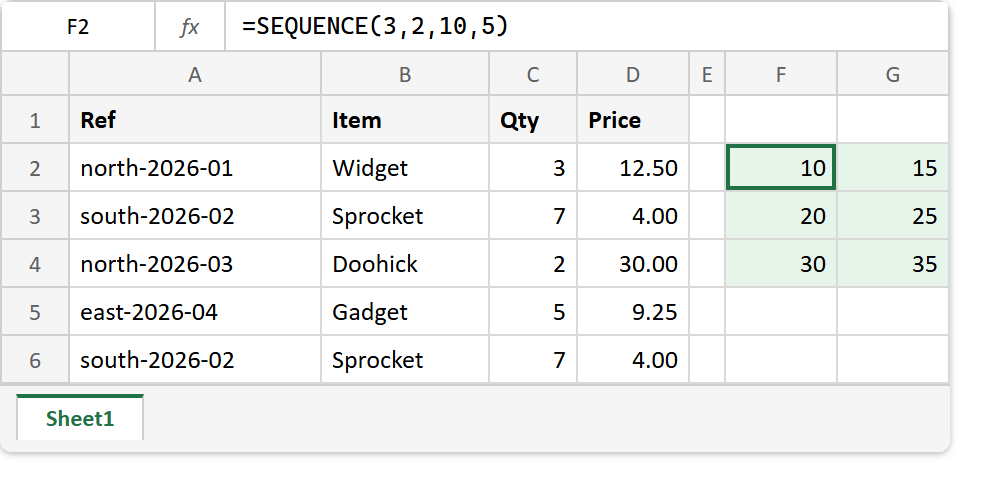
=SEQUENCE(3,2,10,5)
Three rows, two columns, starting at 10 and rising by 5 — so the block reads 10, 15 across the first row and continues 20, 25 and then 30, 35. Notice it fills across each row before moving down, which is the same order the reshaping functions use.
A negative step counts down.
=SEQUENCE(4,1,10,-2)
That gives 10, 8, 6, 4. Therefore countdowns, reverse rankings and descending scales need no extra function.
Step 4.
Now make it fit the data instead of a fixed count. Feed ROWS into the first argument.
=SEQUENCE(ROWS(A2:A6))
Five rows in the table, so five numbers come out. Because the count is derived rather than typed, adding a record and widening the range is the only change — the numbering follows automatically and cannot fall out of step.
Pair it with the data and you have a numbered list.
=HSTACK(SEQUENCE(ROWS(B2:B6)),B2:B6)
One formula produces a two-column block: the position, then the item. Meanwhile the traditional version is a helper column of =ROW()-1 that breaks the moment a row is inserted above the table.
Step 5.
Finally, generate dates. A date in Excel is a number, so SEQUENCE handles them with no special argument.
=SEQUENCE(3,1,DATE(2026,1,1),1)
The raw result is 46023, 46024, 46025 — the serial numbers Excel stores dates as. Format the cells as dates and they read 1, 2 and 3 January 2026. That is worth seeing once, because a column of five-digit numbers where you expected dates is not a broken formula, it is an unformatted one.
Step by 7 for weekly dates, or by 30 for something roughly monthly. Note that a true month step needs EDATE instead, since months are not a fixed number of days.
What the SEQUENCE function does that dragging cannot.
Three things, and the first is the one that matters.
It resizes itself. A dragged column of 500 numbers is 500 numbers forever, whereas a derived count follows the data. Also it is one cell to audit rather than 500, so a mistake is visible instead of buried. Finally, it composes: any function that accepts a range accepts a generated one, which is what makes the numbered list in step 4 a single formula.
There is a companion worth knowing. EXPAND pads an existing range out to a given shape rather than generating one from nothing.
=EXPAND(B2:B3,4,1,"-")
=EXPAND(B2:B3,4,1)
The first returns two names followed by two dashes. The second omits the pad value and returns #N/A in those cells instead, which is the default and is rarely what you want — so pass the fourth argument as a habit.
When dragging still wins.
Two honest cases. If the numbers are data rather than a definition — a set of readings that only look sequential — then they belong in cells and a formula would be a lie about where they came from. And if the workbook has to open in Excel 2019 or older, the dynamic array engine is not there at all, so the drag is the only option.
Complete code for the SEQUENCE function.
Every formula from this article, in order.
// Step 2 - a column, then a row.
=SEQUENCE(3)
=SEQUENCE(1,4)

// Step 3 - all four arguments, then a negative step.
=SEQUENCE(3,2,10,5)
=SEQUENCE(4,1,10,-2)

// Step 4 - a count derived from the data, then paired with it.
=SEQUENCE(ROWS(A2:A6))
=HSTACK(SEQUENCE(ROWS(B2:B6)),B2:B6)

// Step 5 - dates are numbers, so this needs no new function.
=SEQUENCE(3,1,DATE(2026,1,1),1)

// EXPAND pads an existing range instead of generating one.
=EXPAND(B2:B3,4,1,"-")
=EXPAND(B2:B3,4,1)

// A row of round numbers, for a header or a scale.
=SEQUENCE(1,3,100,100)
Test the SEQUENCE function.
Nothing to install. Click an empty cell, paste a formula, and press Enter.
Click F2 -> paste the formula -> press Enter
Result of the SEQUENCE function.
The two simplest forms differ only in which argument holds the count.
=SEQUENCE(3)     ->  1
                     2
                     3

=SEQUENCE(1,4)   ->  1  |  2  |  3  |  4
Then the full four-argument call, and the same idea stepping downwards.
=SEQUENCE(3,2,10,5)    ->  10  |  15
                           20  |  25
                           30  |  35

=SEQUENCE(4,1,10,-2)   ->  10, 8, 6, 4
Deriving the count from the table is the form worth keeping, and stacking it beside the data gives a numbered list from one cell.
=SEQUENCE(ROWS(A2:A6))                 ->  1, 2, 3, 4, 5

=HSTACK(SEQUENCE(ROWS(B2:B6)),B2:B6)   ->  1  |  Widget
                                           2  |  Sprocket
                                           3  |  Doohick
                                           4  |  Gadget
                                           5  |  Sprocket
The date form returns serial numbers until the cells are formatted, which is the result most worth seeing raw.
=SEQUENCE(3,1,DATE(2026,1,1),1)   ->  46023
                                      46024
                                      46025

                    formatted as dates  ->  01/01/2026, 02/01/2026, 03/01/2026
Finally EXPAND, with and without a pad value.
=EXPAND(B2:B3,4,1,"-")   ->  Widget, Sprocket, -, -
=EXPAND(B2:B3,4,1)       ->  Widget, Sprocket, #N/A, #N/A
=SEQUENCE(1,3,100,100)   ->  100  |  200  |  300
When to use the SEQUENCE function.
Use it whenever the numbers are a rule rather than a record: row numbers, a scale, a series of dates, a grid to test something against. Derive the count from the data with ROWS or COUNTA rather than typing it, because that is what turns a generated block into one that maintains itself.
Keep the filling in code when a program is writing the workbook, which is what the PHPSpreadSheet article covers: a script that is already iterating over cells can number them as it goes, and the file arrives complete. Inside a workbook people will keep editing, the SEQUENCE function is the better answer, because the numbering is a definition that survives them.