The IMPORT functions bring data from somewhere else into a cell and keep it current. One reads another spreadsheet, the rest read the open web, and none of them needs a line of code or a download.
There are five worth knowing. IMPORTRANGE pulls a range from another Google Sheet, while IMPORTHTML, IMPORTXML, IMPORTFEED and IMPORTDATA pull a table or list, an XPath match, an RSS feed and a CSV from a URL.
Every example below points the IMPORT functions at a page on this site. That is deliberate: an article whose examples read somebody else’s page stops working the day they redesign it, and the formulas here should still run in a year.
This is the no-code counterpart to a job this site already covers with a script. Import An Excel File Into Google Sheets Using Google Sheets API PHP Client pushes a file up through the API. The IMPORT functions pull instead, which is less work right up to the point where they stop, and knowing where that point is decides which half you need.
One of those limits is a hard stop rather than a caveat, and nothing in the error message tells you so. It has its own section below, because it is the single most useful thing on this page.
Requirements for the IMPORT functions:
- A Google Sheet you can edit
- A source: another sheet’s id, or a public URL
- A one-time click in a desktop browser for the web-fetching ones, explained below
Step 1.
First, pull a range out of another spreadsheet. IMPORTRANGE takes the source spreadsheet’s id and a range written the usual way.
=IMPORTRANGE("1FCmO9_AGo69opmqKV6lb8eIFVfWV8mbfZW62wJwOwzY", "Sheet1!A1:B3")The id is the long string in the source sheet’s URL, between /d/ and /edit. You can paste the whole URL instead and it still works, although the id alone is shorter and survives a URL format change.
If the source sheet is private, the first attempt returns an error carrying an Allow access button. Click it once and the connection is remembered. A sheet that anyone with the link can already read needs no such step, which is worth knowing because it means the prompt everybody warns about does not always appear.
Step 2.
Next, read a list off a web page. IMPORTHTML takes a URL, the word table or list, and an index.
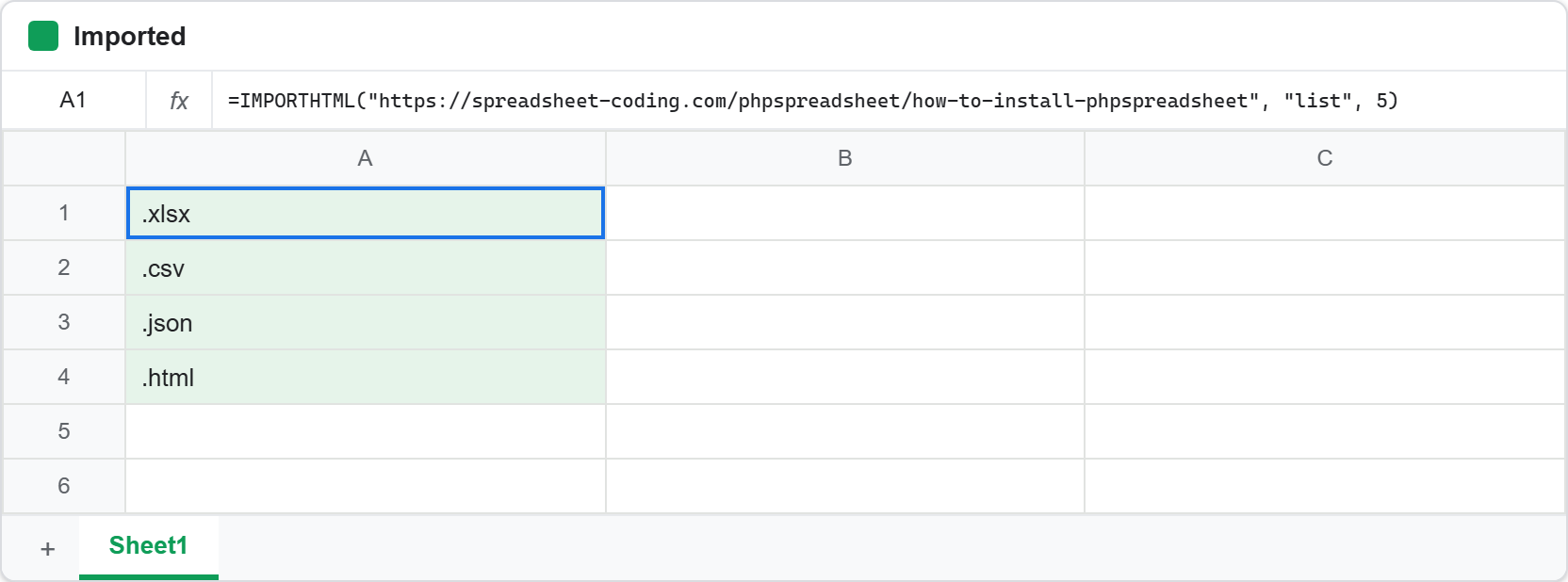
=IMPORTHTML("https://spreadsheet-coding.com/phpspreadsheet/how-to-install-phpspreadsheet", "list", 5)That returns the four file formats listed part-way down the article. Note the index, because it is the awkward part of this function and it deserves more suspicion than it usually gets.
Step 3.
Then find out what the other indexes are, since guessing wastes more time than checking. Run the same formula with 1, 2, 3 and 4 and the page gives up its structure.
=IMPORTHTML("https://spreadsheet-coding.com/phpspreadsheet/how-to-install-phpspreadsheet", "list", 1)
=IMPORTHTML("https://spreadsheet-coding.com/phpspreadsheet/how-to-install-phpspreadsheet", "list", 2)
=IMPORTHTML("https://spreadsheet-coding.com/phpspreadsheet/how-to-install-phpspreadsheet", "list", 3)
=IMPORTHTML("https://spreadsheet-coding.com/phpspreadsheet/how-to-install-phpspreadsheet", "list", 4)
Index 1 is the site’s navigation menu. Indexes 2 and 3 are the sub-menus nested inside it. Only index 4 is content, and it holds the article’s Requirements. So the first three lists on the page are furniture that no reader would call a list at all.
Therefore the index counts every <ul> and <ol> in the page source, in document order, and a navigation menu almost always comes first. Consequently the number you want is rarely 1, and you cannot work it out by looking at the page.
Ask for a table on a page that has none and the answer is different again.
=IMPORTHTML("https://spreadsheet-coding.com/phpspreadsheet/how-to-install-phpspreadsheet", "table", 1)That returns #N/A with the message Imported content is empty. It is a useful distinction: an empty result means the page has no table, whereas a #REF! means something else entirely, as the section below explains.
Step 4.
Now reach a single element rather than a whole list. IMPORTXML takes a URL and an XPath expression.
=IMPORTXML("https://spreadsheet-coding.com/phpspreadsheet/how-to-install-phpspreadsheet", "//h2")This returns every second-level heading on the page, which is a quick way to pull an outline. Swap the expression for //title and you get the page title on its own.
XPath is the reason to prefer this over IMPORTHTML when the thing you want is not a list or a table. It addresses elements directly, so it does not depend on counting.
Step 5.
Then read a feed. IMPORTFEED takes the feed URL, what to pull out, whether to include headers, and how many items.
=IMPORTFEED("https://spreadsheet-coding.com/feed/", "items title", FALSE, 5)Five most recent article titles, refreshed by Google rather than by you. This is the tidiest of the five, because an RSS feed is a stable contract in a way that a page’s markup is not.
Step 6.
Then read a CSV. IMPORTDATA takes a URL and returns the whole file as a grid, which makes it the most useful of the five when an organisation publishes numbers rather than pages.
=IMPORTDATA("https://spreadsheet-coding.com/sample-sales.csv")That file exists so this example keeps working, and it holds the same eight rows the rest of this cluster uses. Commas separate the columns and the first line is a header, which is all the structure the function needs.
One detail is worth knowing because it looks like it should matter and does not. This site serves the file as application/octet-stream, since the web server has no MIME type registered for .csv. IMPORTDATA reads it anyway, so a source that downloads rather than displays in your browser is still a perfectly good target for the IMPORT functions.
It composes with QUERY as well, and here the column names have to be Col1 style, because a CSV arriving over HTTP is not a range on any sheet.
=QUERY(IMPORTDATA("https://spreadsheet-coding.com/sample-sales.csv"), "select Col1, Col2 where Col2 > 100", 1)Step 7.
Finally, combine an import with a query, which is where this stops being a copy and starts being a pipeline.
=QUERY(IMPORTRANGE("1FCmO9_AGo69opmqKV6lb8eIFVfWV8mbfZW62wJwOwzY", "Sheet1!A1:D6"), "select Col1, Col2", 1)The import runs first and QUERY reads its output, so the remote sheet is filtered before anything lands. Consequently you can pull one column out of a wide source without importing the rest of it.
Column naming here is worth a moment, because it is not what most people expect. Both styles work over an import, and they count differently. Import Sheet1!B1:D6 and the block keeps its original letters, so select B returns the first column you imported, while Col1 counts from the start of the import and refers to that same column. Ask for select A and you get NO_COLUMN: A, since column A was never imported. See the QUERY function article for the case where letters genuinely stop working.
The one-time click the IMPORT functions need.
Here is the hard stop. A web-fetching import written into a sheet by anything other than a person at a browser returns a bare #REF!, and the cell says nothing useful.
The real reason is only visible if you hover the cell, or read the error object through the API rather than the cell’s displayed value:
Please use a desktop web browser to allow access
to fetch data from external urls.
So Google requires a human to approve external fetching, once, in a desktop browser. Open the sheet, click the cell showing #REF!, and press Allow access.
Two details make this bearable. The approval covers the whole spreadsheet rather than one formula, and it holds afterwards: formulas written later by a script fetch normally, so only the first one ever needs a person. Meanwhile IMPORTRANGE is unaffected, because it reads another Google Sheet rather than the open web.
Above all, note that no amount of API access substitutes for that click. A service account can create the sheet, write the formula and read the result, and still cannot grant this. That is the moment to stop and fetch the data with a script instead.
Where the IMPORT functions stop.
Four more limits are worth knowing before you build on them.
They land as a block, and the block needs room. If anything sits in the cells the result needs, you get a message rather than data:
Array result was not expanded because it would
overwrite data in A50.
That reads like a broken fetch and is nothing of the kind. The import worked; the result simply had nowhere to go.
The IMPORT functions refresh on Google’s schedule, not yours, so a sheet can show yesterday’s number with no sign that it is stale. They need the source to be public or shared, because there is nowhere to put an API key. Finally, they are read-only, so nothing here writes anything back.
Complete code for the IMPORT functions.
Every formula from this article. Give each one clear space below and to the right.
// Another spreadsheet, by id.
=IMPORTRANGE("1FCmO9_AGo69opmqKV6lb8eIFVfWV8mbfZW62wJwOwzY", "Sheet1!A1:B3")

// A list from a page on this site. Index 5 is the file-format list.
=IMPORTHTML("https://spreadsheet-coding.com/phpspreadsheet/how-to-install-phpspreadsheet", "list", 5)

// The same page's other lists: 1 is the nav, 4 is the Requirements list.
=IMPORTHTML("https://spreadsheet-coding.com/phpspreadsheet/how-to-install-phpspreadsheet", "list", 1)
=IMPORTHTML("https://spreadsheet-coding.com/phpspreadsheet/how-to-install-phpspreadsheet", "list", 4)

// No table on the page, so this reports empty rather than failing.
=IMPORTHTML("https://spreadsheet-coding.com/phpspreadsheet/how-to-install-phpspreadsheet", "table", 1)

// Elements by XPath, which needs no counting.
=IMPORTXML("https://spreadsheet-coding.com/phpspreadsheet/how-to-install-phpspreadsheet", "//h2")
=IMPORTXML("https://spreadsheet-coding.com/phpspreadsheet/how-to-install-phpspreadsheet", "//title")

// This site's own feed, five most recent titles.
=IMPORTFEED("https://spreadsheet-coding.com/feed/", "items title", FALSE, 5)

// A CSV published on this site, and the same CSV filtered on the way in.
=IMPORTDATA("https://spreadsheet-coding.com/sample-sales.csv")
=QUERY(IMPORTDATA("https://spreadsheet-coding.com/sample-sales.csv"), "select Col1, Col2 where Col2 > 100", 1)

// Filter the remote sheet before it lands.
=QUERY(IMPORTRANGE("1FCmO9_AGo69opmqKV6lb8eIFVfWV8mbfZW62wJwOwzY", "Sheet1!A1:D6"), "select Col1, Col2", 1)
Test the IMPORT functions.
Paste a formula into an empty cell and press Enter. The web-fetching ones show Loading… for a moment first.
Click A1 -> paste the formula -> press Enter -> wait for Loading...
Result of the IMPORT functions.
Index 5 returns the four file formats, which is the list the article actually wanted.
.xlsx
.csv
.json
.html
Walking the other indexes shows why that number was not 1. Three lists come before the content, and all three are navigation.
list 1  ->  Excel / PhpSpreadsheet / Snippets / Google Sheets /
            Sheets API in PHP / Converter        (the site menu)
list 2  ->  PhpSpreadsheet
            Snippets                             (a sub-menu)
list 3  ->  Sheets API in PHP                    (another sub-menu)
list 4  ->  Composer
            PHP 7.2 or newer                     (the Requirements list)
Then the table request on the same page reports an empty import rather than an error, because this site’s code samples are marked up as code and not as tables.
=IMPORTHTML(..., "table", 1) -> #N/A Imported content is empty.
Meanwhile IMPORTXML returns the headings straight out of the page, in order.
Requirements:
Step 1.
Step 2.
Test.
Convert Excel, CSV & JSON in seconds
IMPORTDATA returns the CSV as a grid, header row included.
Item      Qty   Price   Region
Widget    120   9.99    North
Gadget    45    24.5    South
Widget    120   9.99    North
Doohick   300   1.75    North
Gizmo     12    99      South
Gadget    80    24.5    East
Sprocket  5     3.25    North
Wrapping that in QUERY filters the file before it lands, so only the rows over 100 units arrive.
Item      Qty
Widget    120
Widget    120
Doohick   300
Finally the feed, which needs no index and no XPath at all.
Delete Google Sheets Rows And Clear Ranges Using Google Sheets API...
Copy A Worksheet Into Another Excel File In PHP Using PhpSpreadsheet
Append Google Sheets Rows Using Google Sheets API PHP Client
Read Google Sheets Cells Using Google Sheets API PHP Client
Authenticate With A Service Account Using Google Sheets API PHP Client
When to use the IMPORT functions.
Use them when the source is public, the freshness requirement is loose, and the destination is a sheet somebody reads by eye. That covers a surprising amount of real reporting, and it costs nothing to set up.
Prefer a feed to a page, and prefer XPath to an index, since both remove a dependency on markup that somebody else can change. Where you must count lists, count them once and write the number down next to the formula.
Switch to a script when any of that stops being true. Authentication, a refresh you control, writing anything back, or a source that changes shape all point the same way, and that is where the Google Sheets API PHP client takes over. The honest way to read this page is as a map of the boundary rather than a recommendation for one side of it.