This article shows how to delete Google Sheets rows from PHP, and how to clear a range without deleting anything. The two sound like the same job. They are not, and picking the wrong one is the quickest way to break a sheet somebody else depends on.
The series already covers the rest of the lifecycle. It can create a spreadsheet, read cells, update them and append rows. However, nothing takes anything away. This post closes that gap.
Two calls do the work. spreadsheets_values->clear() empties cells and leaves the row where it is. deleteDimension, sent through spreadsheets->batchUpdate(), is the one that really does delete Google Sheets rows, because it removes the row itself and pulls everything below it up. Consequently the two leave different sheets behind, and they treat your formatting and your formulas differently too.
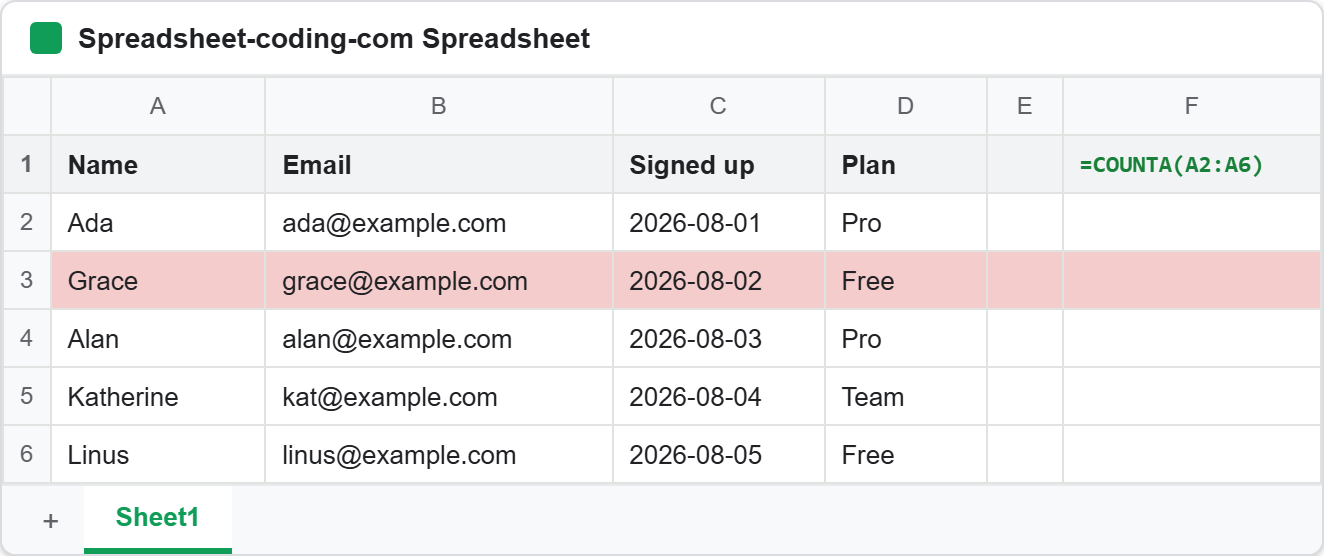
Row 3 is shaded on purpose, and cell F1 holds =COUNTA(A2:A6). Both are markers. Watch what happens to them, because that is where the difference between the two calls becomes obvious.
Requirements to delete Google Sheets rows:
- Authenticate With A Service Account
- Create A Google Cloud Project
- Enable Google Sheets API Library
- Install The Google Client Library Specifying Google Sheets
- Composer
- PHP 8.1 or newer
Step 1.
First, set up the dependencies. This is the Sheets-only install used across this series. Tested with google/apiclient 2.19 on PHP 8.5.
{
    "require": {
        "google/apiclient": "^2.12.1"
    },
    "scripts": {
        "pre-autoload-dump": "Google\\Task\\Composer::cleanup"
    },
    "extra": {
        "google/apiclient-services": [
            "Sheets"
        ]
    }
}
Step 2.
Next, install the Google Client Library.
$ composer install
Step 3.
Then build the client and look up the tab’s numeric id. That second part matters more than it looks. Ranges are addressed by name, as in Sheet1!A3:D3, but deleteDimension refuses names and wants a sheetId integer instead. So fetch it once and keep it.
<?php

require 'vendor/autoload.php';

use Google\Client;
use Google\Service\Sheets;
use Google\Service\Sheets\BatchClearValuesRequest;
use Google\Service\Sheets\BatchUpdateSpreadsheetRequest;
use Google\Service\Sheets\ClearValuesRequest;
use Google\Service\Sheets\Request;
use Google\Service\Sheets\ValueRange;

/**
 * Set up parameters.
 */
$spreadsheetId = 'Your spreadsheetId here.';
$keyFile = 'service-account.json';

$client = new Client();
$client->setApplicationName('Delete Google Sheets Rows');
$client->setAuthConfig($keyFile);
$client->addScope(Sheets::SPREADSHEETS);

$service = new Sheets($client);

/**
 * deleteDimension addresses a tab by its numeric id, not by its name.
 */
function sheetIdOf(Sheets $service, string $spreadsheetId, string $title): int
{
    foreach ($service->spreadsheets->get($spreadsheetId)->getSheets() as $sheet) {
        if ($sheet->getProperties()->getTitle() === $title) {
            return $sheet->getProperties()->getSheetId();
        }
    }

    throw new RuntimeException("No tab named $title in this spreadsheet.");
}

$sheetId = sheetIdOf($service, $spreadsheetId, 'Sheet1');
printf("Tab 'Sheet1' has sheetId %d.\n\n", $sheetId);
The first tab in a spreadsheet is almost always id 0, which tempts people into hard-coding it. Do not. Tabs created later get arbitrary ids, and deleting rows from the wrong tab is not undoable through the API.
Step 4.
Now lay down a known table, so each step below can be checked against the one before it. Note the first line, because a bare tab name as the range clears the whole sheet.
/**
 * Wipe the tab and lay down the table this article works on.
 */
function resetTable(Sheets $service, string $spreadsheetId, int $sheetId): void
{
    // A bare tab name as the range clears the entire sheet.
    $service->spreadsheets_values->clear($spreadsheetId, 'Sheet1', new ClearValuesRequest());

    $service->spreadsheets_values->update(
        $spreadsheetId,
        'Sheet1!A1',
        new ValueRange(['values' => [
            ['Name',      'Email',              'Signed up',  'Plan'],
            ['Ada',       'ada@example.com',    '2026-08-01', 'Pro'],
            ['Grace',     'grace@example.com',  '2026-08-02', 'Free'],
            ['Alan',      'alan@example.com',   '2026-08-03', 'Pro'],
            ['Katherine', 'kat@example.com',    '2026-08-04', 'Team'],
            ['Linus',     'linus@example.com',  '2026-08-05', 'Free'],
        ]]),
        ['valueInputOption' => 'RAW']
    );

    $service->spreadsheets_values->update(
        $spreadsheetId,
        'Sheet1!F1',
        new ValueRange(['values' => [['=COUNTA(A2:A6)']]]),
        ['valueInputOption' => 'USER_ENTERED']
    );

    // Shade Grace's row, so we can tell whether formatting is removed too.
    $service->spreadsheets->batchUpdate($spreadsheetId, new BatchUpdateSpreadsheetRequest([
        'requests' => [
            new Request(['repeatCell' => [
                'range' => [
                    'sheetId'          => $sheetId,
                    'startRowIndex'    => 2,
                    'endRowIndex'      => 3,
                    'startColumnIndex' => 0,
                    'endColumnIndex'   => 4,
                ],
                'cell' => ['userEnteredFormat' => [
                    'backgroundColor' => ['red' => 0.96, 'green' => 0.80, 'blue' => 0.80],
                ]],
                'fields' => 'userEnteredFormat.backgroundColor',
            ]]),
        ],
    ]));
}

resetTable($service, $spreadsheetId, $sheetId);
show($service, $spreadsheetId, 'The table we start from:');
That first clear() call is worth pausing on. Passing 'Sheet1' with no cell reference does not clear the used range or the first row. It empties every cell in the tab. Therefore a typo that drops the !A3:D3 from a range is silently catastrophic rather than an error.
Step 5.
Next, clear a single range. The signature wants a ClearValuesRequest object, which stays empty because the range carries all the information.
$response = $service->spreadsheets_values->clear(
    $spreadsheetId,
    'Sheet1!A3:D3',
    new ClearValuesRequest()
);

printf("clear() reported: %s\n", $response->getClearedRange());
printf("Row 3 is now %s.\n\n", shadingOf($service, $spreadsheetId, 'Sheet1!A3:D3'));
show($service, $spreadsheetId, 'After clearing A3:D3:');
Three things survive this call, and each one surprises somebody. The row is still row 3, so Alan stays in row 4 and nothing below moves. The pink shading is still there, because clear() only touches values. And =COUNTA(A2:A6) in F1 is untouched as a formula, although its result drops from 5 to 4 now that a cell it counts went empty.
Also notice what the response gives back. getClearedRange() echoes the range the API resolved, and that is the only feedback you get. Clearing a range that was already empty succeeds happily and reports the same thing, so the response cannot tell you whether anything was actually removed.
Step 6.
Then clear several ranges together. Calling clear() in a loop costs one HTTP request each, while batchClear() sends them as one.
$response = $service->spreadsheets_values->batchClear(
    $spreadsheetId,
    new BatchClearValuesRequest(['ranges' => ['Sheet1!A5:D5', 'Sheet1!A6:D6']])
);

printf("batchClear() reported: %s\n\n", implode(' and ', $response->getClearedRanges()));
show($service, $spreadsheetId, 'After clearing A5:D5 and A6:D6:');
The plural getClearedRanges() returns one entry per range, in the order you sent them. There is a second lesson in the output, though. Reading the tab back now reports four rows rather than six, because the two rows we emptied were the last ones and the API trims trailing blanks. Rows cleared in the middle keep their place in the result, as row 3 does.
Step 7.
Now delete Google Sheets rows for real. This one is not a values call at all. It goes through spreadsheets->batchUpdate() as a deleteDimension request.
$service->spreadsheets->batchUpdate($spreadsheetId, new BatchUpdateSpreadsheetRequest([
    'requests' => [
        new Request(['deleteDimension' => [
            'range' => [
                'sheetId'    => $sheetId,
                'dimension'  => 'ROWS',
                'startIndex' => 2,  // zero-based, so this is row 3
                'endIndex'   => 3,  // exclusive, so this deletes one row
            ],
        ]]),
    ],
]));
The indexes are the part to get right. They are zero-based, so row 3 on screen is index 2. They are also half-open, meaning endIndex points at the first row you want to keep. Deleting one row therefore reads as startIndex plus one.
Above all, do not leave endIndex out. It is optional in the API, and omitting it deletes from startIndex to the bottom of the sheet. In testing that turned a 1000-row tab into a 2-row tab, with no warning and no error. Pass 'COLUMNS' as the dimension and the same request deletes columns instead.
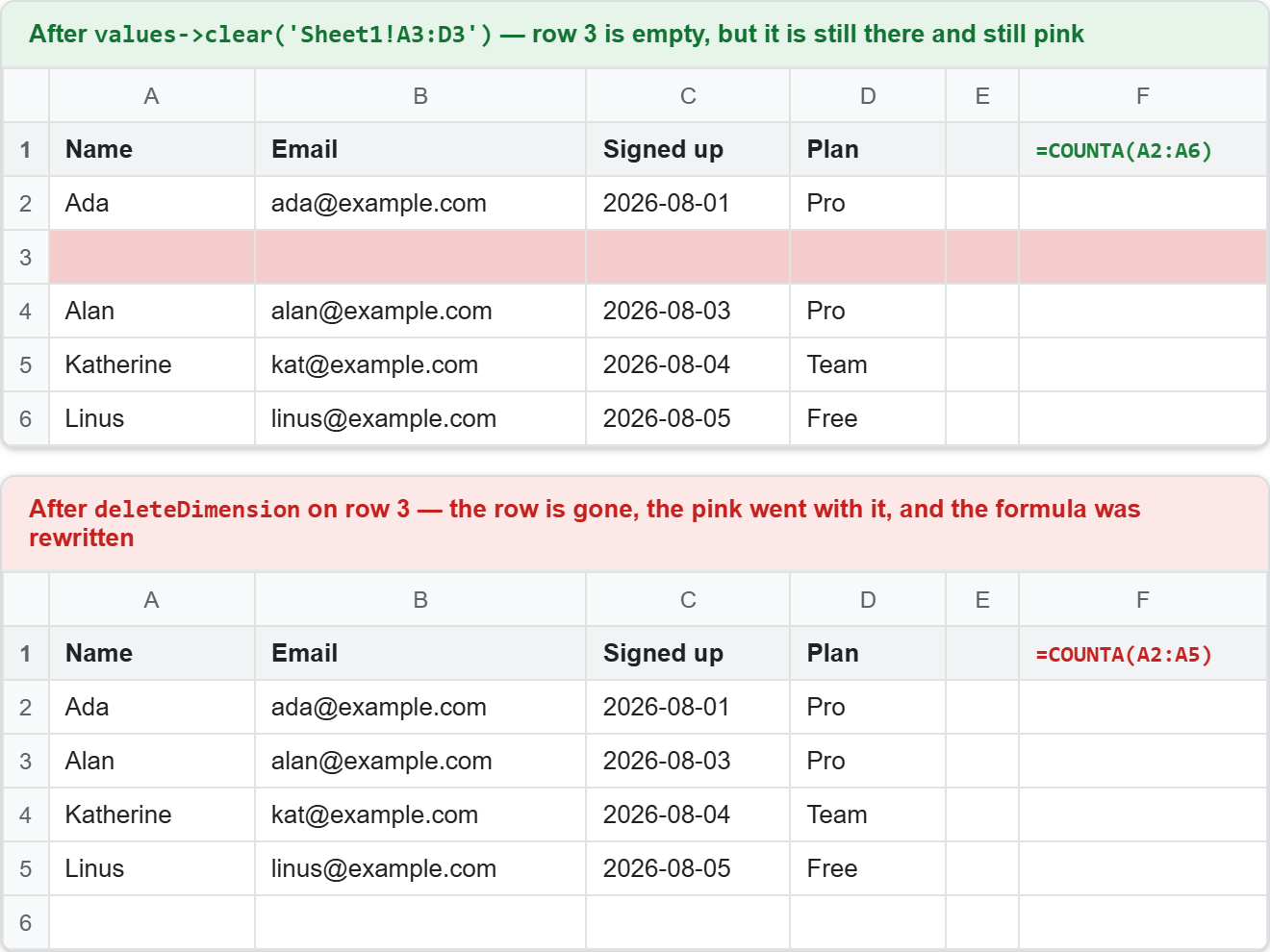
Compare that against step 5. Everything clear() preserved is gone. Alan has moved up into row 3, the pink shading disappeared with the row that carried it, and the sheet is one row shorter than it was.
The formula is the detail nobody expects. Google rewrote =COUNTA(A2:A6) into =COUNTA(A2:A5) by itself, exactly as it would if you had deleted the row by hand in the browser. clear() never does this. So if your sheet has formulas over a range, the two calls disagree about what the range even means afterwards.
Step 8.
Finally, delete Google Sheets rows in bulk. Here is the trap that costs people real data, and it fails silently.
// Rows 3 and 5 are Grace and Katherine. Every delete shifts the rows below it
// up, so a later request sees a grid the earlier one already changed. Sorting
// the indexes downwards keeps each one pointing at the row you meant.
$targets = [2, 4];
rsort($targets);

$requests = [];
foreach ($targets as $index) {
    $requests[] = new Request(['deleteDimension' => [
        'range' => [
            'sheetId'    => $sheetId,
            'dimension'  => 'ROWS',
            'startIndex' => $index,
            'endIndex'   => $index + 1,
        ],
    ]]);
}

$service->spreadsheets->batchUpdate(
    $spreadsheetId,
    new BatchUpdateSpreadsheetRequest(['requests' => $requests])
);
Requests inside one batchUpdate run in order, and each one sees the sheet the previous one left. Consequently indexes 2 and 4 sent in that order do not delete rows 3 and 5. The first request removes Grace, everything shifts up, and index 4 now points at Linus. Katherine survives and Linus does not.
Nothing complains. The call returns a normal success with an empty reply object, so the only way to notice is to read the sheet back. That is why rsort() is in the snippet: deleting from the bottom upwards means no earlier delete can move the rows a later one is aiming at.
One last boundary. You cannot delete every row in a tab. Attempting it returns a 400 with “You can’t delete all the rows on the sheet”, because a sheet must keep at least one. Clearing the tab, as step 4 does, is the way to empty it completely.
Complete code to delete Google Sheets rows.
<?php

require 'vendor/autoload.php';

use Google\Client;
use Google\Service\Sheets;
use Google\Service\Sheets\BatchClearValuesRequest;
use Google\Service\Sheets\BatchUpdateSpreadsheetRequest;
use Google\Service\Sheets\ClearValuesRequest;
use Google\Service\Sheets\Request;
use Google\Service\Sheets\ValueRange;

/**
 * Set up parameters.
 */
$spreadsheetId = 'Your spreadsheetId here.';
$keyFile = 'service-account.json';

$client = new Client();
$client->setApplicationName('Delete Google Sheets Rows');
$client->setAuthConfig($keyFile);
$client->addScope(Sheets::SPREADSHEETS);

$service = new Sheets($client);

/**
 * Print the tab, so every step can be checked against the one before it.
 */
function show(Sheets $service, string $spreadsheetId, string $label): void
{
    $rows = $service->spreadsheets_values->get($spreadsheetId, 'Sheet1!A1:D8')->getValues() ?? [];

    echo "$label\n";
    foreach ($rows as $i => $row) {
        printf("  row %d  %s\n", $i + 1, implode(' | ', $row) ?: '(empty)');
    }
    printf("  %d row(s), F1 holds %s\n\n", count($rows), formulaIn($service, $spreadsheetId));
}

/**
 * Read F1 as its formula rather than its result.
 */
function formulaIn(Sheets $service, string $spreadsheetId): string
{
    $values = $service->spreadsheets_values
        ->get($spreadsheetId, 'Sheet1!F1', ['valueRenderOption' => 'FORMULA'])
        ->getValues() ?? [];

    return $values[0][0] ?? '(none)';
}

/**
 * Report the background colour of a single cell, to see what survives.
 */
function shadingOf(Sheets $service, string $spreadsheetId, string $range): string
{
    $meta = $service->spreadsheets->get($spreadsheetId, [
        'ranges' => [$range],
        'includeGridData' => true,
        'fields' => 'sheets/data/rowData/values/userEnteredFormat/backgroundColor',
    ]);

    $rowData = $meta->getSheets()[0]->getData()[0]->getRowData();
    $cells = $rowData ? $rowData[0]->getValues() : null;
    $colour = $cells ? $cells[0]->getUserEnteredFormat()?->getBackgroundColor() : null;

    return $colour ? sprintf('shaded (red %.2f)', $colour->getRed() ?? 0) : 'no shading';
}

/**
 * deleteDimension addresses a tab by its numeric id, not by its name.
 */
function sheetIdOf(Sheets $service, string $spreadsheetId, string $title): int
{
    foreach ($service->spreadsheets->get($spreadsheetId)->getSheets() as $sheet) {
        if ($sheet->getProperties()->getTitle() === $title) {
            return $sheet->getProperties()->getSheetId();
        }
    }

    throw new RuntimeException("No tab named $title in this spreadsheet.");
}

/**
 * Wipe the tab and lay down the table this article works on.
 */
function resetTable(Sheets $service, string $spreadsheetId, int $sheetId): void
{
    // A bare tab name as the range clears the entire sheet.
    $service->spreadsheets_values->clear($spreadsheetId, 'Sheet1', new ClearValuesRequest());

    $service->spreadsheets_values->update(
        $spreadsheetId,
        'Sheet1!A1',
        new ValueRange(['values' => [
            ['Name',      'Email',              'Signed up',  'Plan'],
            ['Ada',       'ada@example.com',    '2026-08-01', 'Pro'],
            ['Grace',     'grace@example.com',  '2026-08-02', 'Free'],
            ['Alan',      'alan@example.com',   '2026-08-03', 'Pro'],
            ['Katherine', 'kat@example.com',    '2026-08-04', 'Team'],
            ['Linus',     'linus@example.com',  '2026-08-05', 'Free'],
        ]]),
        ['valueInputOption' => 'RAW']
    );

    $service->spreadsheets_values->update(
        $spreadsheetId,
        'Sheet1!F1',
        new ValueRange(['values' => [['=COUNTA(A2:A6)']]]),
        ['valueInputOption' => 'USER_ENTERED']
    );

    // Shade Grace's row, so we can tell whether formatting is removed too.
    $service->spreadsheets->batchUpdate($spreadsheetId, new BatchUpdateSpreadsheetRequest([
        'requests' => [
            new Request(['repeatCell' => [
                'range' => [
                    'sheetId'          => $sheetId,
                    'startRowIndex'    => 2,
                    'endRowIndex'      => 3,
                    'startColumnIndex' => 0,
                    'endColumnIndex'   => 4,
                ],
                'cell' => ['userEnteredFormat' => [
                    'backgroundColor' => ['red' => 0.96, 'green' => 0.80, 'blue' => 0.80],
                ]],
                'fields' => 'userEnteredFormat.backgroundColor',
            ]]),
        ],
    ]));
}

$sheetId = sheetIdOf($service, $spreadsheetId, 'Sheet1');
printf("Tab 'Sheet1' has sheetId %d.\n\n", $sheetId);

resetTable($service, $spreadsheetId, $sheetId);
show($service, $spreadsheetId, 'The table we start from:');

/**
 * 1. Clear the values in one range.
 */
$response = $service->spreadsheets_values->clear(
    $spreadsheetId,
    'Sheet1!A3:D3',
    new ClearValuesRequest()
);

printf("clear() reported: %s\n", $response->getClearedRange());
printf("Row 3 is now %s.\n\n", shadingOf($service, $spreadsheetId, 'Sheet1!A3:D3'));
show($service, $spreadsheetId, 'After clearing A3:D3:');

/**
 * 2. Clear several ranges in one request.
 */
$response = $service->spreadsheets_values->batchClear(
    $spreadsheetId,
    new BatchClearValuesRequest(['ranges' => ['Sheet1!A5:D5', 'Sheet1!A6:D6']])
);

printf("batchClear() reported: %s\n\n", implode(' and ', $response->getClearedRanges()));
show($service, $spreadsheetId, 'After clearing A5:D5 and A6:D6:');

/**
 * 3. Delete the row itself.
 */
resetTable($service, $spreadsheetId, $sheetId);

$service->spreadsheets->batchUpdate($spreadsheetId, new BatchUpdateSpreadsheetRequest([
    'requests' => [
        new Request(['deleteDimension' => [
            'range' => [
                'sheetId'    => $sheetId,
                'dimension'  => 'ROWS',
                'startIndex' => 2,  // zero-based, so this is row 3
                'endIndex'   => 3,  // exclusive, so this deletes one row
            ],
        ]]),
    ],
]));

printf("Row 3 is now %s.\n\n", shadingOf($service, $spreadsheetId, 'Sheet1!A3:D3'));
show($service, $spreadsheetId, 'After deleting row 3:');

/**
 * 4. Delete several rows: bottom to top.
 */
resetTable($service, $spreadsheetId, $sheetId);

// Rows 3 and 5 are Grace and Katherine. Every delete shifts the rows below it
// up, so a later request sees a grid the earlier one already changed. Sorting
// the indexes downwards keeps each one pointing at the row you meant.
$targets = [2, 4];
rsort($targets);

$requests = [];
foreach ($targets as $index) {
    $requests[] = new Request(['deleteDimension' => [
        'range' => [
            'sheetId'    => $sheetId,
            'dimension'  => 'ROWS',
            'startIndex' => $index,
            'endIndex'   => $index + 1,
        ],
    ]]);
}

$service->spreadsheets->batchUpdate(
    $spreadsheetId,
    new BatchUpdateSpreadsheetRequest(['requests' => $requests])
);

show($service, $spreadsheetId, 'After deleting rows 3 and 5, highest index first:');
Test how to delete Google Sheets rows.
Command line testing.
$ php delete-google-sheets-rows.php
Result of the code to delete Google Sheets rows.
The first half of the run is the clearing half. Row 3 empties but keeps its place and its shading, the row count stays at six, and F1 still holds the original formula:
Tab 'Sheet1' has sheetId 0.

The table we start from:
  row 1  Name | Email | Signed up | Plan
  row 2  Ada | ada@example.com | 2026-08-01 | Pro
  row 3  Grace | grace@example.com | 2026-08-02 | Free
  row 4  Alan | alan@example.com | 2026-08-03 | Pro
  row 5  Katherine | kat@example.com | 2026-08-04 | Team
  row 6  Linus | linus@example.com | 2026-08-05 | Free
  6 row(s), F1 holds =COUNTA(A2:A6)

clear() reported: Sheet1!A3:D3
Row 3 is now shaded (red 0.96).

After clearing A3:D3:
  row 1  Name | Email | Signed up | Plan
  row 2  Ada | ada@example.com | 2026-08-01 | Pro
  row 3  (empty)
  row 4  Alan | alan@example.com | 2026-08-03 | Pro
  row 5  Katherine | kat@example.com | 2026-08-04 | Team
  row 6  Linus | linus@example.com | 2026-08-05 | Free
  6 row(s), F1 holds =COUNTA(A2:A6)

batchClear() reported: Sheet1!A5:D5 and Sheet1!A6:D6

After clearing A5:D5 and A6:D6:
  row 1  Name | Email | Signed up | Plan
  row 2  Ada | ada@example.com | 2026-08-01 | Pro
  row 3  (empty)
  row 4  Alan | alan@example.com | 2026-08-03 | Pro
  4 row(s), F1 holds =COUNTA(A2:A6)
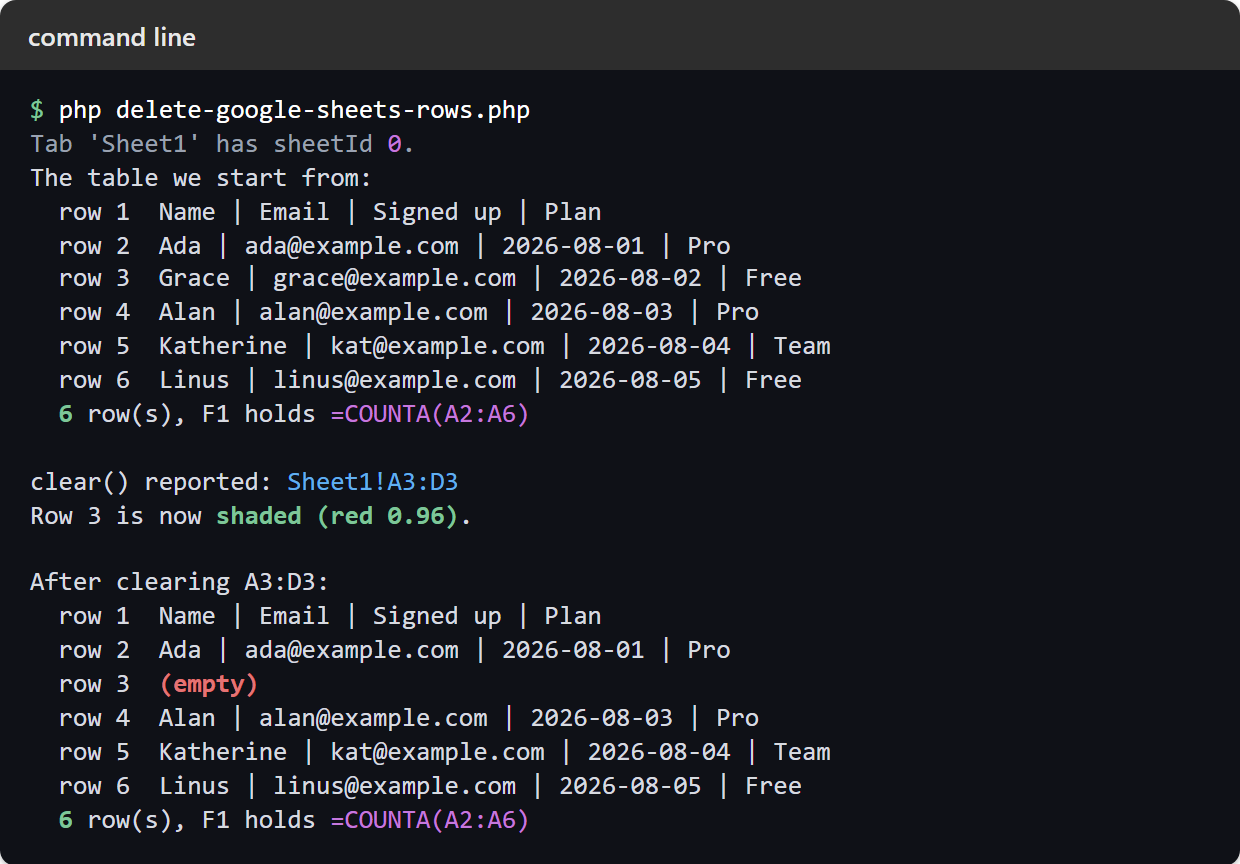
Note the four-row count after the batch clear. Two of the rows we emptied were the last ones, so they vanished from the reply, while the empty row in the middle kept its slot. Then the second half starts to delete Google Sheets rows rather than clear them, and the sheet shortens each time:
Row 3 is now no shading.

After deleting row 3:
  row 1  Name | Email | Signed up | Plan
  row 2  Ada | ada@example.com | 2026-08-01 | Pro
  row 3  Alan | alan@example.com | 2026-08-03 | Pro
  row 4  Katherine | kat@example.com | 2026-08-04 | Team
  row 5  Linus | linus@example.com | 2026-08-05 | Free
  5 row(s), F1 holds =COUNTA(A2:A5)

After deleting rows 3 and 5, highest index first:
  row 1  Name | Email | Signed up | Plan
  row 2  Ada | ada@example.com | 2026-08-01 | Pro
  row 3  Alan | alan@example.com | 2026-08-03 | Pro
  row 4  Linus | linus@example.com | 2026-08-05 | Free
  4 row(s), F1 holds =COUNTA(A2:A4)
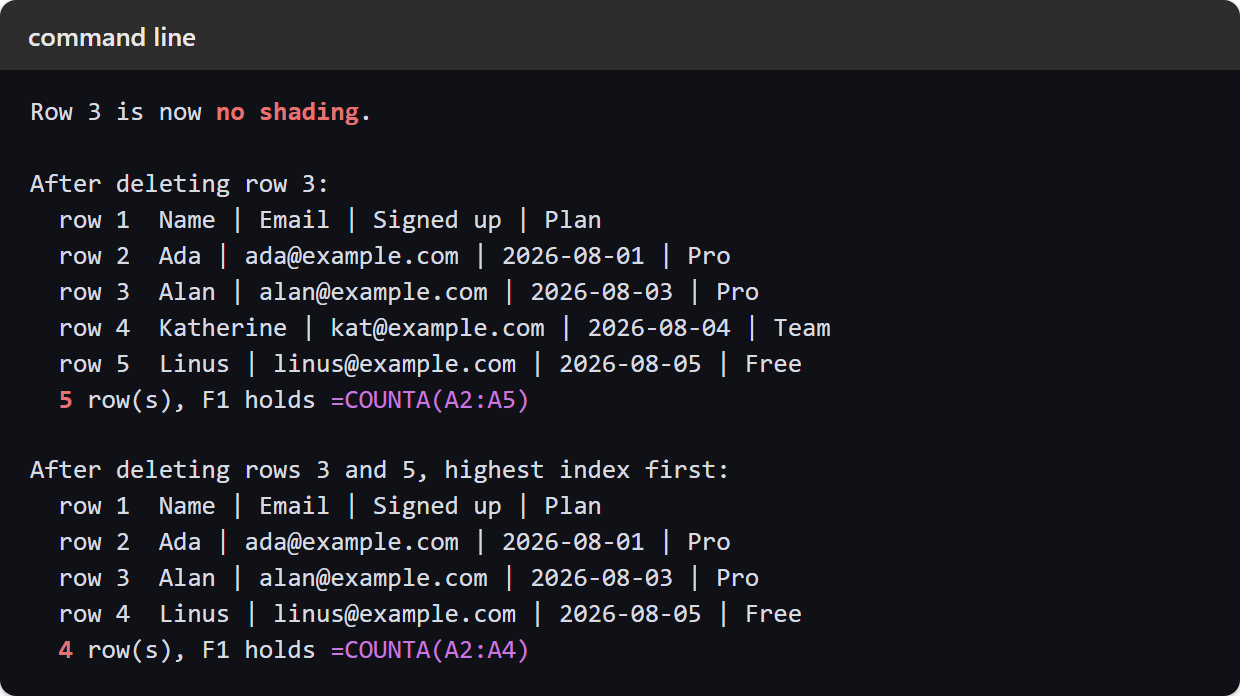
Read the last block carefully. Grace and Katherine are the ones missing, which is what we asked for. Send the same two indexes in ascending order instead and Linus disappears in Katherine’s place, with identical output from the API.
Delete Google Sheets rows without losing data.
So the choice comes down to one question. Do you want the row gone, or just its contents? Clearing keeps the shape of the sheet, which is what you want when other people have formatting, notes or formulas anchored to those rows. Meanwhile you delete Google Sheets rows outright when the record no longer exists at all, and the gap should close behind it.
Three habits cover the rest. Always pass endIndex, always sort your indexes downwards before you delete Google Sheets rows in bulk, and always read the sheet back afterwards, since the response tells you nothing. None of these calls goes to a bin you can restore from, so the sheet itself is the only record of what happened.