This article shows how to read an Excel file with the latest version of PhpSpreadsheet and convert it into a JSON file using plain PHP. The first row of the spreadsheet is treated as the header, so every data row becomes an object whose keys are taken from that header row — a “header-keyed” JSON structure.
In fact, a handful of functions and classes do all the work. The IOFactory class with IOFactory::load() opens the spreadsheet and auto-detects its format, while getActiveSheet() selects the worksheet to read and toArray() pulls every cell into a two-dimensional array. From there it is plain PHP: array_shift() lifts off the first row to use as the headers, array_combine() maps those headers onto each remaining row to build a record, json_encode() with the JSON_PRETTY_PRINT flag turns the records into a readable JSON string, and file_put_contents() writes the result to disk.
Of course, being able to convert Excel to JSON is handy whenever you need to feed Excel data into an API, a JavaScript front end, or any tool that speaks JSON. The pattern is short, dependable, and easy to adapt to your own columns — so grab a sample file and give it a try. Once you see how cleanly the rows fall into place, you’ll reach for this technique again and again.
Requirements to convert Excel to JSON:
- Composer
- PHP 8.2 or newer
Step 1.
First, set up the dependencies. Here we pin the latest major release of PhpSpreadsheet (the 5.x line).
{
    "require": {
        "phpoffice/phpspreadsheet": "^5.0"
    }
}
Step 2.
Next, install phpspreadsheet.
$ composer install
Step 3.
Then create a new PHP file. Load Composer’s autoloader and also import the IOFactory class, which we will use to read the Excel file.
<?php

require 'vendor/autoload.php';

use \PhpOffice\PhpSpreadsheet\IOFactory;
Step 4.
After that, load the Excel file and grab the active worksheet. IOFactory::load() auto-detects the file format (xlsx, xls, csv, …) and returns a spreadsheet object.
// Load the spreadsheet from disk.
$spreadsheet = IOFactory::load('data.xlsx');

// Select the worksheet we want to read.
$worksheet = $spreadsheet->getActiveSheet();
Step 5.
Read the worksheet into a plain PHP array. toArray() then returns every cell as a two-dimensional array of rows and columns. In addition, PhpSpreadsheet works out the size of the sheet for us internally using getHighestRow() and getHighestColumn().
// Read every row and column into a 2D array.
$rows = $worksheet->toArray();
Step 6.
Build the header-keyed structure with plain PHP. Take the first row as the list of headers, then loop over the remaining rows and combine each one with the headers using array_combine(). As a result, the header values become the keys of every object.
// The first row holds the column headers.
$headers = array_shift($rows);

$result = [];

// Map each remaining row onto the headers.
foreach ($rows as $row) {
    $result[] = array_combine($headers, $row);
}
Step 7.
Finally, encode the result as JSON and write it to a file. This is plain PHP — json_encode() turns the array into a JSON string and file_put_contents() saves it to disk. JSON_PRETTY_PRINT keeps the output readable.
// Convert the array into a JSON string.
$json = json_encode($result, JSON_PRETTY_PRINT);

// Write the JSON to a file.
file_put_contents('output.json', $json);

echo "Done. Wrote " . count($result) . " records to output.json\n";
Complete code to convert Excel to JSON.
<?php

require 'vendor/autoload.php';

use \PhpOffice\PhpSpreadsheet\IOFactory;

$spreadsheet = IOFactory::load('data.xlsx');
$worksheet = $spreadsheet->getActiveSheet();

$rows = $worksheet->toArray();
$headers = array_shift($rows);

$result = [];
foreach ($rows as $row) {
    $result[] = array_combine($headers, $row);
}

$json = json_encode($result, JSON_PRETTY_PRINT);
file_put_contents('output.json', $json);

echo "Done. Wrote " . count($result) . " records to output.json\n";
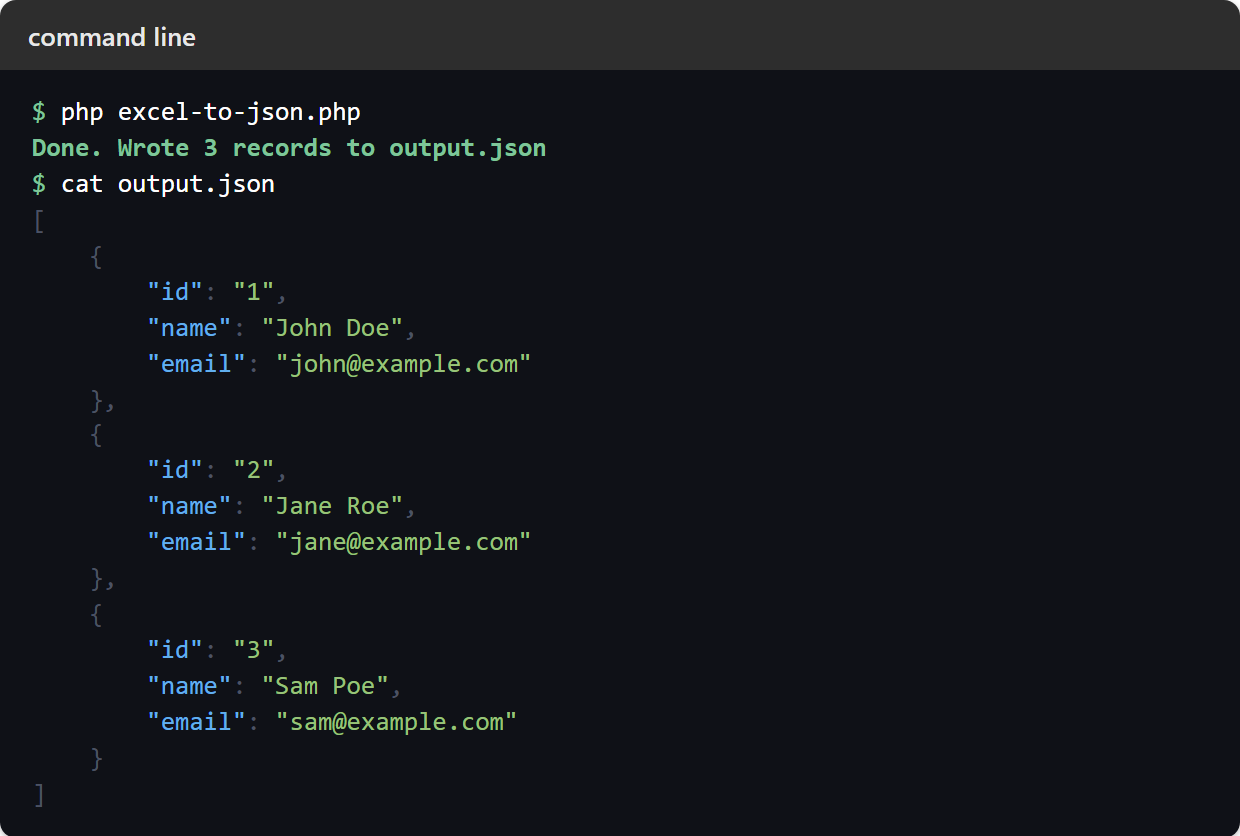
Test converting Excel to JSON.
Command line testing.
$ php excel-to-json.php
Result of converting Excel to JSON.
Running the script to convert Excel to JSON is instant. For example, given an Excel file (data.xlsx) whose first row is id, name, email, the script produces the following header-keyed JSON in output.json:
[
    {
        "id": "1",
        "name": "John Doe",
        "email": "john@example.com"
    },
    {
        "id": "2",
        "name": "Jane Roe",
        "email": "jane@example.com"
    },
    {
        "id": "3",
        "name": "Sam Poe",
        "email": "sam@example.com"
    }
]