A due date of “ten working days from today” cannot be found by adding 10, because weekends get in the way. The WORKDAY function adds working days to a date and skips Saturdays and Sundays for you.
In fact, it is the other half of NETWORKDAYS. NETWORKDAYS counts the working days between two dates, while WORKDAY starts from one date and finds the other.
However, the two do not count the same way. Feed the result of one into the other and the numbers disagree by one, and that is deliberate.
The WORKDAY function.
So give it a start date and a number of working days.
=WORKDAY(A2,B2)
From Friday 2 Oct 2026, one working day later is Monday 5 Oct. Also, a third argument takes a range of holidays, so =WORKDAY(A2,B2,$E$2) skips the date in E2 as well and lands on Tuesday instead.
A negative number counts backwards, so =WORKDAY(A2,-1) returns Thursday 1 Oct. For a different weekend, WORKDAY.INTL takes a weekend code, the same way NETWORKDAYS.INTL does.
The start date does not count.
Next, add five working days to a Monday.
=WORKDAY(A3,B3)
Monday 28 Sep plus five working days returns Monday 5 Oct, not Friday 2 Oct. The WORKDAY function starts counting the day after the start, so a task that begins on Monday and takes five days is due the following Monday.
Meanwhile, NETWORKDAYS counts both ends. As a result, =NETWORKDAYS(A3,C3) over the same two dates returns 6, not 5. Neither function is wrong, but mixing them in one plan shifts every date by a day. Similarly, zero days returns the start date unchanged.
Result of the WORKDAY function.
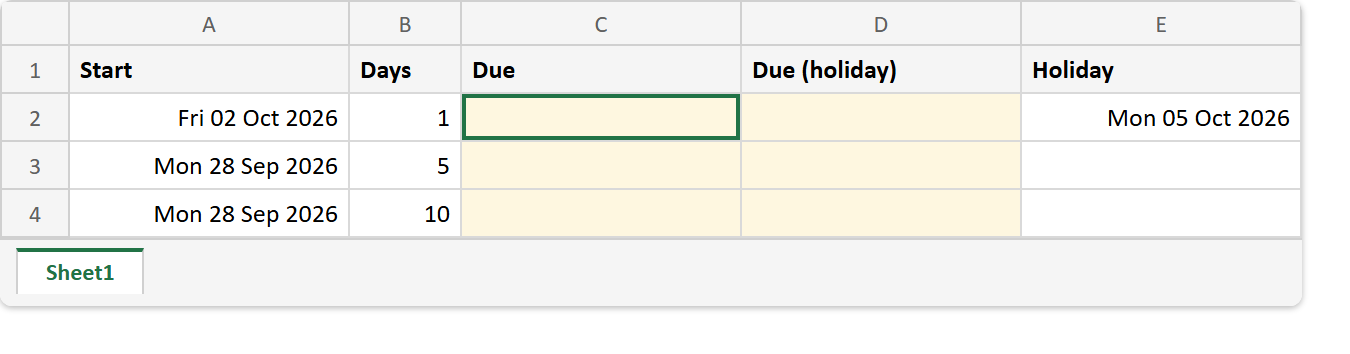
Before. Three start dates and day counts, with one holiday listed in column E.
After. Due dates with and without the holiday, where Monday plus five lands on the next Monday.
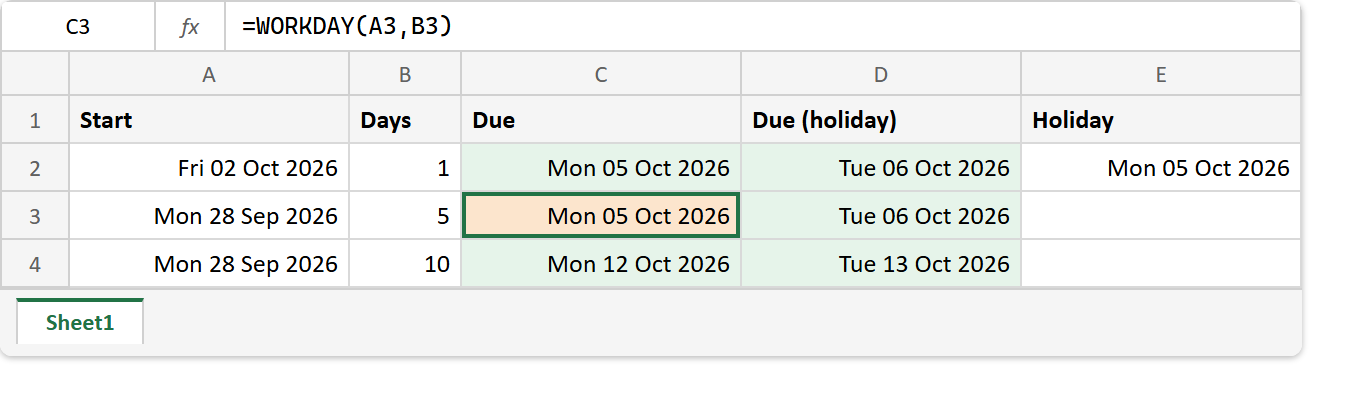
A2 -> Fri 02 Oct 2026   B2 -> 1
A3 -> Mon 28 Sep 2026   B3 -> 5
A4 -> Mon 28 Sep 2026   B4 -> 10
E2 -> Mon 05 Oct 2026   (a holiday)

=WORKDAY(A2,B2)       ->  Mon 05 Oct 2026    =WORKDAY(A2,B2,$E$2)  ->  Tue 06 Oct 2026
=WORKDAY(A3,B3)       ->  Mon 05 Oct 2026    =WORKDAY(A3,B3,$E$2)  ->  Tue 06 Oct 2026
=WORKDAY(A4,B4)       ->  Mon 12 Oct 2026    =WORKDAY(A4,B4,$E$2)  ->  Tue 13 Oct 2026
=WORKDAY(A2,-1)       ->  Thu 01 Oct 2026
=NETWORKDAYS(A3,C3)   ->  6
A fresh WORKDAY cell shows a five-digit number such as 46300, which is the date as Excel stores it, until you format the cell as a date. For the count in the other direction, see NETWORKDAYS. And for a deadline counted from today, use =WORKDAY(TODAY(),10) with TODAY.