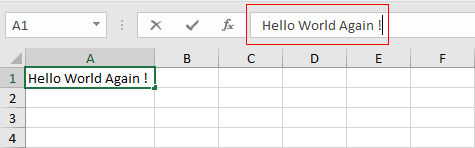
Aside from the Document Security Settings, there is another similar security option the can be applied on a worksheet level. This can provide the option to allow sorting, inserting rows, and formatting cells, to name a few.
One major difference between the Document Security Settings and this Worksheet Security Settings is, the option to add a ‘New sheet’ is available on the Worksheet Security Settings.
Note:
This will NOT prevent the document from opening, it will only hold back the data from being updated.
Requirements:
- Composer
- PHP 7.2 or newer
Step 1.
Setup dependencies.
{
    "require": {
        "phpoffice/phpspreadsheet": "^1.3"
    }
}
Step 2.
Install phpspreadsheet.
$ composer install
Step 3.
Create a new PHP file, and start coding.
<?php

// Autoload dependencies
require 'vendor/autoload.php';

// Import the core class of PhpSpreadsheet
use PhpOffice\PhpSpreadsheet\Spreadsheet;

// Import the Xlsx writer class
use PhpOffice\PhpSpreadsheet\Writer\Xlsx;

// Create a new Spreadsheet object
$spreadsheet = new Spreadsheet();

// Retrieve the current active worksheet
$sheet = $spreadsheet->getActiveSheet();

// Set cell A1 with the "Hello World !" string value
$sheet->setCellValue('A1', 'Hello World !');

/**
 * Set the worksheet protection to 'true',
 * this is a requirement to enable it.
 */
$sheet->getProtection()->setSheet(true);

/**
 * Protect worksheet and
 * contents of locked cells.
 */
$protection = $sheet->getProtection();
$protection->setPassword('HelloWorld!');
$protection->setSort(true); // allow sorting

// Write a new .xlsx file
$writer = new Xlsx($spreadsheet);

// Save the new .xlsx file
$writer->save('create-xlsx-files-with-worksheet-security-settings.xlsx');
Test.
Run the following codes.
$ php create-xlsx-files-with-worksheet-security-settings.php
Result.
Open the generated file create-xlsx-files-with-worksheet-security-settings.xlsx.
/**
 * Set the worksheet protection to 'true',
 * this is a requirement to enable it.
 */
$sheet->getProtection()->setSheet(true);
/**
 * Protect worksheet and
 * contents of locked cells.
 */
$protection = $sheet->getProtection();
$protection->setPassword('HelloWorld!');
$protection->setSort(true); // allow sorting
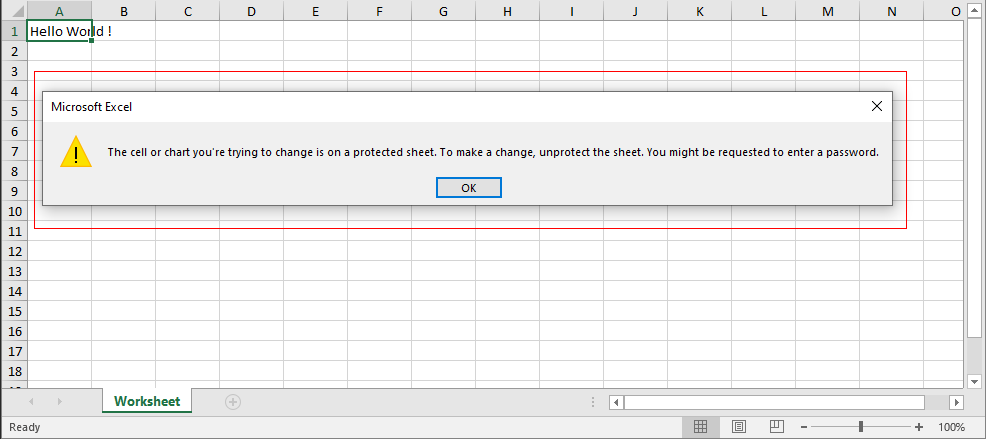
Try to edit the A1 value, or any cell data.
A note showing that the cell is protected should appear.
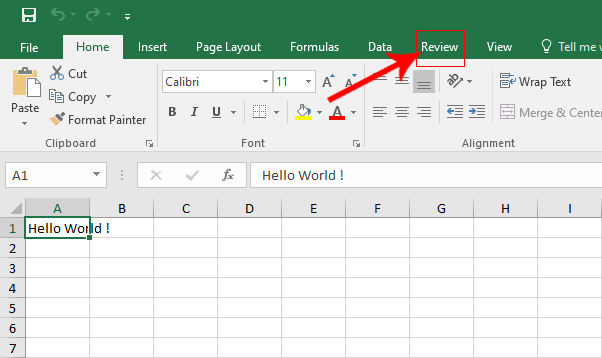
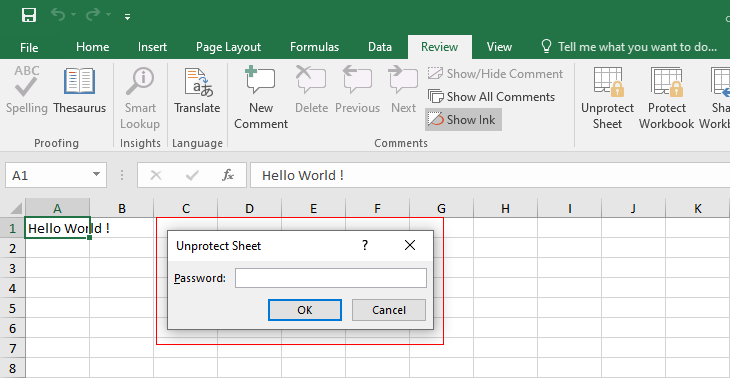
Click on Review.
Click on Unprotect Sheet.
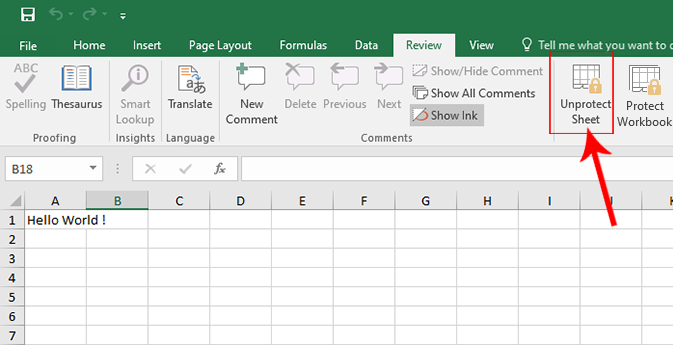
A ‘window’ will appear prompting for a password input.
Enter the password “HelloWorld!“.
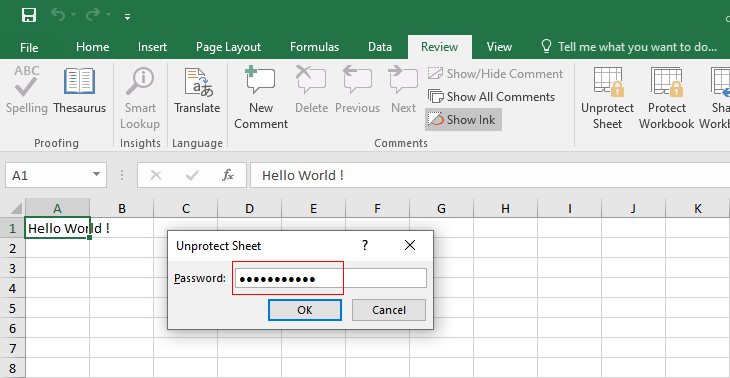
Try to update cell A1, or any cell values, it should be possible now.