Every fix for a broken column starts with the same question: what is actually in the cell. The ISNUMBER function answers it with a plain TRUE or FALSE.
Two cells can hold the same four characters and behave completely differently. One of them sums and sorts, while the other sits there looking identical and does neither.
For instance, an imported price column that will not total is either text or numbers, and guessing wastes more time than testing. So this is the diagnostic that tells you which repair you need.
The ISNUMBER function.
So point it at a cell and read the verdict.
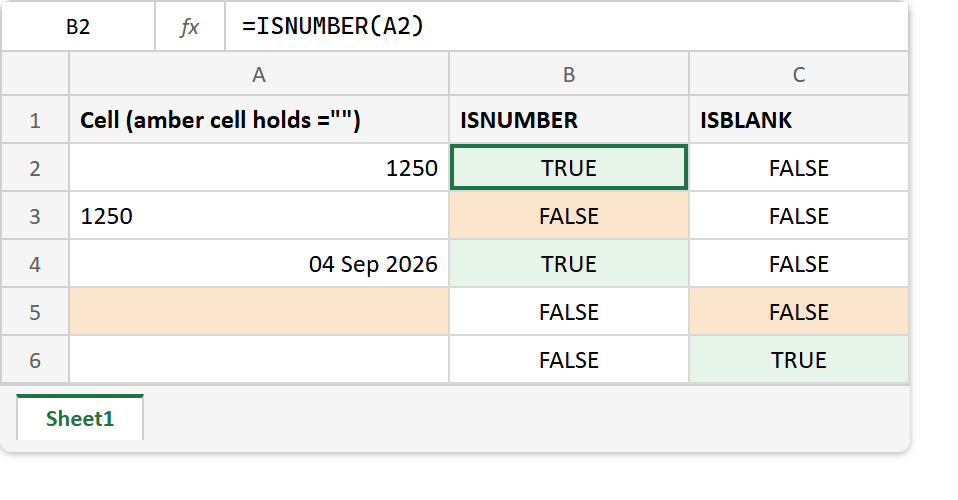
=ISNUMBER(A2)
There is nothing to configure and nothing to get wrong. In short, the ISNUMBER function returns TRUE when the cell holds a number and FALSE for absolutely everything else, including a number that was stored as text.
Two siblings round it out. =ISTEXT(A3) is the mirror image, and =ISBLANK(A6) asks whether the cell holds anything at all, which turns out to be a different question entirely.
Blank is not the same as empty.
A date is the first surprise. Excel stores dates as numbers, so a properly formatted date returns TRUE even though nothing about it looks numeric.
=ISBLANK(A5)
The second surprise is the empty-looking cell. A formula returning "" leaves something behind, so ISBLANK reports FALSE while your eyes report the opposite.
Consequently two cells that both look empty answer differently, and only one of them was ever a gap. That distinction is what makes a count disagree with the row number beside it.
Result of the ISNUMBER function.
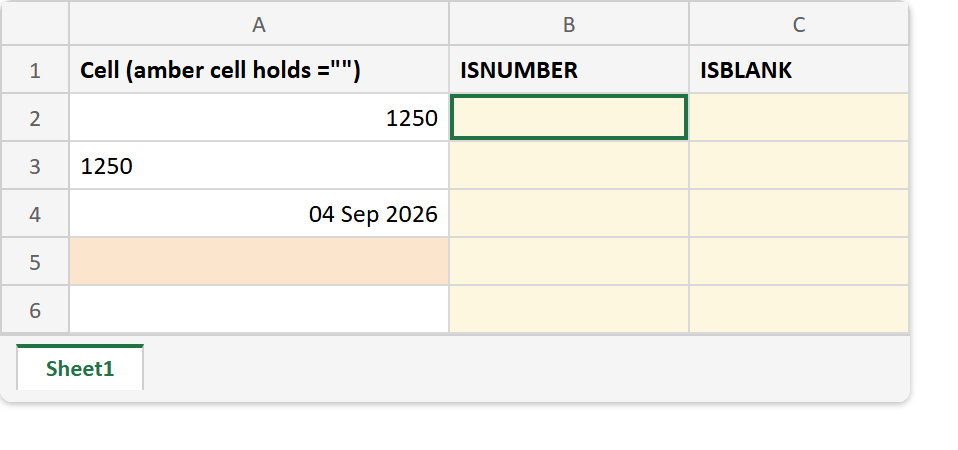
Before. Five cells, two pairs of which look alike and are not.
After. The two tests separate every look-alike pair in the column.
A2  ->  1250          (a number)
A3  ->  1250          (text)
A4  ->  04 Sep 2026   (a date, so a number)
A5  ->  ="" formula
A6  ->  (genuinely empty)

=ISNUMBER(A2)  ->  TRUE
=ISNUMBER(A3)  ->  FALSE
=ISNUMBER(A4)  ->  TRUE
=ISTEXT(A3)    ->  TRUE
=ISBLANK(A5)   ->  FALSE
=ISBLANK(A6)   ->  TRUE
Alignment says the same thing for free, of course. Numbers sit right and text sits left, so the column often confesses before you write anything, though a centred or manually aligned column takes that clue away.
Once you know the answer, the repair follows. VALUE handles a FALSE that should have been TRUE, TEXT is usually what caused it, and COUNTA explains the empty-looking row.