The LAMBDA function lets you define a calculation, give it argument names, and call it by name. Together with LET, which names intermediate values, it turns a long unreadable formula into something that looks like a small program.
This is the closest a spreadsheet gets to writing a function, and it arrives without a script, a macro or an add-on. A formula defines the helper and uses it in the same cell.
The other half of this idea already lives on the site. Create Excel Files With Formulas writes formulas into a file from PHP, where the logic lives in the script and the sheet just carries the result. Here the logic lives in the sheet and stays readable to whoever opens it.
Start from the problem these solve, because the fix is easier to appreciate once the repetition is visible.
Requirements for the LAMBDA function:
- A Google Sheet you can edit
- A table with a header row
- Nothing to install, because the LAMBDA function ships with Google Sheets
Step 1.
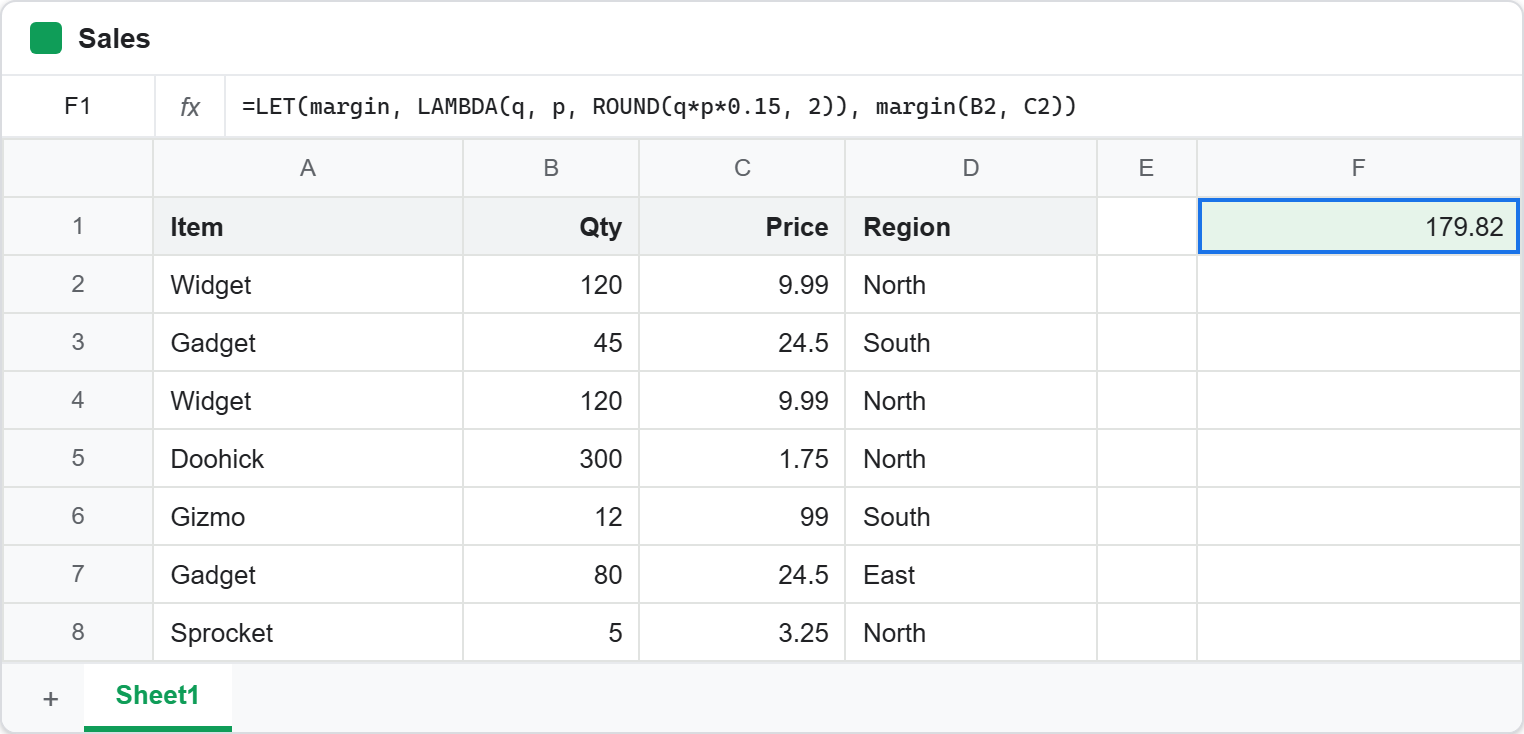
First, the table, in A1:D8.
Item      Qty   Price   Region
Widget    120   9.99    North
Gadget    45    24.50   South
Widget    120   9.99    North
Doohick   300   1.75    North
Gizmo     12    99.00   South
Gadget    80    24.50   East
Sprocket  5     3.25    North
Now a rule with a condition in it: revenue is quantity times price, and orders over 500 get a ten percent discount. Written directly, that repeats itself.
=IF(B2*C2 > 500, ROUND(B2*C2*0.9, 2), ROUND(B2*C2, 2))
B2*C2 appears three times. Change the revenue rule and you have to change it in three places, and missing one produces a formula that still calculates and is simply wrong.
Step 2.
Next, name the repeated part. LET takes pairs of name and value, then a final expression that uses them.
=LET(gross, B2*C2, IF(gross > 500, ROUND(gross*0.9, 2), ROUND(gross, 2)))
Same answer, one definition. The rule is now stated once and referred to three times, so there is exactly one place to edit.
It is also faster in principle, because a named value is computed once rather than recomputed at each mention. That rarely matters at this size, though it does on a sheet with thousands of rows.
Step 3.
Then name several things at once. LET accepts as many pairs as you like, and later names can use earlier ones.
=LET(qty, B2, price, C2, gross, qty*price, ROUND(gross * 0.9, 2))
gross is defined in terms of qty and price, which were defined just before it. Consequently the formula reads top to bottom like a short list of statements, and the cell references appear once each at the start instead of being scattered through the expression.
Step 4.
Now define an actual function. LAMBDA takes argument names first and the body last, and LET can give it a name.
=LET(margin, LAMBDA(q, p, ROUND(q*p*0.15, 2)), margin(B2, C2))
Read the middle of that carefully, because it is the whole point of this article. margin is not a value; it is a function of two arguments. The last part calls it with B2 and C2, and it could call it again with different arguments in the same formula.
So you have defined a function, named it, and used it, without leaving the cell. That is the rung between a formula and a script, and it is why this section is the one to remember.
Step 5.
Finally, apply a function to a whole range. A LAMBDA on its own describes a calculation, and the helper functions are what run it over your data.
=MAP(B2:B8, LAMBDA(q, q * 2))
MAP calls the lambda once per cell and returns one result per cell. BYROW works a row at a time instead, which is how you combine two columns.
=BYROW(B2:C8, LAMBDA(row, INDEX(row,1) * INDEX(row,2)))
The lambda receives one row and picks values out of it by position, so INDEX(row,1) is quantity and INDEX(row,2) is price.
The helpers that take the LAMBDA function.
Four are worth knowing, and they differ only in what shape they hand back.
MAP and BYROW return one result per input, as above. BYCOL does the same down columns, so it collapses a block to a single row.
=BYCOL(B2:C8, LAMBDA(col, SUM(col)))
REDUCE folds a range into one value, carrying an accumulator from cell to cell. It takes the starting value first.
=REDUCE(0, B2:B8, LAMBDA(acc, v, acc + v))
SCAN is the same fold, except it keeps every intermediate result rather than only the last one. Therefore it is how you write a running total.
=SCAN(0, B2:B8, LAMBDA(acc, v, acc + v))
These compose with the naming from step 4, which is where it starts paying off properly.
=LET(rev, LAMBDA(q, p, q*p), BYROW(B2:C8, LAMBDA(r, rev(INDEX(r,1), INDEX(r,2)))))
One named helper, applied across every row. Change rev and the whole column changes with it.
Complete code for the LAMBDA function.
Every formula from this article, in order.
// The repetitive original.
=IF(B2*C2 > 500, ROUND(B2*C2*0.9, 2), ROUND(B2*C2, 2))

// Named once with LET.
=LET(gross, B2*C2, IF(gross > 500, ROUND(gross*0.9, 2), ROUND(gross, 2)))

// Several names, each usable by the next.
=LET(qty, B2, price, C2, gross, qty*price, ROUND(gross * 0.9, 2))

// A real function: named, then called.
=LET(margin, LAMBDA(q, p, ROUND(q*p*0.15, 2)), margin(B2, C2))

// One result per cell, and one result per row.
=MAP(B2:B8, LAMBDA(q, q * 2))
=BYROW(B2:C8, LAMBDA(row, INDEX(row,1) * INDEX(row,2)))

// One result per column.
=BYCOL(B2:C8, LAMBDA(col, SUM(col)))

// Fold to one value, then keep every step of the fold.
=REDUCE(0, B2:B8, LAMBDA(acc, v, acc + v))
=SCAN(0, B2:B8, LAMBDA(acc, v, acc + v))

// A named helper applied across every row.
=LET(rev, LAMBDA(q, p, q*p), BYROW(B2:C8, LAMBDA(r, rev(INDEX(r,1), INDEX(r,2)))))
Test the LAMBDA function.
Click an empty cell, paste a formula, and press Enter. The ones built on ranges need room below them.
Click F1 -> paste the formula -> press Enter
Result of the LAMBDA function.
The first three formulas all return the same number, which is the point: naming things changed the readability and nothing else.
=IF(B2*C2 > 500, ROUND(B2*C2*0.9, 2), ROUND(B2*C2, 2))                  ->  1078.92
=LET(gross, B2*C2, IF(gross > 500, ROUND(gross*0.9, 2), ROUND(gross,2))) ->  1078.92
=LET(qty, B2, price, C2, gross, qty*price, ROUND(gross * 0.9, 2))        ->  1078.92
Then the named function returns its own answer, since it calculates a fifteen percent margin rather than a discounted total.
=LET(margin, LAMBDA(q, p, ROUND(q*p*0.15, 2)), margin(B2, C2)) -> 179.82
The range helpers each return a different shape from the same data. MAP doubles every quantity, BYROW multiplies across each row, and BYCOL collapses two columns to two totals.
MAP     240  90  240  600  24  160  10

BYROW   1198.8  1102.5  1198.8  525  1188  1960  16.25

BYCOL   682  |  172.98
Finally the two folds, which differ only in what they keep. REDUCE reports the total quantity, while SCAN reports it building up.
REDUCE  682

SCAN    120  165  285  585  597  677  682
When to use the LAMBDA function.
Reach for LET as soon as any expression appears twice in the same formula. That is a low bar deliberately, since the cost is a few characters and the benefit is one place to edit.
Reach for the LAMBDA function when the same calculation is needed with different inputs, or when a range helper needs to be told what to do per row. Naming it also documents it, which matters more than it sounds on a sheet somebody inherits.
Stop here and move to a script when the logic needs to run on a schedule, reach outside the sheet, or write anything back. That boundary is where the Google Sheets API PHP client starts, and the ladder from a formula to a named function to a script is the same ladder throughout this site.