This article shows how to authenticate a Google Sheets script with a service account. The script then runs with nobody watching. The usual flow on this site sends you to a browser once. You click through a consent screen, and the library writes a token.json next to your script. That works fine at your desk. However, it fails in a cron job, a queue worker or a web endpoint. There is no browser, and nobody to click. A service account solves exactly this. It is a robot Google account with its own email address and its own key file, so it never needs a human.
The code is shorter than the OAuth version rather than longer. There is no consent screen, no authorization URL, no verification code to paste, and no token file to keep. You hand setAuthConfig() a JSON key, and the client handles the rest.
The catch is the step almost nobody writes down. A service account is a separate account. Therefore it starts with access to nothing at all, including the spreadsheets in your own Drive. Until you share the sheet with the service account’s email address, every call fails with 403 PERMISSION_DENIED. Worse, it fails after Google has accepted the credential and issued a perfectly valid access token. Below we build the script. Then we deliberately break it that way, so you can recognise the error when it hits you.
Requirements to authenticate with a service account:
- Create A Google Cloud Project
- Enable Google Sheets API Library
- Install The Google Client Library Specifying Google Sheets
- Composer
- PHP 8.1 or newer
Notice what is not on that list. You do not need an OAuth consent screen and you do not need an OAuth client ID. Those exist to ask a human for permission, and a service account never asks anyone.
Step 1.
First, set up the dependencies. This is the same Sheets-only install used across this series, which strips the 300-odd Google services you are not using. Tested with google/apiclient 2.19 on PHP 8.5.
{
    "require": {
        "google/apiclient": "^2.12.1"
    },
    "scripts": {
        "pre-autoload-dump": "Google\\Task\\Composer::cleanup"
    },
    "extra": {
        "google/apiclient-services": [
            "Sheets"
        ]
    }
}
Step 2.
Next, install the Google Client Library.
$ composer install
Step 3.
Then create the service account itself. In the Google Cloud Console, open IAM & Admin, then Service Accounts, and click Create service account. Give it a name and create it. You do not need to grant it any project role. Roles control access to Google Cloud resources. Access to a spreadsheet comes from sharing instead, which is Step 4.
Then open the account you just made, go to its Keys tab, and choose Add key, Create new key, JSON. Your browser downloads the key file. Save it next to your script as service-account.json. It looks like this, with the interesting parts abbreviated:
{
    "type": "service_account",
    "project_id": "your-project-id",
    "private_key_id": "23e8634d...",
    "private_key": "-----BEGIN PRIVATE KEY-----\nMIIEvQIBADAN...\n-----END PRIVATE KEY-----\n",
    "client_email": "your-service@your-project-id.iam.gserviceaccount.com",
    "client_id": "1234567890",
    "token_uri": "https://oauth2.googleapis.com/token"
}
Two things about this file. The client_email is the address you will share the sheet with in the next step, so keep it to hand. And the private_key is a live credential with no password on it. Anyone holding this file can act as the account. So keep it outside your web root and out of version control.
Step 4.
Now share the spreadsheet with the service account. This is the step that catches everyone. Open your Google Sheet in the browser, click Share, paste the client_email from the key file, and give it Editor. Choose Editor rather than Viewer unless the script only ever reads. Writing to a sheet you can only view fails exactly like never sharing it.
It feels redundant, because the sheet is in your Drive and the service account is in your project. But the service account is not you. It is its own account, and it sees only what you have shared with it.
Step 5.
Next, create a new PHP file and write the client factory. Compare this with the OAuth version in obtaining an access token through the command line. That one runs about forty lines. It juggles a token file, and it blocks on STDIN waiting for a pasted code. This is four calls and a return.
<?php

require 'vendor/autoload.php';

use Google\Client;
use Google\Service\Sheets;

/**
 * Set up parameters.
 */
$spreadsheetId = 'Your spreadsheetId here.';
$keyFile = 'service-account.json';
$range = 'Sheet1!A1:D6';

/**
 * Returns an authorized API client.
 *
 * No consent screen, no browser, no token.json. The key file is the whole
 * credential, so this function is safe to call from cron or a queue worker.
 *
 * @return Client the authorized client object.
 */
function getClient(string $keyFile): Client
{
    $client = new Client();
    $client->setApplicationName('Google Sheets Service Account');
    $client->setAuthConfig($keyFile);
    $client->addScope(Sheets::SPREADSHEETS);

    return $client;
}
Note Sheets::SPREADSHEETS. The older posts in this series pass the scope as a raw URL string. That still works, but the class constant is harder to typo. Note also that setAuthConfig() is the same method the OAuth posts call. It reads the type field inside the file and switches behaviour to match. So one call handles both a client-secret file and a service account key. That is why copying an OAuth example and swapping the file sometimes half-works, then fails oddly. The method is shared; the flow is not.
Step 6.
Then fetch a token and use the client. You do not have to call fetchAccessTokenWithAssertion() yourself — the library does it on the first request. We call it explicitly here for a reason that matters in the next step. This line succeeds even when you have never shared the sheet.
$client = getClient($keyFile);

// Prove the credential works on its own, before any Sheets call.
$token = $client->fetchAccessTokenWithAssertion();
printf("Access token acquired, valid for %d seconds.\n", $token['expires_in']);
printf("Acting as: %s\n\n", json_decode(file_get_contents($keyFile), true)['client_email']);

$service = new Sheets($client);

$meta = $service->spreadsheets->get($spreadsheetId);
printf("Spreadsheet: %s\n", $meta->getProperties()->getTitle());

foreach ($meta->getSheets() as $sheet) {
    printf("  tab: %s\n", $sheet->getProperties()->getTitle());
}

$response = $service->spreadsheets_values->get($spreadsheetId, $range);
$values = $response->getValues() ?? [];

printf("\n%d row(s) from %s:\n", count($values), $range);
foreach ($values as $row) {
    printf("  %s\n", implode(' | ', $row));
}
The ?? [] on getValues() is not decoration. When the requested range is completely empty, the API returns no values key at all. So getValues() hands back null rather than an empty array. On PHP 8 that makes count() throw a TypeError.
Step 7.
Finally, catch the failure that Step 4 prevents. Wrap the Sheets calls. Then turn the error into something that names the fix, because Google’s own message does not.
} catch (Google\Service\Exception $e) {
    // A service account starts with access to nothing. If the sheet was never
    // shared with the address above, every call fails here - even though the
    // token was issued without complaint.
    $error = json_decode($e->getMessage(), true)['error'] ?? [];

    printf("FAILED with HTTP %d (%s)\n", $e->getCode(), $error['status'] ?? 'unknown');
    printf("  %s\n", $error['message'] ?? $e->getMessage());

    if ($e->getCode() === 403) {
        printf("\nShare the spreadsheet with %s and give it Editor access.\n",
            json_decode(file_get_contents($keyFile), true)['client_email']);
    }
}
Complete code to authenticate with a service account.
<?php

require 'vendor/autoload.php';

use Google\Client;
use Google\Service\Sheets;

/**
 * Set up parameters.
 */
$spreadsheetId = 'Your spreadsheetId here.';
$keyFile = 'service-account.json';
$range = 'Sheet1!A1:D6';

/**
 * Returns an authorized API client.
 *
 * No consent screen, no browser, no token.json. The key file is the whole
 * credential, so this function is safe to call from cron or a queue worker.
 *
 * @return Client the authorized client object.
 */
function getClient(string $keyFile): Client
{
    $client = new Client();
    $client->setApplicationName('Google Sheets Service Account');
    $client->setAuthConfig($keyFile);
    $client->addScope(Sheets::SPREADSHEETS);

    return $client;
}

$client = getClient($keyFile);

// Prove the credential works on its own, before any Sheets call.
$token = $client->fetchAccessTokenWithAssertion();
printf("Access token acquired, valid for %d seconds.\n", $token['expires_in']);
printf("Acting as: %s\n\n", json_decode(file_get_contents($keyFile), true)['client_email']);

$service = new Sheets($client);

try {
    $meta = $service->spreadsheets->get($spreadsheetId);
    printf("Spreadsheet: %s\n", $meta->getProperties()->getTitle());

    foreach ($meta->getSheets() as $sheet) {
        printf("  tab: %s\n", $sheet->getProperties()->getTitle());
    }

    $response = $service->spreadsheets_values->get($spreadsheetId, $range);
    $values = $response->getValues() ?? [];

    printf("\n%d row(s) from %s:\n", count($values), $range);
    foreach ($values as $row) {
        printf("  %s\n", implode(' | ', $row));
    }
} catch (Google\Service\Exception $e) {
    // A service account starts with access to nothing. If the sheet was never
    // shared with the address above, every call fails here - even though the
    // token was issued without complaint.
    $error = json_decode($e->getMessage(), true)['error'] ?? [];

    printf("FAILED with HTTP %d (%s)\n", $e->getCode(), $error['status'] ?? 'unknown');
    printf("  %s\n", $error['message'] ?? $e->getMessage());

    if ($e->getCode() === 403) {
        printf("\nShare the spreadsheet with %s and give it Editor access.\n",
            json_decode(file_get_contents($keyFile), true)['client_email']);
    }
}
Test authenticating with a service account.
Command line testing.
$ php service-account.php
Result of authenticating with a service account.
No browser opened. You pasted nothing, and no token.json appeared in the directory. Instead the script authenticated, reported which account it acts as, and read the sheet:
Access token acquired, valid for 3599 seconds.
Acting as: your-service@your-project-id.iam.gserviceaccount.com

Spreadsheet: Spreadsheet-coding-com Spreadsheet
  tab: Sheet1

5 row(s) from Sheet1!A1:D6:
  Name | Email | Signed up | Plan
  Ada | ada@example.com | 2026-08-01 | Pro
  Grace | grace@example.com | 2026-08-02 | Free
  Alan | alan@example.com | 2026-08-03 | Pro
  Katherine | kat@example.com | 2026-08-04 | Team
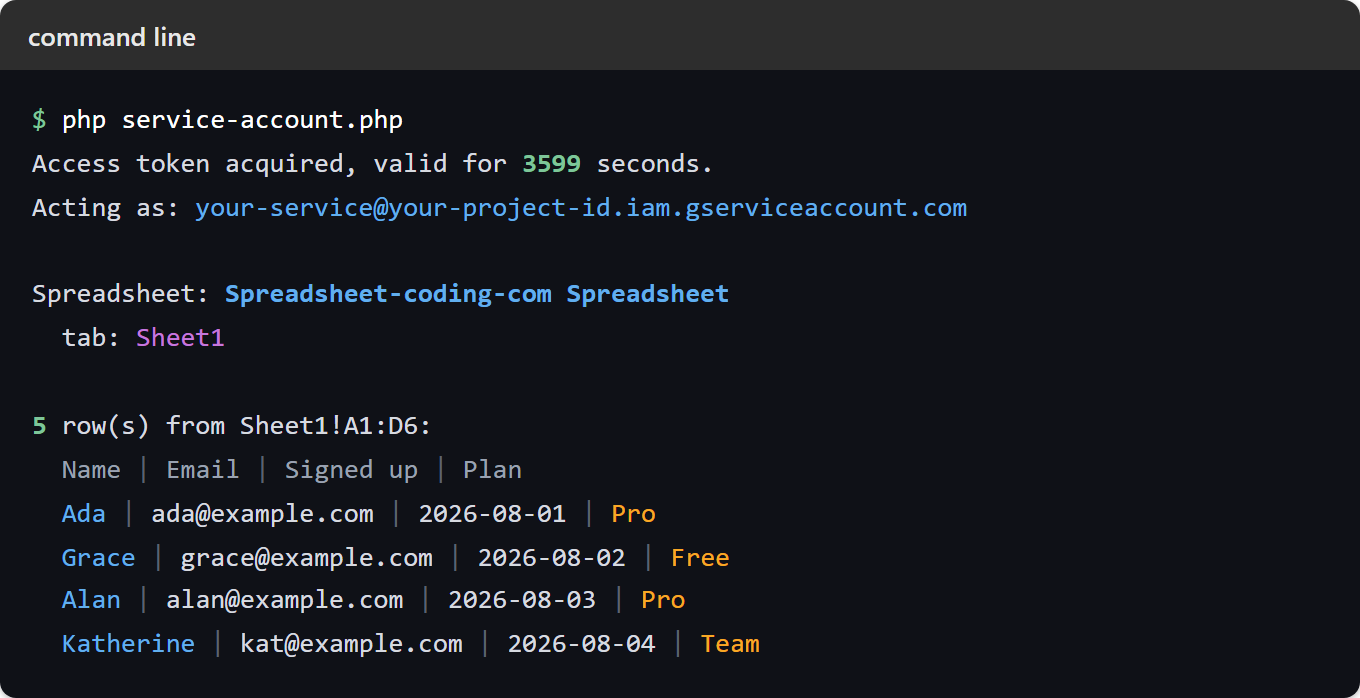
Note the row count. The range asked for six rows and five came back. The API omits trailing empty rows rather than padding them out.
What a service account sees when the sheet is not shared.
Now remove the service account from the sheet’s Share dialog and run it again. This is worth doing once deliberately, so that you recognise it later:
Access token acquired, valid for 3599 seconds.
Acting as: your-service@your-project-id.iam.gserviceaccount.com

FAILED with HTTP 403 (PERMISSION_DENIED)
  The caller does not have permission

Share the spreadsheet with your-service@your-project-id.iam.gserviceaccount.com and give it Editor access.
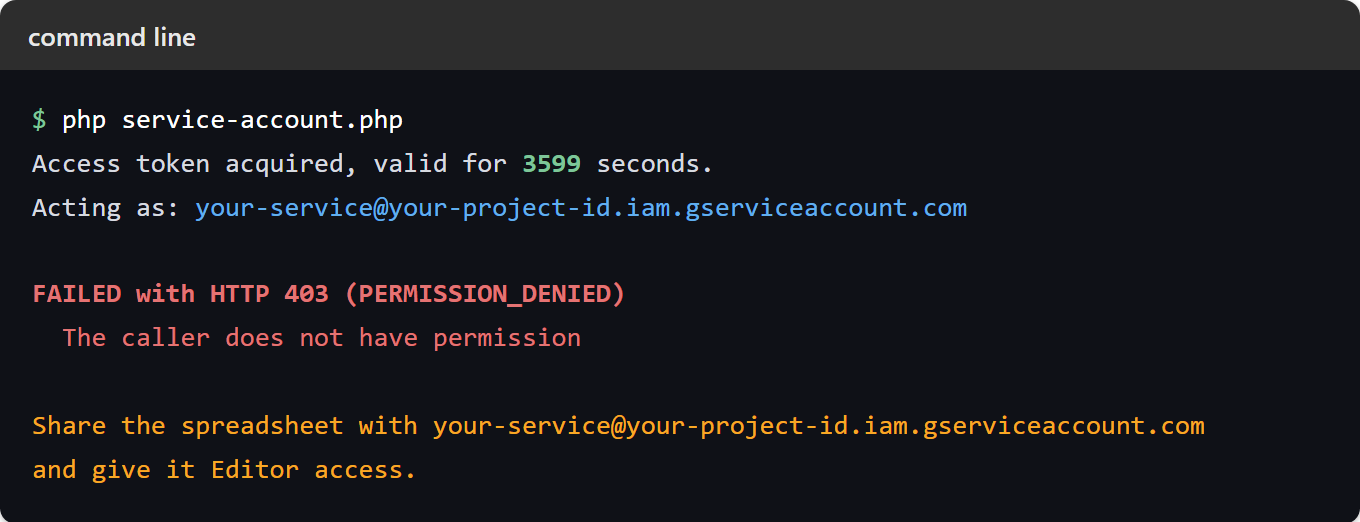
Read the first line again. Google issued the token, for the full hour, with no complaint. So every check most people know how to run comes back clean. The key file is valid, the API is enabled, the project is right, and the code is right. Then the very next call returns 403 PERMISSION_DENIED and The caller does not have permission. That message names neither the spreadsheet, nor sharing, nor the account it just refused.
It is also worth knowing that reading the metadata, reading the values and writing the values all fail identically. No clue in the response narrows it down to a permissions type. Consequently a wrong scope and an unshared sheet look the same from here. If your first service account script returns 403, check the Share dialog before you touch anything else.
Which flow should you use?
Use a service account when the script runs unattended. It also fits when the script should act as itself rather than as a person, or when it only ever touches sheets you control. Use the OAuth flow instead when the script acts for your users and must reach their spreadsheets. You obviously cannot share those with a robot in advance.